

Export the results
Included with Professional and Enterprise
Download a search's results as an Excel file, a CSV file or a PDF summary. The export takes what is on screen, so sort and narrow the rows first.
Before you start
- Your role needs View properties page and View properties. If you do not have them, Set up users shows how an administrator gives them to you.
- Have a search's results open, narrowed the way you want them, from Work with the results.
Export every row
- On the Results tab, click the button in the toolbar.
- Choose Export data to Excel for a spreadsheet, Export data to CSV for a plain file any program can open, or Download summary as PDF for a page to print or send.
- The file downloads through your browser. The Excel and CSV files hold the rows that are showing, in their sorted order, with the columns you have turned on. The PDF summary lists every property the search found, whatever the filters.
- Open the file from your browser's downloads. Excel opens the Excel file, and Excel or any spreadsheet program opens the CSV file. The PDF opens in your PDF viewer.

A filter or a search in results leaves rows out of the Excel or CSV file, and a hidden column is left out too. Turn on the columns you need from the Columns panel at the right edge of the grid before you export.
Export only the rows you select
- Click the first property's row, then Ctrl+Click each of the others. Shift+Click selects every row between two. Row selection on the right-click menu also has Select all rows and Deselect all rows.
- Right-click one of the selected rows and choose Export, then Selected rows, then Excel export or CSV export.
- Open the file from your browser's downloads, as for every row.
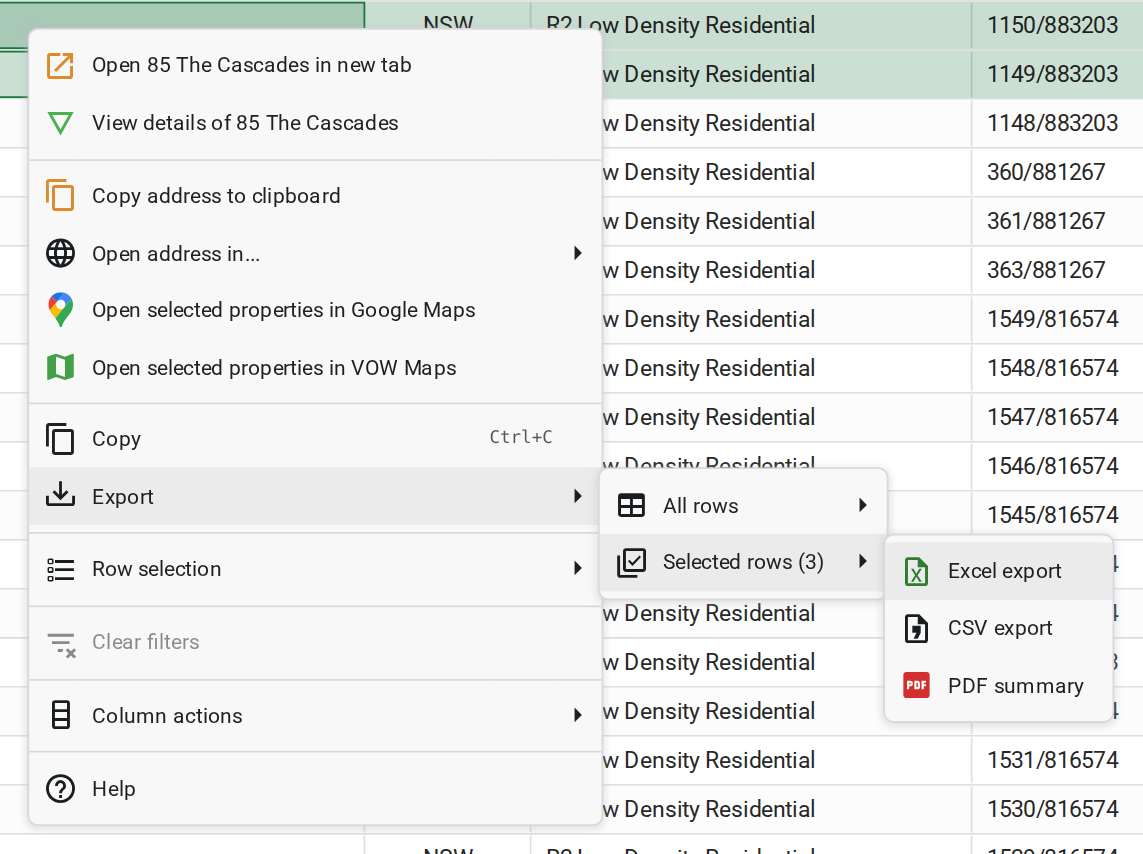
What you should see
A file in your browser's downloads with one row per property, in the same rows and order as the grid. The PDF summary lists every property the search found.
Next
Go back to Working with properties for the lesson list, or on to the next module in VOW tutorials. For every export option, see Property search results.