

Attach files to an email
Included with Professional and Enterprise
This lesson sends Marcus Lee the report for 14 Oran Park Drive.
Before you start
- Your role needs Send emails from within VOW. If you do not have it, Set up users shows how an administrator gives it to you.
- Open a job that has at least one file attached, and open the composer from it.
Attach files to an email
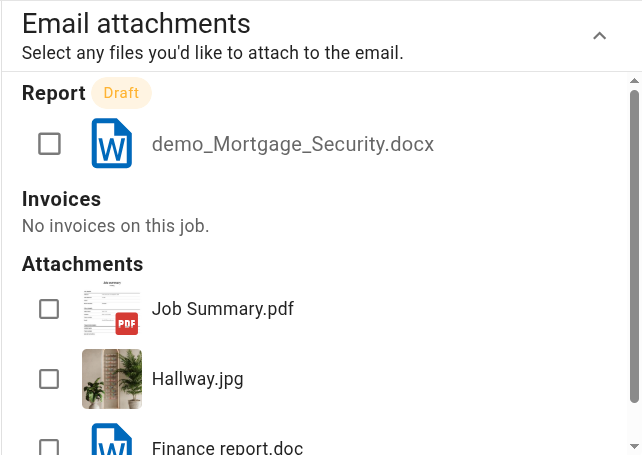
- In the composer, find Email attachments at the top of the right-hand column. The list is already open, in three groups. Click the heading to close or reopen it.
- Under Report, tick the job's report. If the report is not final, a Draft chip shows beside Report and the draft is offered instead. If no draft file exists yet, VOW generates one as the email goes.
- Under Invoices, tick an invoice to send it. An icon beside an invoice means its document has not been generated yet. VOW generates it as the email goes, provided the invoice has all the details it needs. A warning icon means the invoice has changed since its document was generated.
- Under Attachments, tick any file on the job, such as the title search.
- Address the email, write it, and click Send.
Report and Invoices are offered on jobs and projects. On a quote or a request, only the record's Attachments are listed.
What you should see
The composer closes with no error. The Email sent entry on the job's event log holds the message with the files that went with it. An invoice sent this way is marked as sent on the job.
Next
Use an email template. For everything that can be attached to a record, see Managing attachments.