

Open a property card
Included with Professional and Enterprise
Open a property card to see the state's record of the parcel and your company's valuations, sales and leases at the address. Start a new record at the address from the card.
Before you start
- Your role needs View properties. If you do not have it, Set up users shows how an administrator gives it to you.
- Have a search's results open from Find a property.
Open the card
- Double-click the property's row, or click the button in its Actions column. The card opens over the results. Clicking the PID instead opens the property as a full page.
- For more room, click the button in the card's title bar to open it as a full page. To keep the results where they are, click the button to open it in a new browser tab.
Read the card
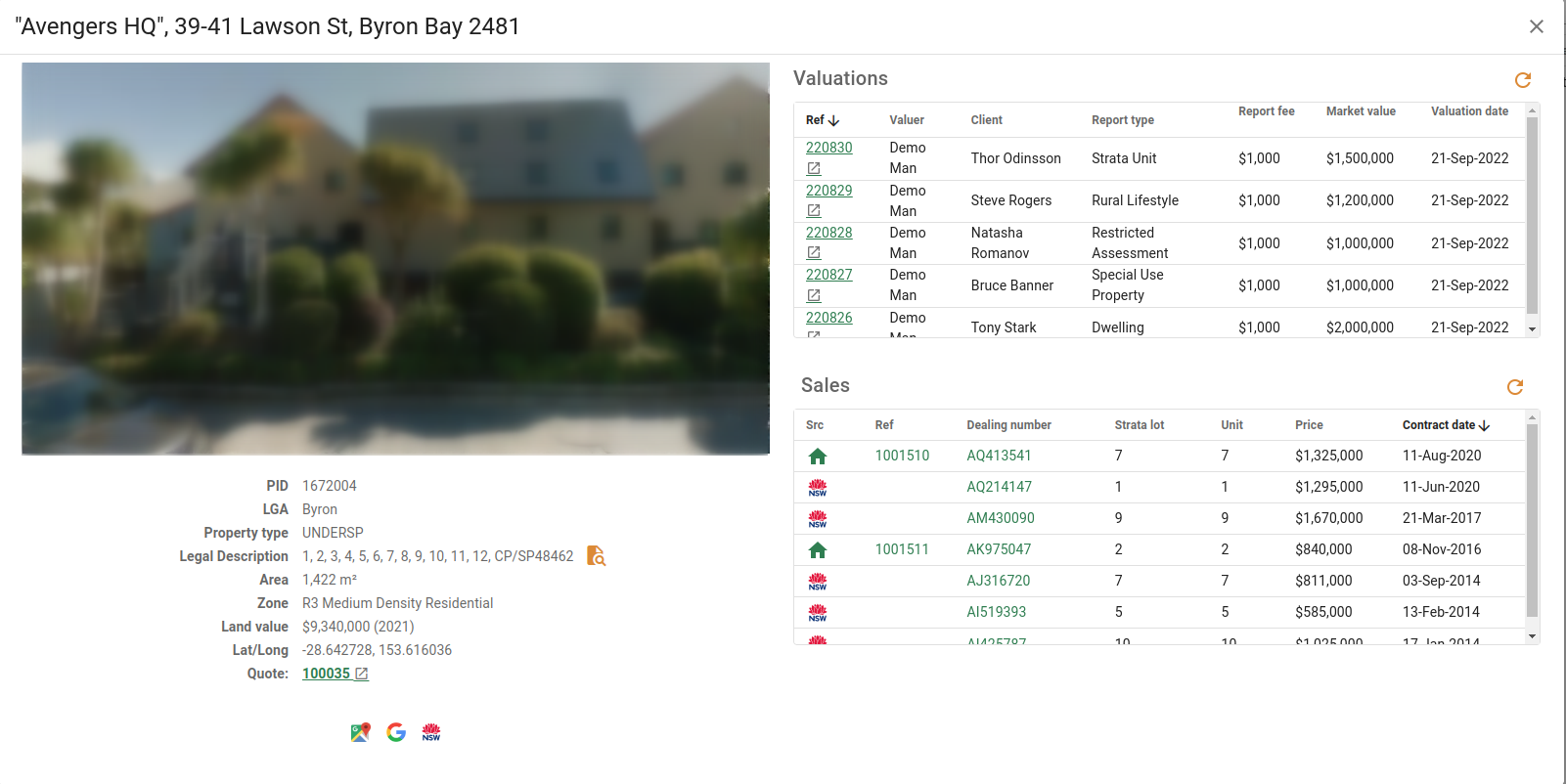
- The title bar shows the full address. The image under it is the street view where one exists.
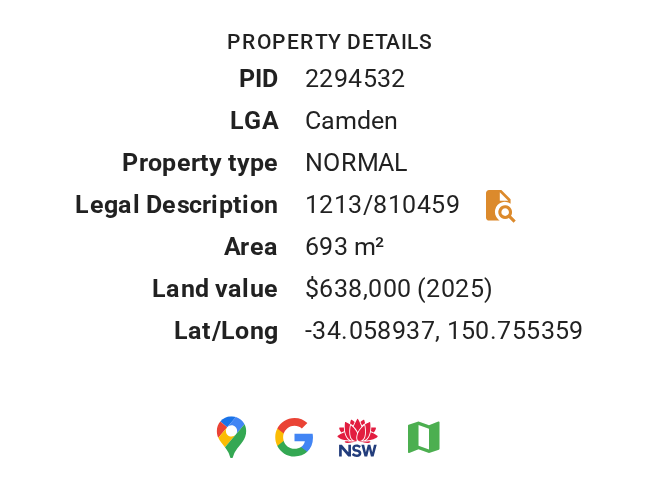
- Property details holds the PID, LGA, Property type, Legal Description, Area, Zone, Land value and Lat/Long. The button beside the legal description searches for the plan documents registered against the lot.
- The link buttons under the details open the address in Google Maps or a Google search, each in a new browser tab. For an NSW property, the NSW button offers SDT Explorer and SIX Maps. The map button opens VOW Maps when your company has mapping turned on, and Alt+M does the same from anywhere on the card.
- When your company has quoted the property, Quote shows the quote's reference. Click it to open the quote in a new browser tab.
See the property's history
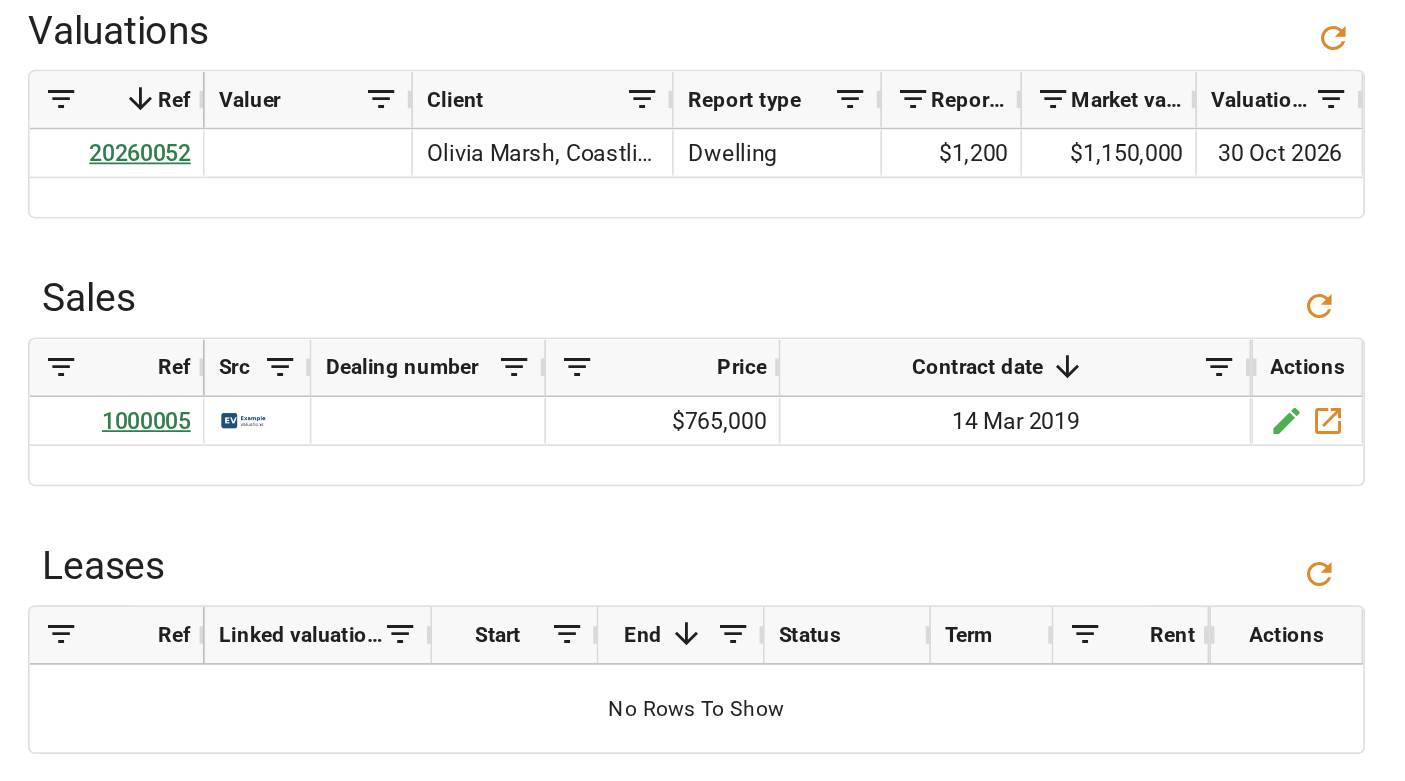
Three lists below the details show what your company holds at the address. Click the button on a list to reload it while the card is open.
- Valuations lists every job at the address with its valuer, client, report type, fee and market value. Click a Ref to open the job.
- Sales lists every sale with its source in the Src column, the Valuer General's logo for a VG sale and your company's logo (or CX) for a sale your company analysed. Double-click a row to open the sale card.
- Leases lists every lease, most recently ending first, with the valuations that use it as evidence. Double-click a row to open the lease. The list shows only when your role can view leases.
Start a record from the property
The buttons along the bottom of the card create a record at this address with the property already filled in.
- Click Quote to open the quote wizard with the address in place. Continue as in Create a quote.
- Click Valuation to open a new job at the address, Sale to enter a sale of it in the 'Create sale' dialog, or Lease to record a lease of it. Each button shows only when your role can create that kind of record.

What you should see
The property card with the address in its title bar, the details filled from the state data, and your company's valuations, sales and leases listed under them. Quote opens the quote wizard on its Client details step, with every field on the Address step already filled.
Next
Reuse a search. For every field, list and button on the card, see Property card.