

Edit a file with VOW Helper
Included with every subscription
VOW Helper is a program on your computer. While you have a file out through it, the file is locked so nobody else can edit it.
Before you start
- VOW Helper is installed and signed in on your computer, with your API key from Settings | My settings entered in it. A grey Edit document button means you have not generated an API key yet. VOW cannot tell whether VOW Helper is installed, so check that yourself. See VOW Helper.
- VOW Helper version in Settings | My settings is set to Current. With Legacy selected, Edit document downloads a transfer file instead of opening VOW Helper.
- Your role needs Update valuations to change a job's files. Unlocking a file that someone else locked needs Unlock files being edited by other users. If you do not have them, Set up users shows how an administrator gives them to you.
- Open the job's Attachments tab. Have a Word, Excel or PowerPoint file on the job, such as a letter of engagement.
Edit a document
- Find the file in flat view and click its button. In folder view, right-click the file and choose Edit locally via helper.
- The file is locked at once. Its card shows a dark overlay with a red lock. Point at the overlay to see your name.
- VOW Helper opens, or comes to the front, and the file appears on its Files screen under the job, marked Downloading… until it is ready. When the download finishes, the file opens in Word, or whichever program your computer uses for that type. The status reads Editing. If you close the document and want it back, click the button on the file's row.
- Make your changes, save them in Word and close the document. Send back stays greyed out while the document is open.
- In VOW Helper, click the button on the file's row and confirm. The file uploads to the job, the lock comes off, and the local copy is removed. Reload the job and the card shows the edited file.
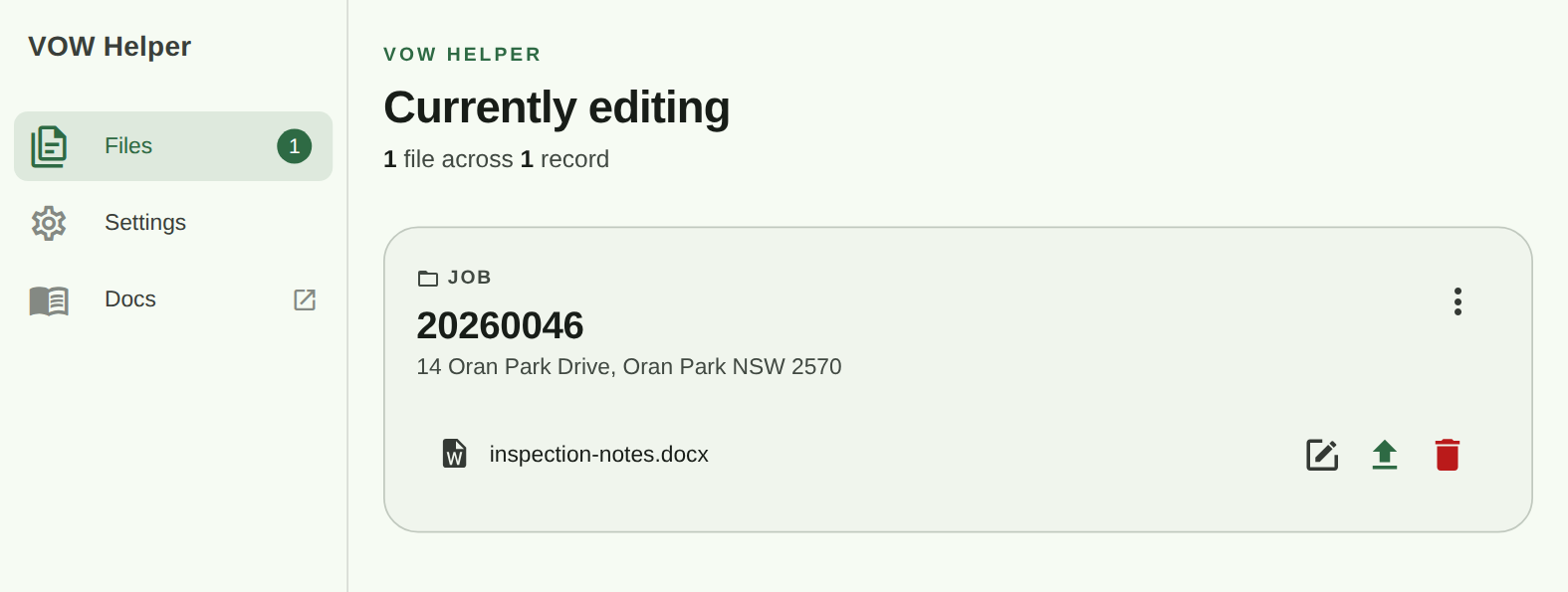
Saving in Word saves the copy on your computer, not the job. Nothing reaches VOW until you click Send back. To abandon your changes, click Discard and confirm. It deletes the local copy and unlocks the file without uploading.
Unlock a file someone else locked
A file stays locked while its editor has it, including overnight.
- Find the locked file. Point at the overlay to see who has it.
- Click the red button in the middle of the overlay. In folder view, right-click the file and choose Unlock.
- The Unlock file dialog names the person who has it locked and asks if you are sure. Click Unlock.
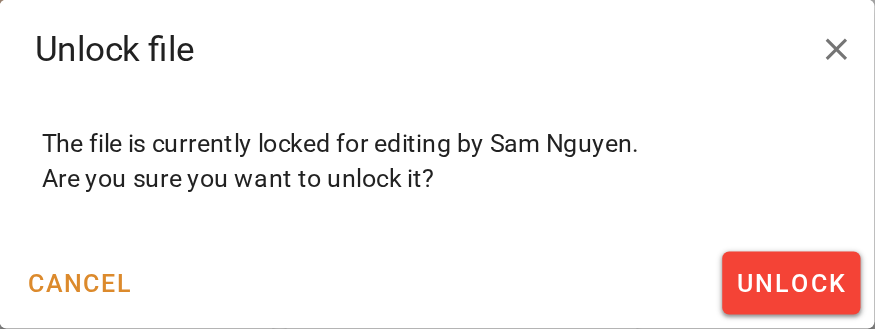
Unlocking does not bring their changes back. Their edits stay on their computer until they send the file back, and sending it back after an unlock overwrites what is on the job. Ask them first if you can.
What you should see
The edited document is on the job with your change in it. The card has no lock overlay, and the file is gone from VOW Helper's Files screen.
Next
Photos for the report. For every status and action in VOW Helper, see VOW Helper.