

Find a job
Included with every subscription
The column view shows the active jobs with one column per status. The table view shows every job in a grid you can filter, sort, group and export, and it is the only place to find archived jobs. Both open on the active jobs.
Before you start
- Open Valuations from the main menu. Your role needs View and search for valuations. To see everyone's jobs, not only the ones you are on, it also needs View and search other users' valuations. If you do not have them, Set up users shows how an administrator gives them to you.
Find a job in the column view
- Choose a valuer under View jobs to see one person's jobs. A job counts as theirs when they are its valuer, an additional valuer or the assignee. Choose All jobs to see everyone's. VOW remembers your choice.
- If your company has more than one branch, choose one in the branch dropdown beside it.
- Under Search jobs, type part of the address, the job number, the job name or a client's or valuer's name. The columns narrow as you type.
- Click the card to open the job.
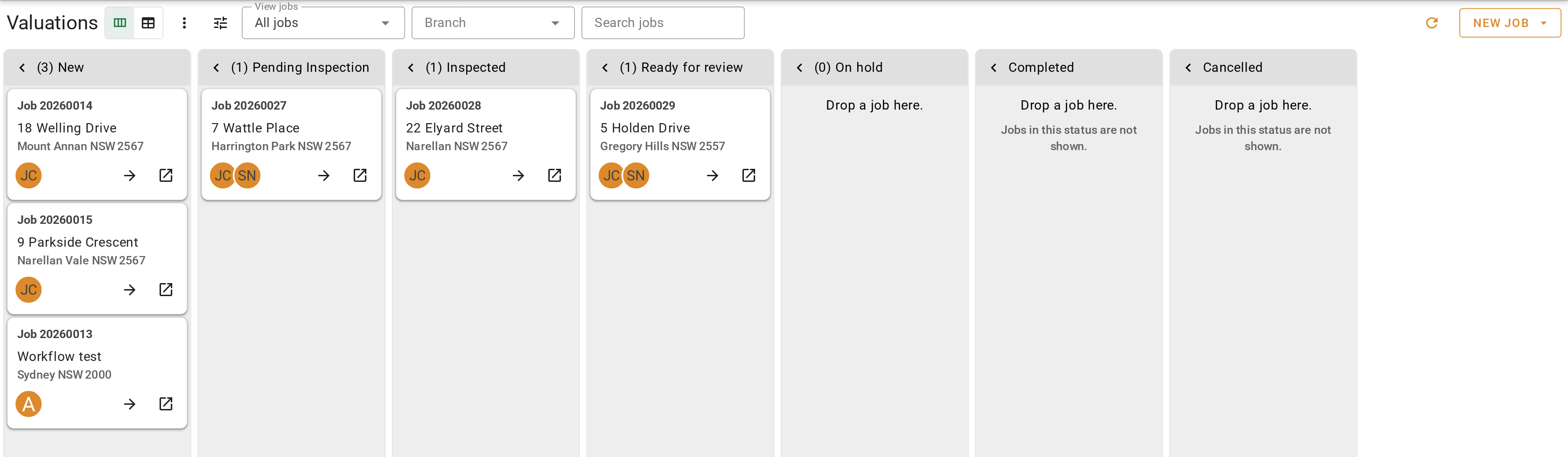
Finding a job in the column view
Find a job in the table
- Click the Table view button at the top left of the page.
- Type under Search jobs to keep the rows where any column contains the text.
- Open a column's filter from its heading to narrow by that column, such as a few statuses under Status or one person under Valuer. Filters on different columns work together. The Filters chip beside the search box shows how many are set, and the cross on the chip clears them.
- To group the jobs, drag a column heading, such as Status or Client, onto the Row Groups bar above the table. Each group shows how many jobs it holds.
- Double-click a row to open the job.
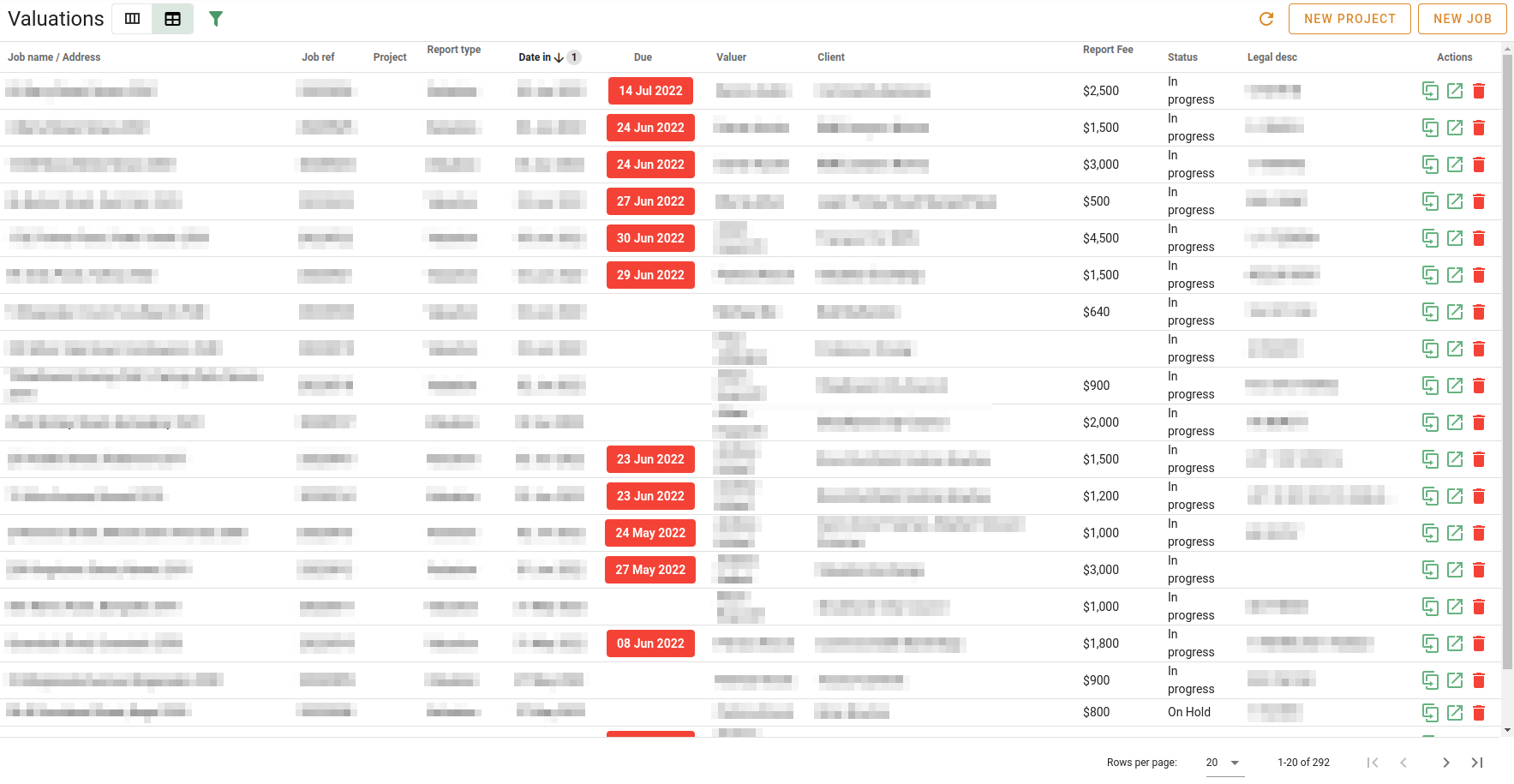
Finding a job in the table
Your search text and column filters stay set while you move around VOW, and they are part of the page's address. A link to the page opens the same filtered view.
Find a completed or cancelled job
Completed and cancelled jobs are archived.
- In the table view, turn on Show archived. The archived jobs that were open during the period shown under Open during join the active ones.
- Click Open during to choose another period, such as the last 12 months or last financial year, or pick a start and an end day in the two calendars. The arrows either side step to the previous or next period.
- Filter Status to Completed to see only completed jobs, and search or filter as usual. The Archived column shows whether each job is archived.
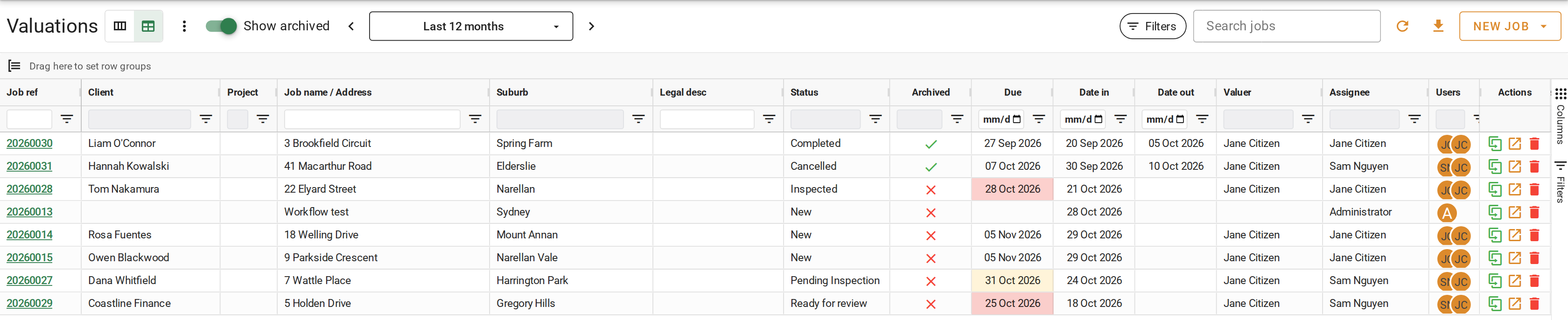
Finding a completed or cancelled job
When more jobs match than the table can hold at once, VOW shows how many matched instead of loading them. Shorten the period and try again.
Open a job
A card or a row opens the job in the job form over the page. Click the arrow in the job form's header, View this job as a full page, to open the job as a full page. Click the button beside it to open the job in a new browser tab.
Other jobs at the same property
Open the job's Other jobs tab to see every other job your company has done at the address. Each one shows the valuer, the client, the valuation date and the market value. Archived jobs are greyed out.
What you should see
With Show archived on and Status filtered to Completed, the table lists only completed jobs from the period. Turn Show archived off and the table shows the active jobs again.
Next
Update a job. For every filter and control, see Valuation column view and Valuation table view.