

Run the income report
Included with every subscription
The income report is built from invoices, not jobs. A job appears once it has an invoice dated inside the period, and all of that job's invoices in the period are added into one row.
Before you start
- Your role needs See the reports menu and Print management reports. If you do not have them, Set up users shows how an administrator gives them to you.
- Open Reporting from the main menu and click View report on the Income report card.
Choose the period
- Under Time period, pick the range, such as Last Month or Financial Year To Date. The After and Before dates fill in to match, and the table reloads.
- For a range that is not in the list, pick Custom range and set After and Before yourself.
- Read the grand total row at the bottom. It shows Jobs, Fees charged excluding GST, and the Avg fee across every job in the period.

VOW remembers the period and the display switches. The report reopens the way you left it, and a preset such as This Month moves with the calendar.
Group the fees by valuer or client
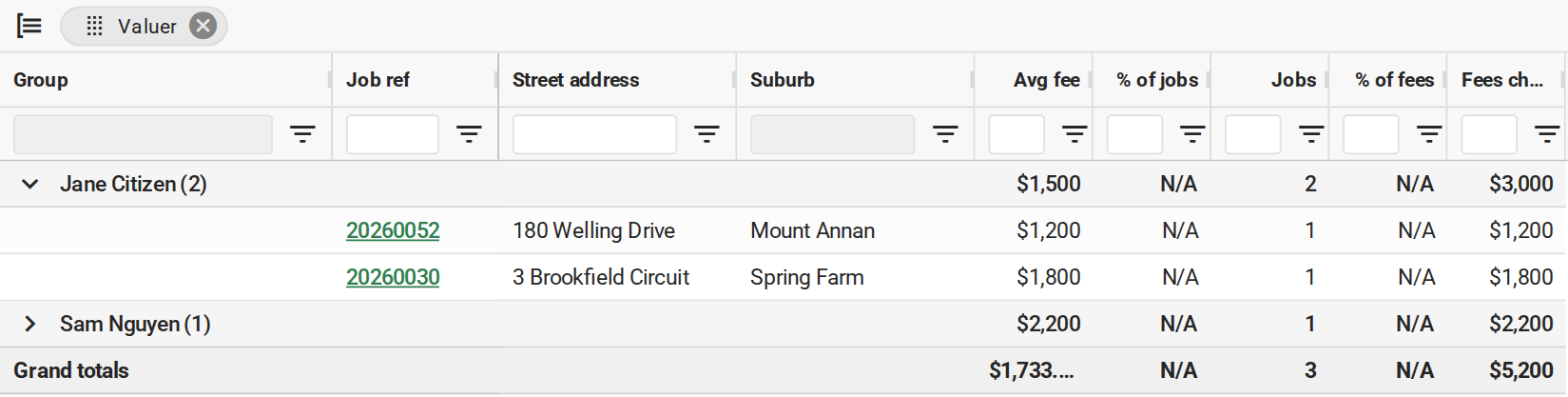
- Right-click the Valuer column heading and choose Group by this column. The rows fold into one group per valuer, and each group row shows its Jobs, Fees charged, Avg fee and % of fees.
- Click a group's arrow to see the jobs in it.
- To group by client instead, open the column chooser, show Client name, and group by that column in the same way.
- To go back to one row per job, click the x on the chip in the Drag here to set row groups bar above the table.
See every invoiced job
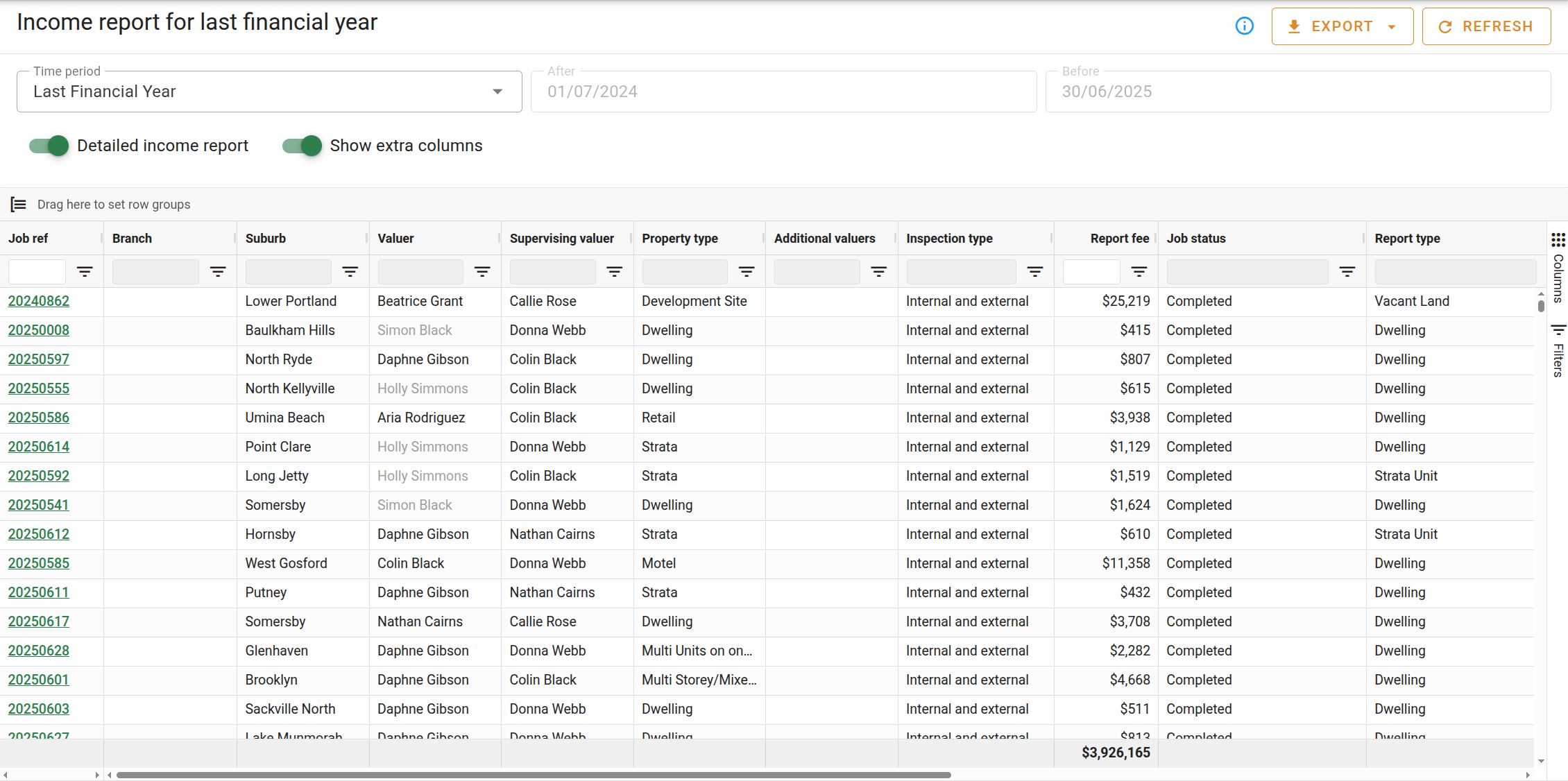
- Turn on Detailed income report. The fee analysis columns give way to each job's details, including Report fee, Job status, Market value, Valn. date, Date out, the number of Invoices, Inv. date and the amount Outstanding.
- Turn it off again to return to the fee analysis. With the analysis showing, Show extra columns adds Min fee, Max fee, GST and Total invoiced.
Export the report
- Group the report first if you want to send the summary.
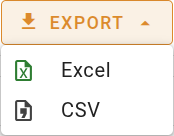
- Click and choose Excel or CSV. Your browser downloads a file with the rows for the period, the columns shown and any grouping.
- Open the file from your browser's downloads in Excel or another spreadsheet program.
What you should see
With the report grouped by Valuer, each group row carries its own Fees charged and % of fees.
Next
Run the resale report. For every column and control, see Income report.