

Create a quote
Included with Professional and Enterprise
Before you start
- Your role needs Create quotes. If you do not have it, Set up users shows how an administrator gives it to you.
- Have the client's name and the property address. They are the only details needed to save the quote.
Create a quote
- Open Quotes from the main menu and click New quote.
- On Client details, click + Add contacts and start typing the client's name or email under Contact name or email. Pick an existing contact and click Add selected contact, or click + New contact, enter at least their name, and add them.
- Click Next.
- On Address, click Search and type the property address. Pick the match. The street, suburb, state, postcode and LGA fill in. If the address is not found, type the fields in by hand.
- Click Next.
- On Internal details, choose the Assignee, the person managing this enquiry. The quote appears on their dashboard.
- Under To be quoted by, choose whoever will price it. Any of them can enter the amount later. Choose the Category as well. With a quoter, a category, a named contact and a full address, the quote skips New quote and opens as Awaiting quotation.
- Check the Quote due date. It is your deadline to get the quote out. If your company has a quote turnaround set, it is filled in for you. Otherwise, enter it.
- Check the Job turnaround. It is not the quote's deadline. When the quote is accepted, it sets the job's due date. A Report type with its own turnaround changes it.
- Click Save.
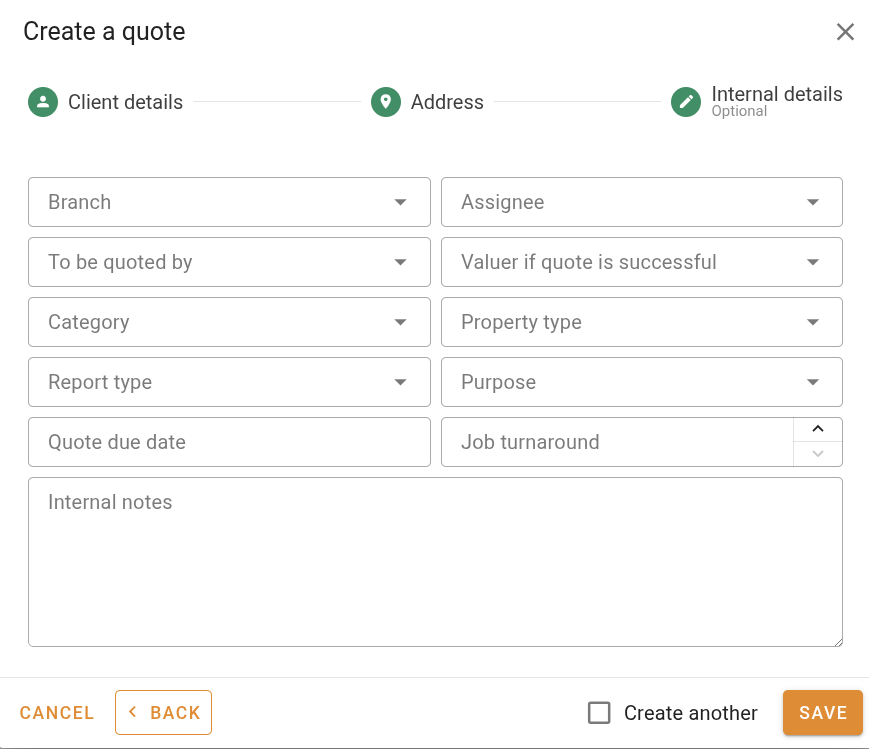
Creating a quote
You can save from any step once a contact and an address are in. Anything you leave out shows as a chip in the Required fields banner when you open the quote. Click the chip to go to the field.
Clone an earlier quote for the same property
- On the Address step, enter the address. A banner reads 1 other quote at this address, with how many are still open.
- Click Review. The list shows each earlier quote with its status, date, client and amount.
- Click Populate data from this quote on the quote you want to reuse.
- In the Clone quote dialog, tick what to carry across. Address, Internal contacts, Quote details, Notes, Comments and Quote attachments start ticked. Internal contacts brings across the assignee, the quoters and the valuer. External contacts starts unticked, because the contact you entered in the wizard is added anyway. Quote amount starts unticked, and is only shown if your role has Set quote amounts.
- Click Clone. The wizard closes and the new quote opens for editing. No dates, sign-offs or linked job come across.
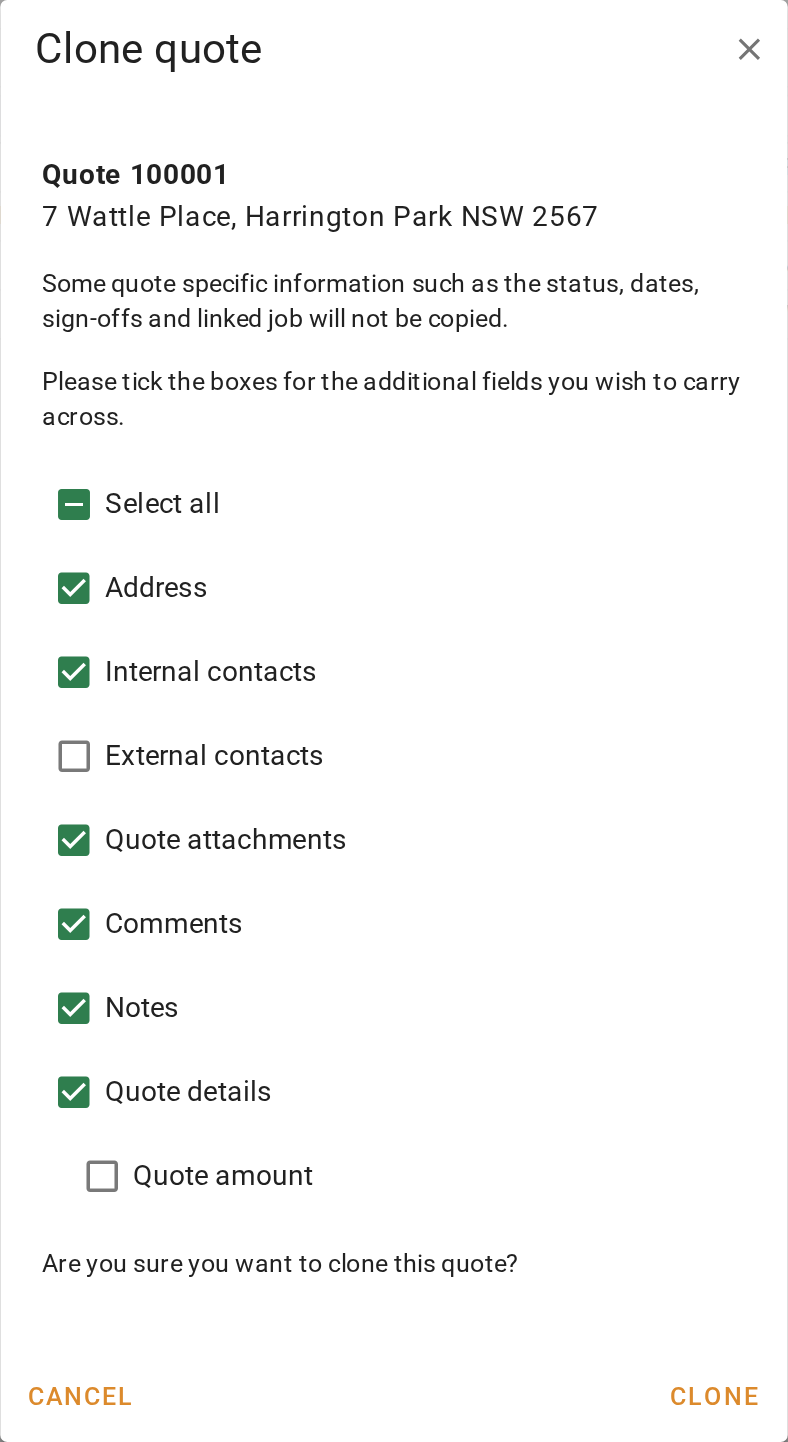
Cloning an earlier quote for the same property
Enter several enquiries in a row
Tick Create another beside Save. Saving then clears the wizard back to Client details instead of closing it. The tick box clears when you close the wizard.
A quote from a request
A work request converts into a quote from the requests page. The wizard opens filled from the request, and the duplicate banner still shows earlier quotes for the property. See Working with requests.
What you should see
The new quote is at the top of the quotes table with the status New quote, or Awaiting quotation if you gave it a quoter and a category. Open it and the Required fields banner lists anything still missing.
Next
Edit a quote. For every field in the wizard, see Quote wizard.