

Find a lease
Included with every subscription
The Leases table shows only the leases that were running during the period you choose.
Before you start
- Open Leases from the main menu. Your role needs See the lease menu item and View and search for leases. If you do not have them, Set up users shows how an administrator gives them to you.
Open a lease
- Double-click a row to open the lease in a dialog over the table.
- Click the Ref to open it as a full page.
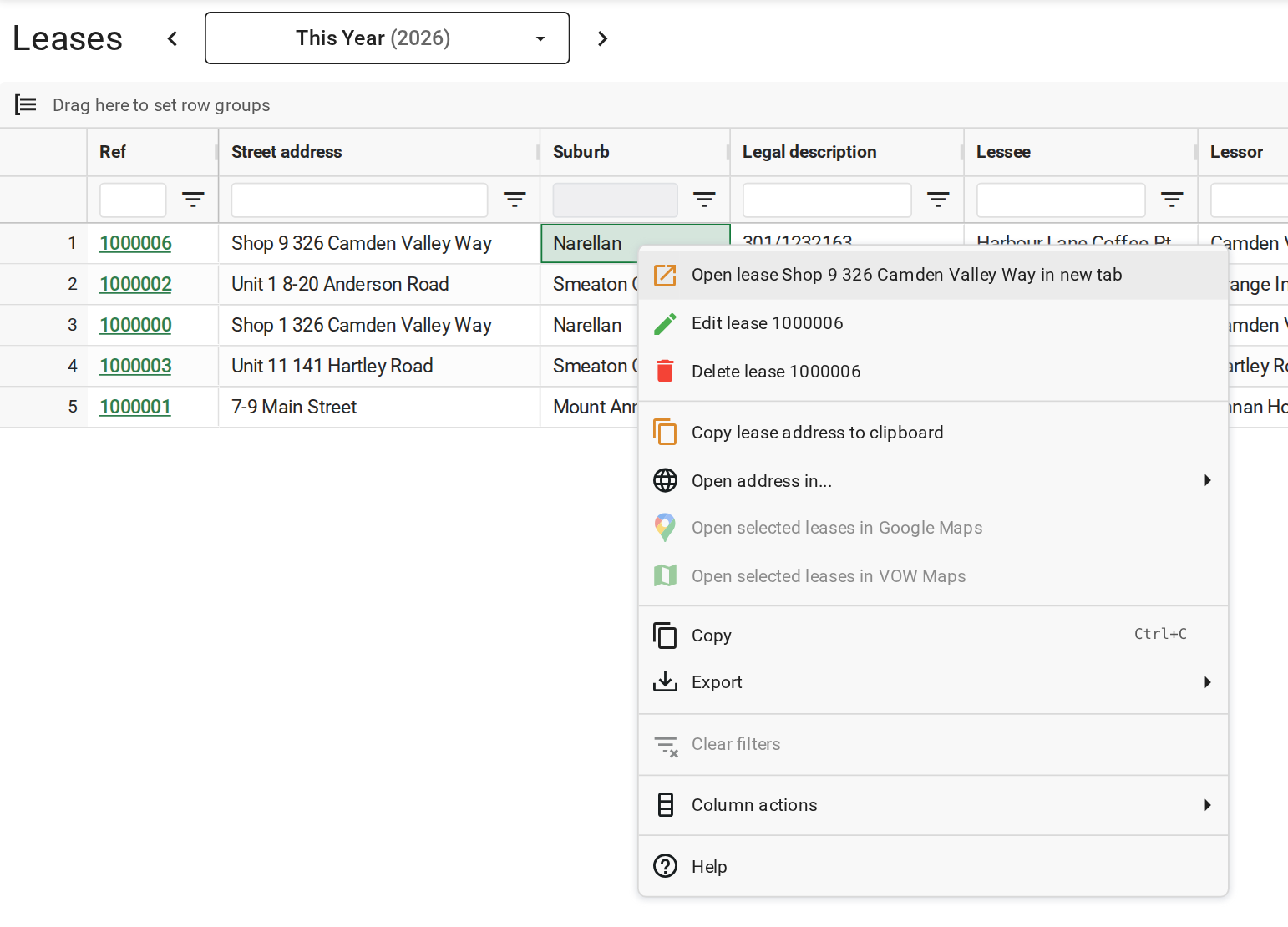
- Right-click a row for the lease's actions. They are Open lease ... in new tab, Edit lease, Delete lease, Copy lease address to clipboard and Open address in..., which offers Google Maps, Google search and the other map services available for the property's state.
Choose the period
The period field beside the Leases heading decides which leases the table holds. A lease is included when any part of its term falls inside the period, so a ten year lease that started before the period is still there.
- Click the period field. The list offers the last 3, 6, 12 or 24 months, this and last month, quarter and financial year, the year to date and this and last year.
- Pick Last 12 months. The table reloads with every lease that ran at any point in the last year.
- For a period the list does not offer, click a day in the Start date calendar and a day in the End date calendar beside the list. Each applies as soon as you click it.
- Click the arrows either side of the field to step to the previous or next period of the same length.
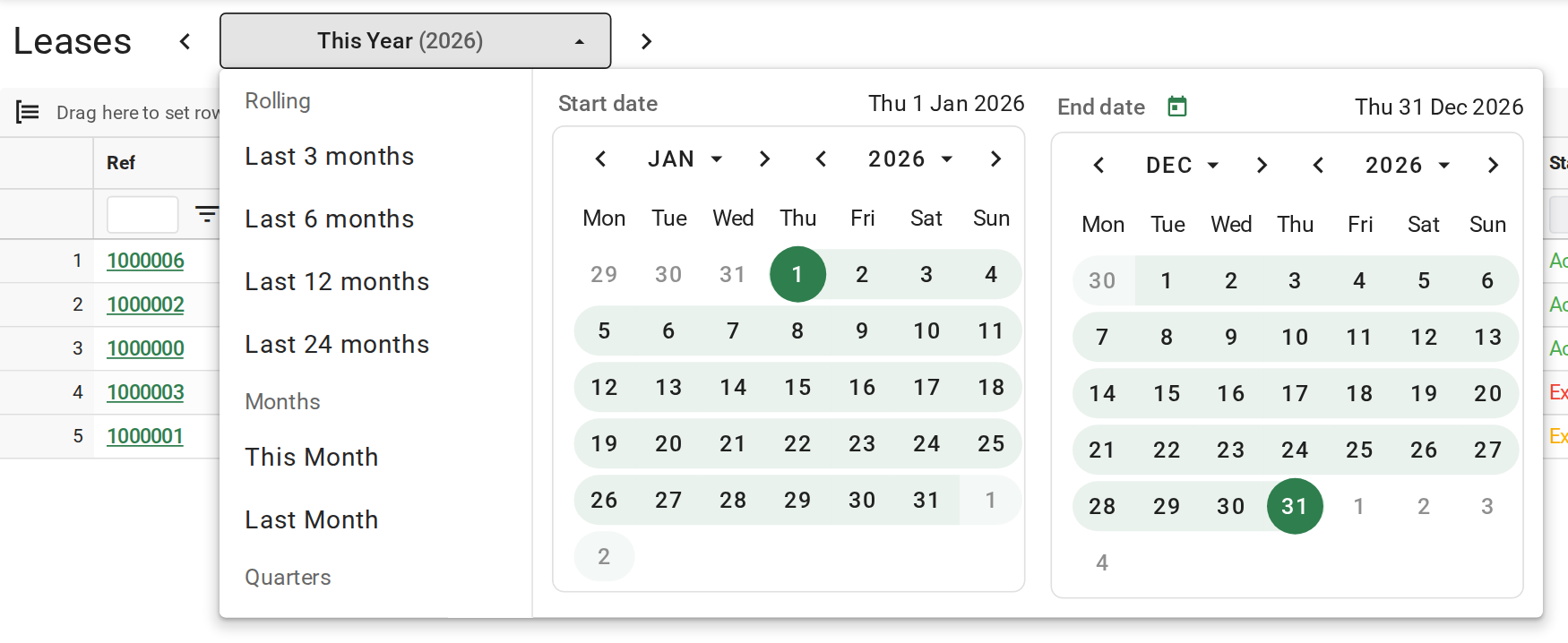
The period always has a value. It starts on This Year, then VOW remembers the last period you chose. A lease that expired last year is not in the table until you widen the period. If more leases match than the page can hold, VOW says how many and loads none. Shorten the period.
Search and filter the table
- Type in Search leases. The table narrows as you type to rows containing that text in any column, such as a suburb, a lessee or a permitted use.
- To narrow by one column, click the Filters chip beside the search field. The filters panel opens. Set the column's filter, for example Status to Expiring to see the leases coming up for renewal. The chip turns green and shows how many columns are filtered.
- Click the cross on the chip to clear the column filters, and clear Search leases to see the whole period again.

The search text and the column filters are part of the page's address. Send the address from your browser to a colleague and they open the same search and filters, over the period they last chose themselves.
Export the table
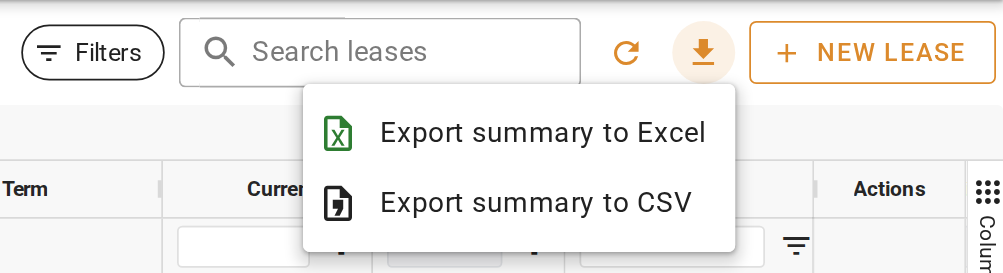
- Click the button.
- Choose Export summary to Excel or Export summary to CSV. The file holds the rows on screen, with the period, the search and the filters applied.
What you should see
With the period on Last 12 months and Status filtered to Expiring, the table lists only the leases ending in the next 90 days. Clearing the filter brings back every lease that ran in the last year.
Next
Use a lease as rent evidence. For every column and control, see Leases overview.