

Work with the results
Included with Professional and Enterprise
Sort, filter and narrow a search's results, and open an address in a map.
Before you start
- Your role needs View properties page and View properties. If you do not have them, Set up users shows how an administrator gives them to you.
- Run the suburb search from Build a full search, or any search that returns more than a screen of rows.
Read the results
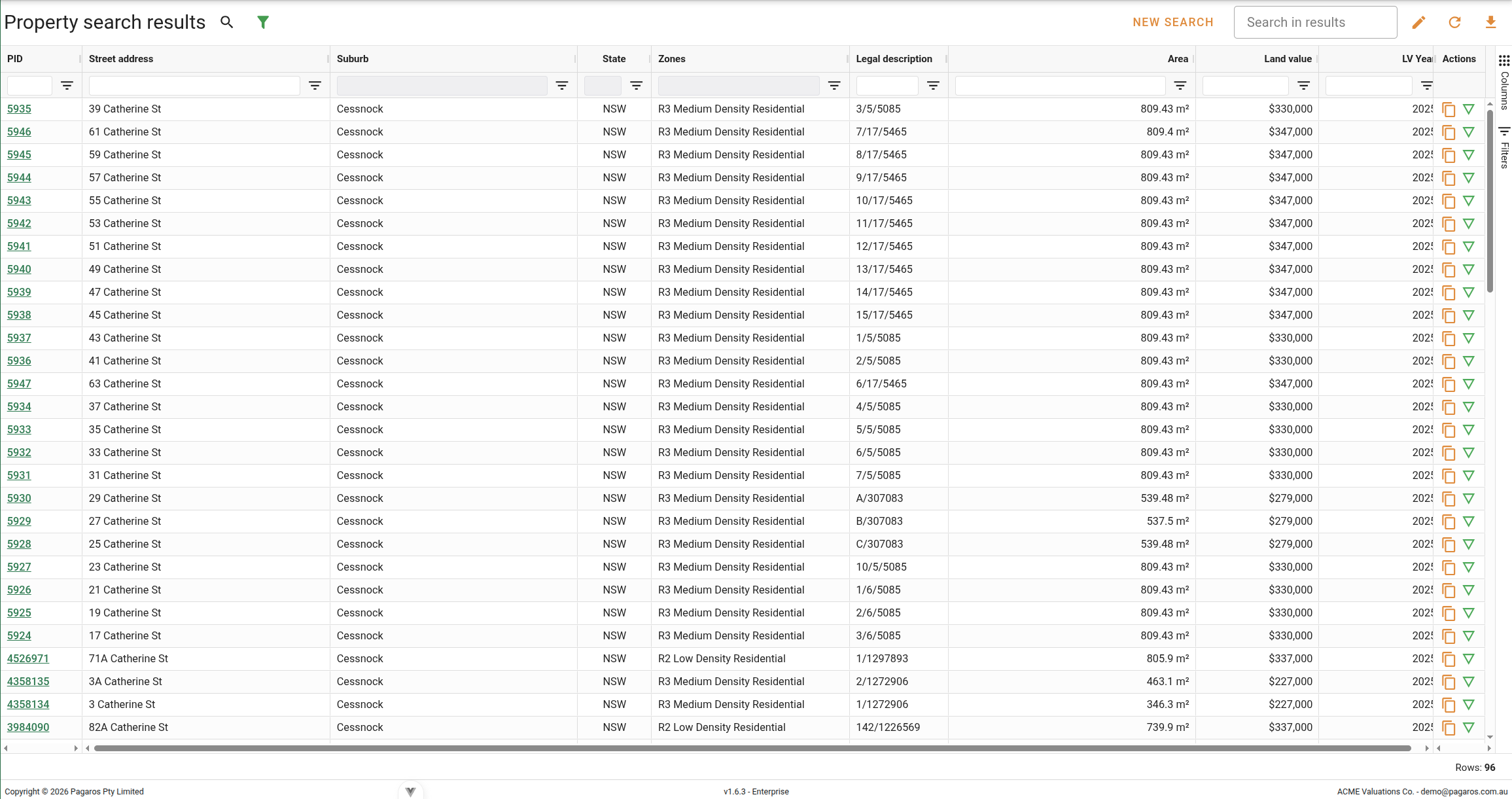
Each row is one property. These columns show by default.
| Column | What it tells you |
|---|---|
| PID | The government property identifier. Click it to open the property as a full page. |
| Street address | The unit, street number and street name. |
| Suburb and State | Where the property is. |
| Zones | The planning zones. |
| Legal description | The lot and plan. |
| Area | The land area, in square metres or hectares. |
| Land value and LV Year | The latest land value and the year it was assessed. |
Click a column heading to sort by it, and Shift+Click a second heading to sort within the first. The full address, postcode, LGA, GPS coordinates, property type (Prop. type) and plan type are hidden columns. Turn them on from the Columns panel at the right edge of the grid.
Narrow the results
- Type in Search in results. The rows narrow as you type to those containing the text in any column, so a street name leaves only that street.
- To filter by a condition, click the button. Every column has a filter, such as a number range on Area or Land value, or a list to tick on Zones.
- Set the filter and close the panel. A Filters active chip and a Reset filters button appear in the toolbar while any filter is on.
- Click Reset filters to bring every row back.
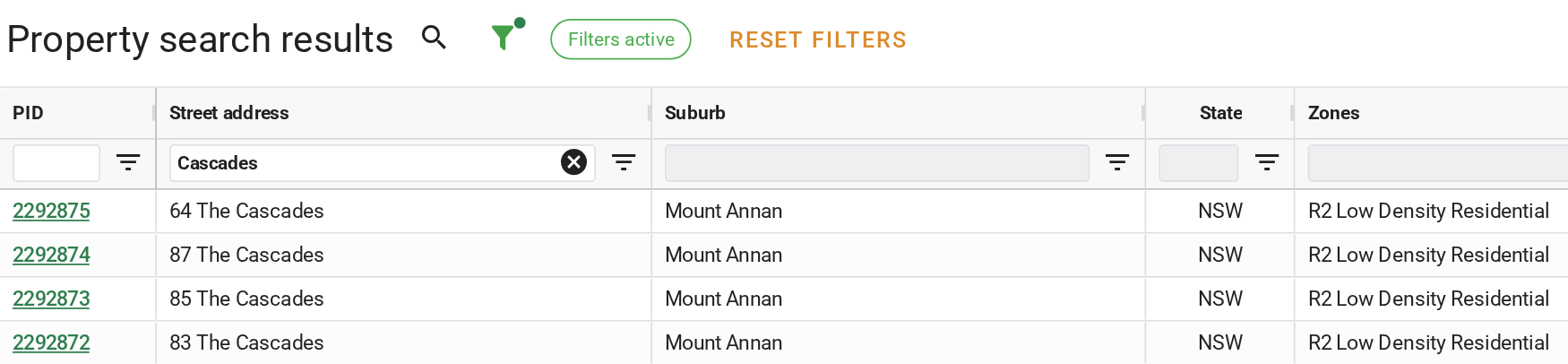
A filter narrows what is on screen. The search itself is unchanged, so the Recent card for it still returns every row. To make the narrower set the search, edit the search instead, as in Build a full search.
Open an address in a map
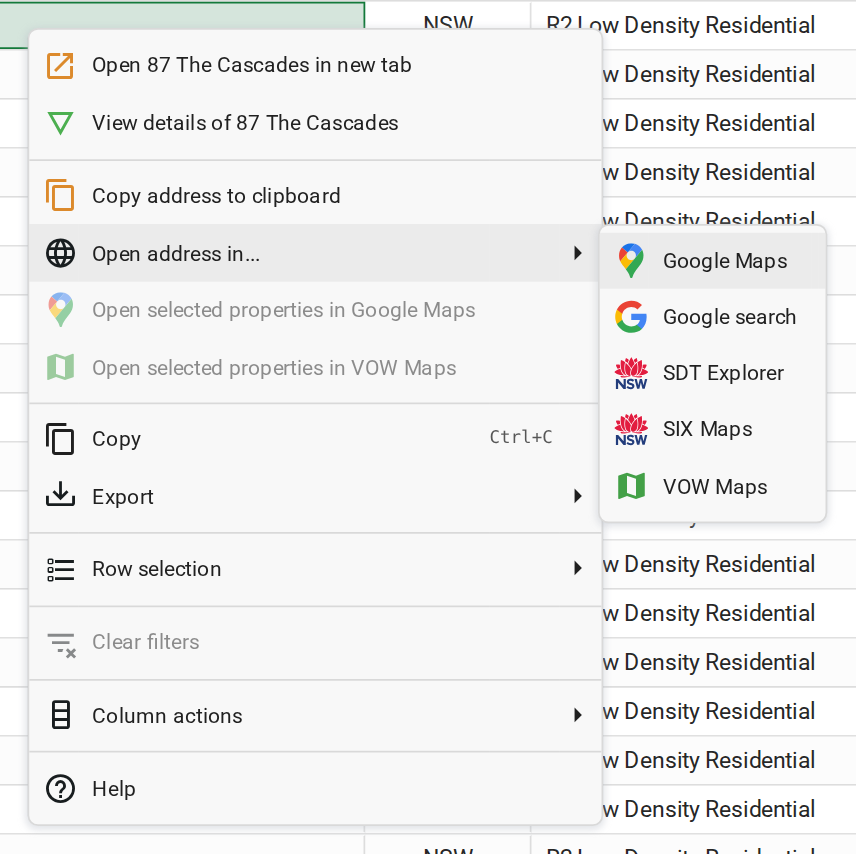
- Right-click the row and choose Open address in....
- Choose Google Maps. Google Maps opens in a new browser tab at the address. Look around the street there, then close the tab to come back to VOW.
- For an NSW property, choose SDT Explorer instead. The NSW SDT Explorer opens in its own browser tab on the property, where you can see its boundary on the state's map. SIX Maps and Google search are in the same list, and VOW Maps when your company has mapping turned on.
- To see several properties together, click one row, then Ctrl+Click the others to select them. Right-click and choose Open selected properties in Google Maps. Google Maps opens a route through the addresses. Up to twenty open at once.
Start a new search
- Click the Search tab at the top of the page.
- Run the next search. Its results open in another Results tab, and the first stays open until you close it with its x.

When the results are open as a full page or in a new browser tab, click New search in the toolbar to go back to the search form.
What you should see
With a street name in Search in results, only that street's rows remain. With a filter set, the Filters active chip is showing, and Reset filters brings every row back. A right-click on a row offers Open address in....
Next
Open a property card. For every column, filter and menu item, see Property search results.