

Use a sale as evidence
Included with every subscription
Add a sale to a valuation as supporting evidence. From the Sales page, add the sale you are looking at to a job by its reference. From the valuation, VOW suggests comparables by distance, date, zoning and land area from what is on the job, and you tick the ones you want.
Before you start
- Your role needs Update valuations for the job. The + Add to valuation button on a VG sale's card also needs Create new sales, because adding the sale makes a company copy of it. If you do not have them, Set up users shows how an administrator gives them to you.
- Know the job's reference number, and have a job with its address and zoning filled in.
Add a sale from the Sales page
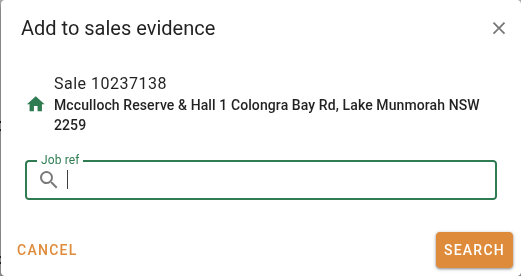
- Open the sale's card from a Results tab and click + Add to valuation. From the results, right-click the row and choose Add sale ... to a valuation (the menu item names the sale) to open the same dialog.
- In the 'Add to sales evidence' dialog, enter the Job ref and click Search or press Enter. A summary of the job appears. Check it is the right one.
- Click Add to job.
- In the 'Sale added.' confirmation, click Open job to go to the valuation, or Close to stay with the results and add the next sale.
Adding a VG sale makes a company copy of it first, and the copy goes on the job. The VG record stays as it was, and the copy shows in later searches with your company's logo.
Add supporting sales from the valuation
- Open the valuation and find the Supporting sales panel on its Sales evidence tab.
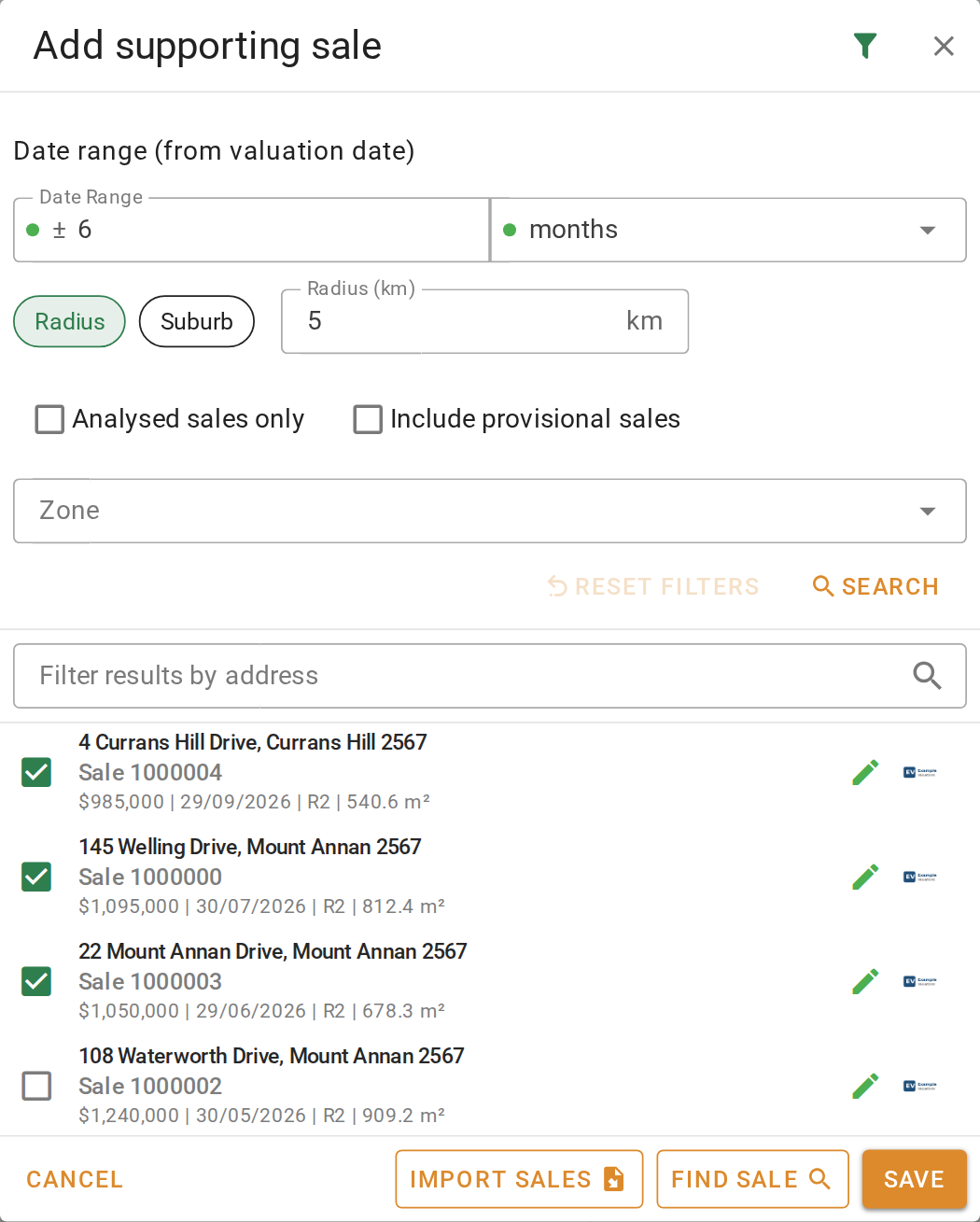
- Click + Add sales. The 'Add supporting sale' dialog opens with the sales VOW found for this property from its address, zoning, area and valuation date. Each shows the Valuer General's mark or your company's logo.
- Tick the sales you want. To find one in a long list, type part of a street in Filter results by address.
- If there are too few sales, click the button at the top of the dialog, widen the Radius (km) or the Date Range, and run the search again. The filters are saved with the job, so the next search starts from them.
- Click Save. The ticked sales appear in the panel, in the order they appear in the report. Drag the handle to reorder them.
Find a particular sale from the valuation
- When the sale you want is not in the suggestions, click Find sale at the bottom of the 'Add supporting sale' dialog.
- In 'New supporting sale', enter the Sale ref or Dealing number, or the address, and click Search.
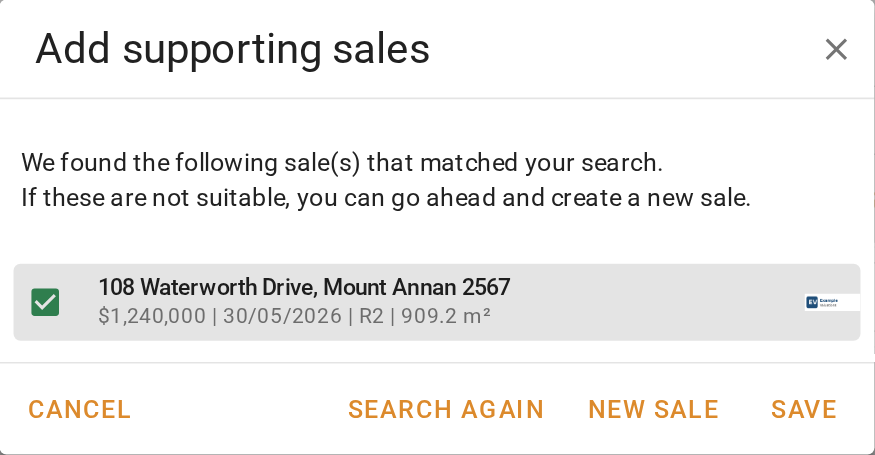
- The matches are listed in 'Add supporting sales'. Tick the one you want and click Save.
- If nothing matches, the sale form opens on its own with the address filled in. Enter the sale. It goes onto the job's supporting sales when you click Save.
To copy the supporting sales from another valuation, click Import sales in the 'Add supporting sale' dialog. Enter the Job reference number and click Search, tick the sales, choose Append to add them to the ones already here or Replace to swap them, and click Import.
What you should see
The sale is listed in the valuation's Supporting sales panel, and the job's reference is under Linked valuations on the sale's card. In the results, the sale now has a company Ref and the Linked valuations column shows the job.
Next
Go back to Working with sales for the lesson list, or on to the next module in VOW tutorials. For everything in the supporting sales panel, including the comments on each sale and the comparison to the subject, see Sales evidence.