

Price and send a quote
Included with Professional and Enterprise
You do not set a quote's status yourself. When you save the quote with what the next status needs, VOW moves it on.
Before you start
- Your role needs Edit quotes, and Set quote amounts for the pricing step. If you do not have them, Set up users shows how an administrator gives them to you.
- Open the quote from Edit a quote. It is at New quote or Awaiting quotation.
- Sending the quote by email from VOW needs your company's email integration turned on under Settings | System. Without it, send the quote from your own mail client and mark it as sent. See Email integration.
Complete the required details
While a quote is New quote, a Required fields banner under the stepper lists what VOW needs before anyone can price it. That is a Category, someone under To be quoted by, a named Client contact, and any missing parts of the address.
- Click the Category chip. The form scrolls to the field. Choose the kind of valuation, such as Residential.
- Click the To be quoted by chip and choose who will price the quote. It appears on their dashboard. If your company has valuer notifications turned on, they are emailed.
- Work through any remaining chips. The address needs a street name or property name, a suburb, a state and an LGA.
- Click Save quote. The banner disappears and the stepper moves to Awaiting quotation.

Completing the required details
Enter the quoted amount
Whoever is named under To be quoted by does this part.
- Under Type, enter the Quote amount (ex. GST). The label beside it changes from To be quoted by to Quoted by.
- Enter Est hours if your company tracks them, and any Terms the client should see.
- Choose the Responsible valuer, the valuer who will do the job if the quote is accepted. Add any Additional valuers beside it. Both are copied onto the job.
- Under Notes, write anything the client should read in Comments (included in quote). The two internal notes fields are for your company only.
- Click Save quote. The stepper moves to Ready to send, and a Send to client button appears.
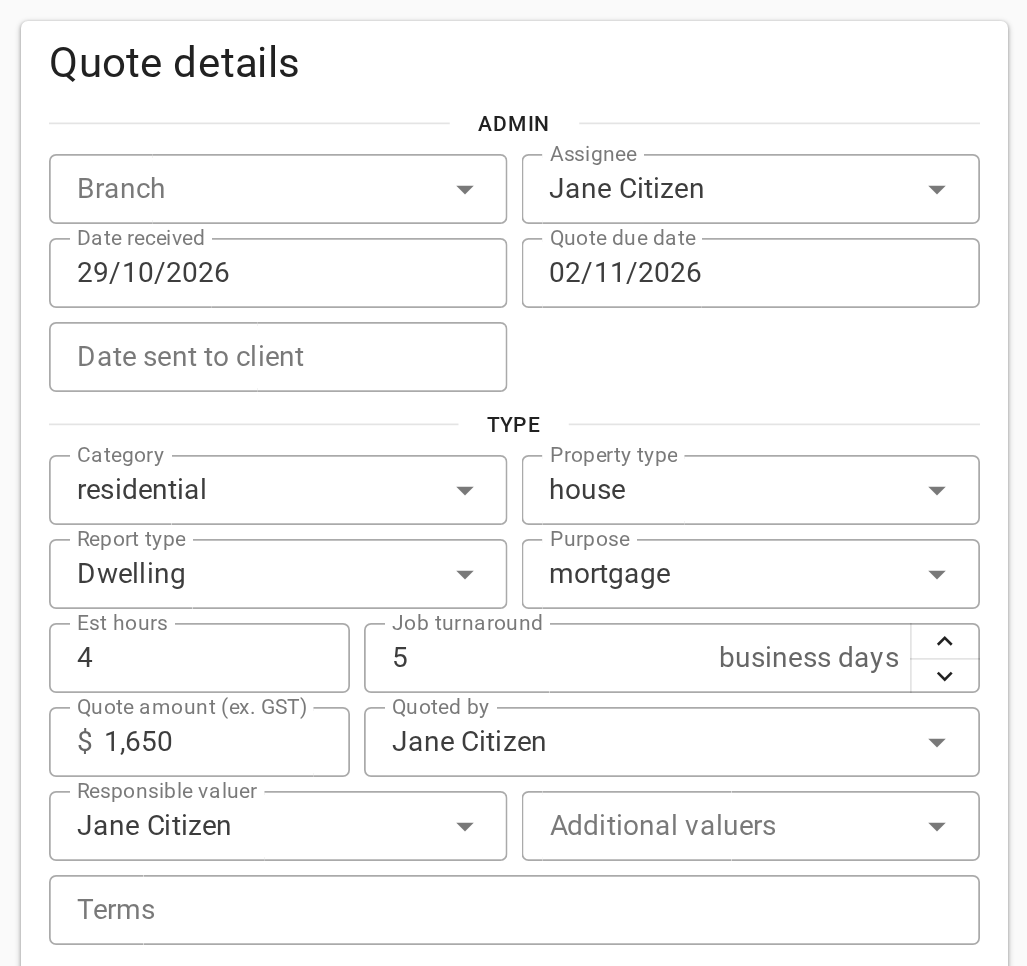
Entering the quoted amount
The amount becomes the job's Report fee when the quote is accepted. Enter it excluding GST.
Send the quote to the client
VOW does not produce a quote document. The client receives the email you send, with the amount, terms and comments taken from the quote, plus any files you attach from the quote's folder.
- Click Send to client. It is in the dialog footer, or in the header of the full page.
- VOW asks how you would like to send it. Click Send email to send the quote from VOW. If you have sent it yourself, by email from your mail client or on paper, click Mark as sent instead and skip to step 6.
- The Send email composer opens. If your company has a quote template, the template list opens over it. Choose the template and click Use template. To write the message yourself, click Blank email and enter a Subject. With no quote templates, the composer opens with the Subject set to Quotation for the property address.
- Open Recipient(s) and pick the client, unless the template has already added them. The list offers the quote's contacts and the people in your company who are on the quote. The quote's amount, terms and Comments (included in quote) are in the Template fields panel on the right. Tick anything the client should receive under Email attachments. If your company has no quote template yet, an administrator makes one under Settings | Email templates with the record type Quote. See Email templates.
- Click Send. The email is kept on the quote's event log.
- Either way, the stepper moves to Sent, the status is Awaiting reply, and Date sent to client is set to today.
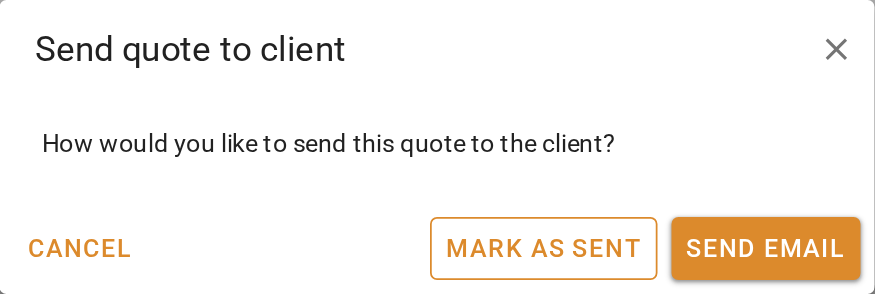
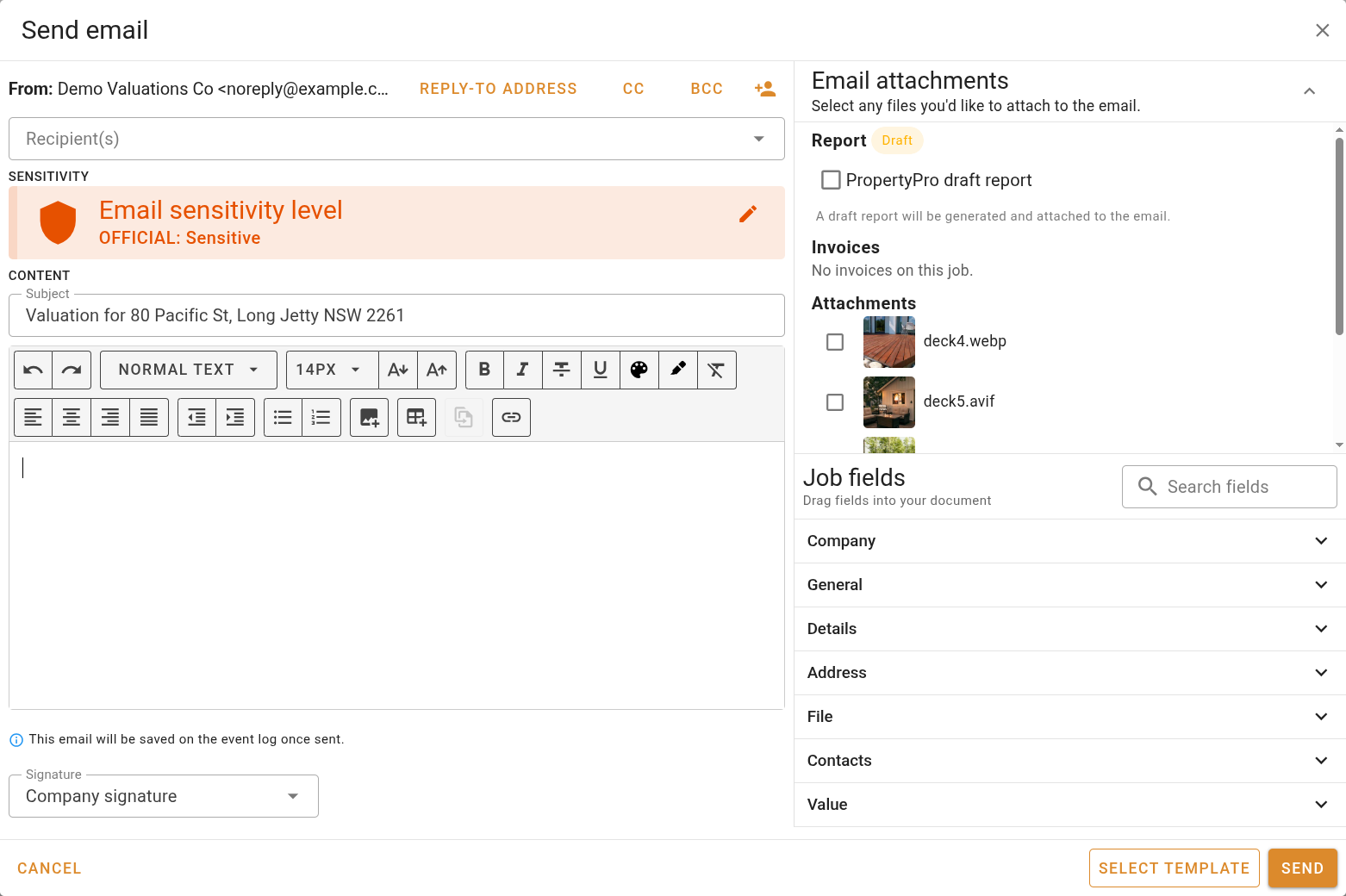
Sending the quote to the client
Setting Date sent to client by hand under Admin and saving does the same as Mark as sent. Use it when a quote went out on an earlier day.
While you wait
The Quote due date no longer applies once the quote is sent. After seven days without an answer, the quote is flagged in the table's Sent column and counted as stale on the dashboard.
What you should see
The quote's row shows Awaiting reply under Status and today under Date sent. Open it and the stepper is at Sent, with Accept and Reject offered in place of Send to client.
Next
Accept a quote. For every field, see Quote form. For everything the composer can do, see Email composer.