

Link a quote to a job
Included with Professional and Enterprise
Use this for an accepted quote that has no linked job, such as one accepted with No linked job. You can link from the quote or from the job.
Before you start
- Your role needs Edit quotes. Copying details onto the job also needs Update valuations. If you do not have them, Set up users shows how an administrator gives them to you.
- The quote must be Accepted and not yet linked. An accepted quote that is not linked shows No linked valuation. at the top of its Address column.
- Know the job's reference number, or the quote's if you start from the job.
Link from the quote
- Open the accepted quote. Turn on Show completed in the table to find it.
- At the top of the Address column, click Link to a job.
- Enter the Job reference number and click Search. The job's summary card appears. Check it is the right job.
- Tick Copy details from the quote onto this job and click Next. To link without copying, leave it unticked and click Link quote.
- Choose what to copy in the review, then click Link & copy.
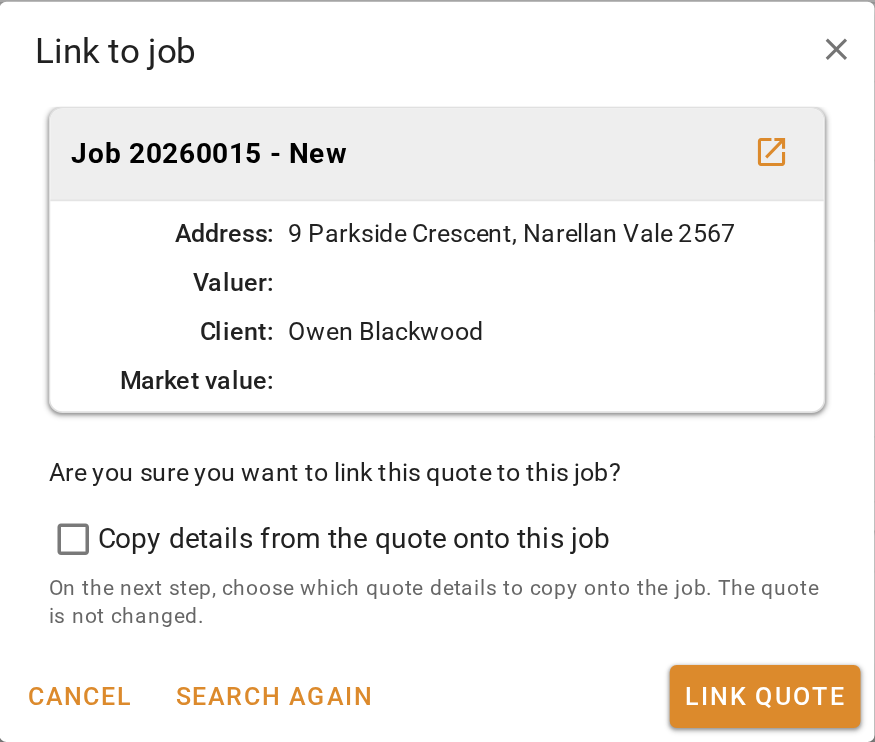
Linking from the quote
Link from the job
- Open the job and find its Invoices panel.
- Click the button.
- Enter the Quote reference number and click Search. The quote's summary card appears.
- Tick Copy details from the quote onto this job and click Next, then choose what to copy and click Link & copy.
If the job has unsaved changes, VOW asks you to save them first.
Linking from the job
Choose what to copy onto the job
The review lists every value on the quote that would change the job, grouped under Job details, Address and Contacts, with the job's value and the quote's value side by side.
- A value that fills an empty field on the job is already chosen. So are notes and contacts, which are added to what the job has rather than replacing it. If the job's address is a different property from the quote's, no address values are chosen for you.
- Where the job already has a different value, the job's value is kept unless you click the quote's.
- Use Keep job or Take quote on a section row to decide a whole section at once.
- Differences only shows the values that would change. All fields shows every value on the quote, including the ones the job already matches.
- Under External contacts, Append adds the quote's contacts the job does not have. Replace makes the job's contacts exactly the quote's, and the review lists the job's contacts that would be removed.
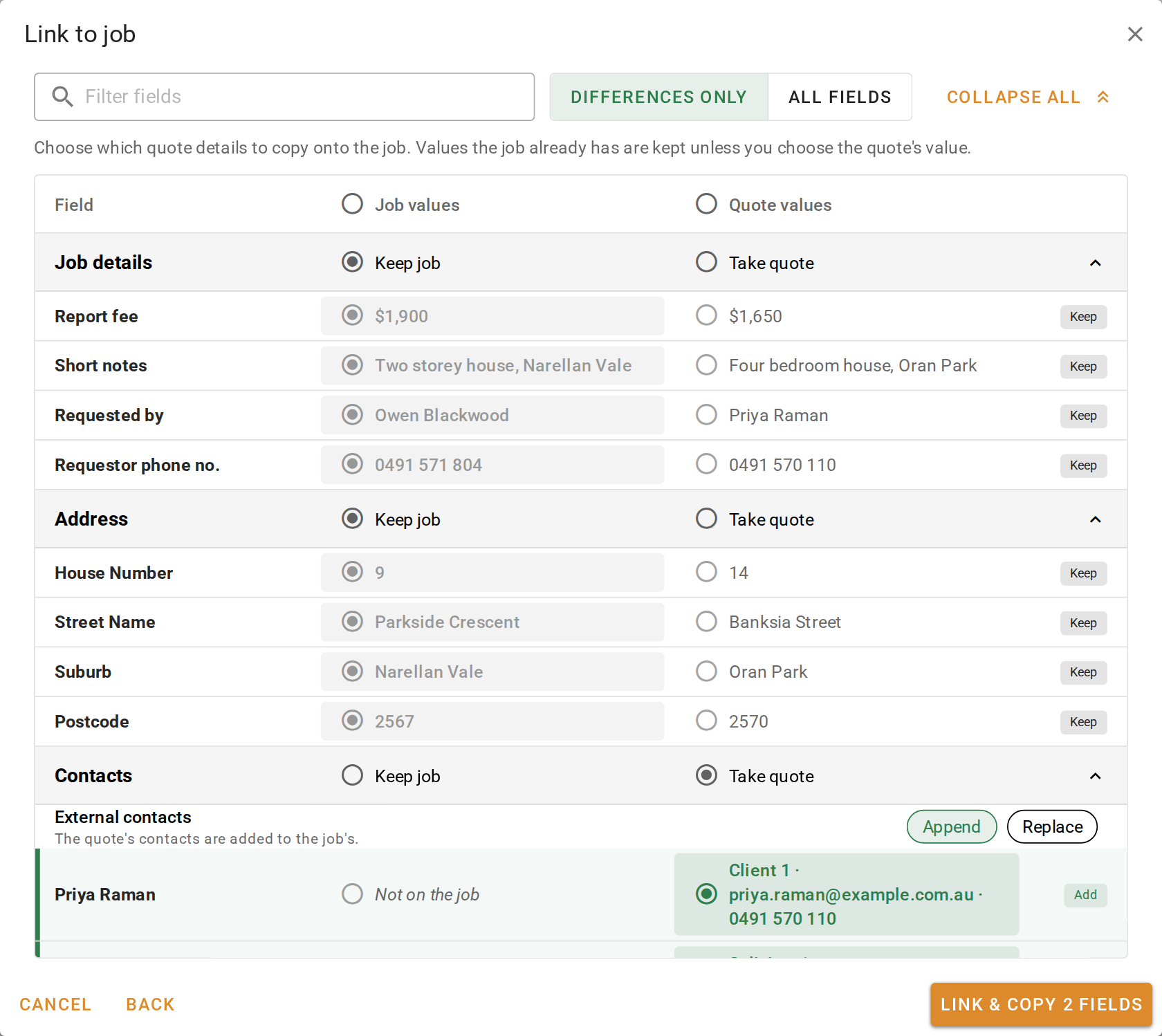
A contact's role moves with its value. The quote's instructing party becomes the job's Requested by only when you take Requested by from the quote. Otherwise the job's contact keeps the role.
Unlink
On the quote, click the button beside the job's card and confirm. On the job, click the button on the Invoices panel banner and confirm. The quote stays accepted, and anything already copied onto the job stays there.
What you should see
The quote shows the job's card at the top of its Address column, and its row in the table shows the job under Linked job. The job's Invoices panel shows the Accepted quote banner with the quote's reference and amount.
Next
Reject, cancel or reopen a quote. For every control in the review, see Accepted quote panel.