

Accept a quote
Included with Professional and Enterprise
Accept a quote when the client agrees to it. Accepting closes the quote as Accepted and either creates a new job from it or links it to a job that already exists.
Before you start
- Your role needs Edit quotes. Copying details onto an existing job also needs Update valuations. If you do not have them, Set up users shows how an administrator gives them to you.
- The quote must be Awaiting reply, where Price and send a quote left it. Accept is not offered before the quote is sent.
Accept and create a new job
- Open the quote and click Accept. From the table, right-click the row and choose Accept quote, or click the button in its Actions column.
- The Accept quote dialog asks what to do with the quote once it is accepted. Click New job.
- Read the confirmation. It warns you if the quote has no amount, because the job's fee comes from it.
- Click Accept quote. The job is created and linked, and a message at the bottom of the screen confirms it with an Open job button.
- Click Open job to see the new job.
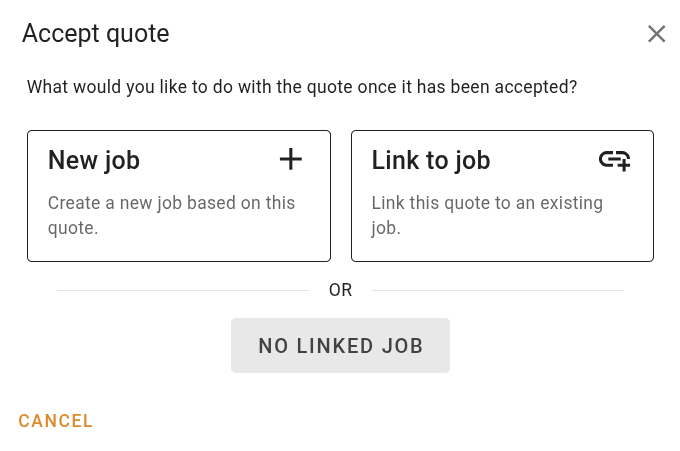
Accepting a quote and creating a new job
The new job takes the following from the quote.
- The property address and the contacts. The instructing party becomes Requested by, a borrower becomes Borrower name, and a tenant or access contact fills those fields too.
- The quote amount as the Report fee, with the category, property type, report type and purpose.
- The branch, assignee, responsible valuer and additional valuers.
- The internal short and long notes, the comments, and copies of the quote's attachments.
- A due date worked out from the quote's Job turnaround, counted in business days from today. The job starts at your company's first job status with today as its date received.
Accept and link to an existing job
Use this when the job was created before the quote was answered.
- Click Accept, then Link to job.
- Enter the Job reference number and click Search. The job's summary card appears.
- To bring the quote's details onto the job as well, tick Copy details from the quote onto this job and click Next. The review lists every value the quote would change on the job, with the job's value and the quote's side by side. Values that fill an empty field are already chosen, except address values when the job is at a different property. Where the job already has a different value, the job's value is kept unless you choose the quote's. Link a quote to a job covers the review in detail.
- Click Accept & copy to accept the quote, link it and copy what you chose. Without the tick, click Link quote.
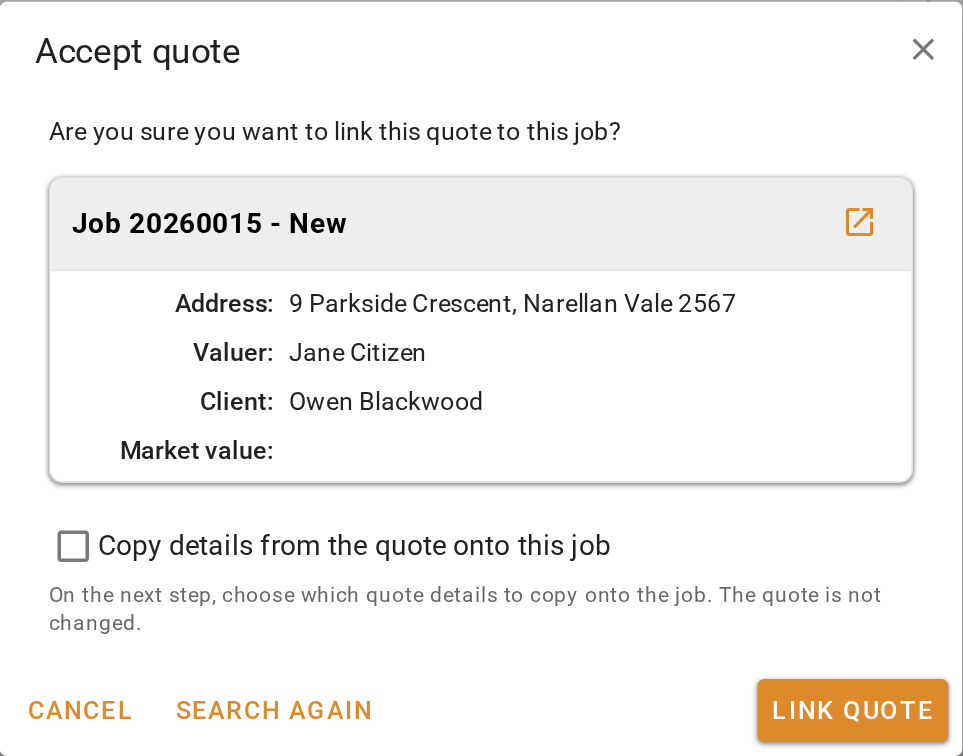
Accepting a quote and linking it to an existing job
Accept with no job
Click Accept, then No linked job, and confirm. The quote is accepted and nothing else happens. Use it when the work will not be a job in VOW, or when you will link the job later from Link a quote to a job.
An accepted quote leaves the table. Turn on Show completed to find it again.
What you should see
In the quotes table with Show completed on, the quote shows Accepted and its Linked job. Open the quote and the stepper reads Response: Accepted, with the job's card at the top of the Address column. Open the job and the Invoices panel shows an Accepted quote banner with the quote's reference and amount.
Next
Link a quote to a job. For the form's actions and when each is offered, see Quote form.