

Work with the results
Included with every subscription
Open a sale card from the results, narrow the list with filters and export it as a PDF summary, Excel or CSV.
Before you start
- Your role needs View and search for sales. If you do not have it, Set up users shows how an administrator gives them to you.
- Have a Results tab open from Find a sale.
Open a sale card
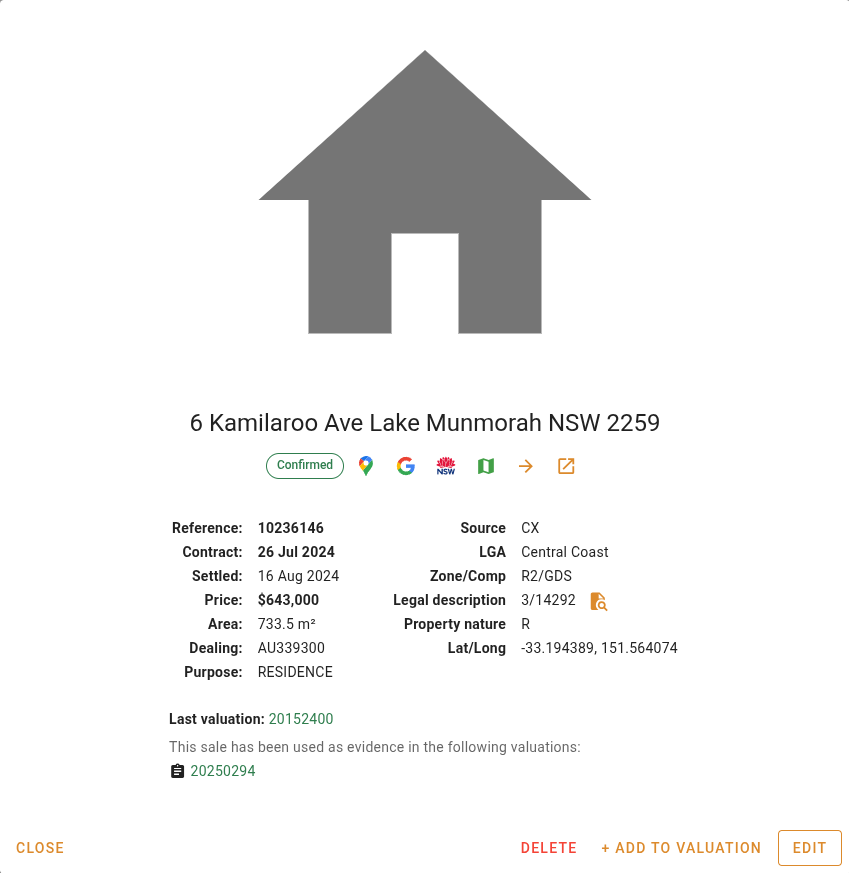
- Double-click a VG sale's row. The sale card opens over the results with a street view image or a photo of the sale at the top, the address under it and a status chip under the address. Double-clicking a sale your company has analysed opens the 'Edit analysed sale' dialog instead.
- The card shows Contract, Settled, Price, Area, Dealing, Zone/Comp and Legal description.
- Click the Google Maps button beside the status chip to see the property on a map. Google Maps opens in a new browser tab, and you close that tab to come back. The button shows it in VOW Maps instead when your company has mapping turned on. The button opens the sale as a full page.
- Click Close to go back to the results.
Click a sale's Ref to open it as a full page. Right-click a row for the sale's actions. You can open it in a new tab, edit or analyse it, delete it, add it to a valuation, copy its address, or open it in a map service.
Narrow the results
- Type in Search in results. The list narrows as you type to rows containing that text in any column, such as a street, a purchaser or a zone.
- Turn on Analysed sales only to hide every VG sale and leave the sales your company has analysed. Turn it off to see both again.
- For one column, click the button and set the filter for that column, such as Zones or Price. A Filters active chip and a Reset filters button appear in the toolbar while any filter is on.
- Click Reset filters when you are done.
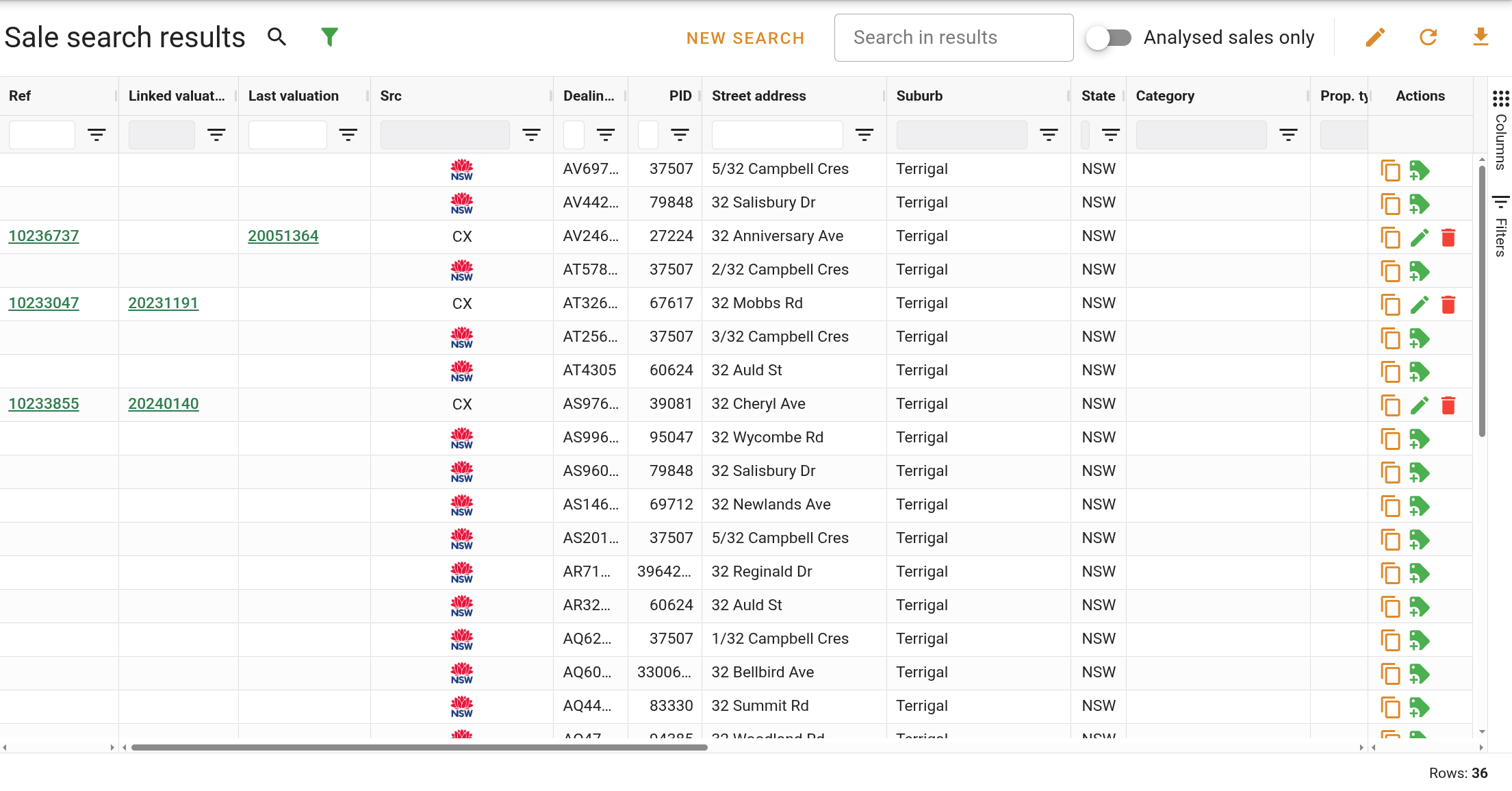
To change the suburb or date range, click the button in the toolbar. The search goes back to the form with its criteria loaded.
Export the results
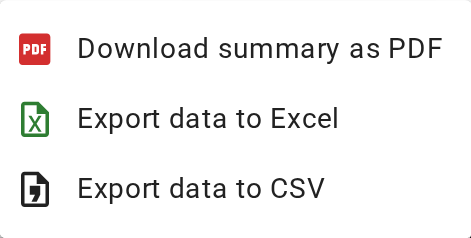
- Click the button in the toolbar.
- Choose Download summary as PDF for a printable summary of the sales, or Export data to Excel or Export data to CSV for the data. The Excel and CSV files hold the rows that are showing, in the columns shown.
- To export only some sales, click one row, then Ctrl+Click the others to select them. Right-click one of them, open Export, then Selected rows, and choose Excel export, CSV export or PDF summary.
- Open the file from your browser's downloads. Excel opens the Excel file, and Excel or any spreadsheet program opens the CSV file. The PDF opens in your PDF viewer.
Code sales in bulk
If your company records a sale code against each sale, set it on several sales at once. This needs Update sales, and Create new sales as well when the selection includes a VG sale.
- Click one row, then Ctrl+Click the others to select them.
- Open Actions in the toolbar and choose Set sale code….
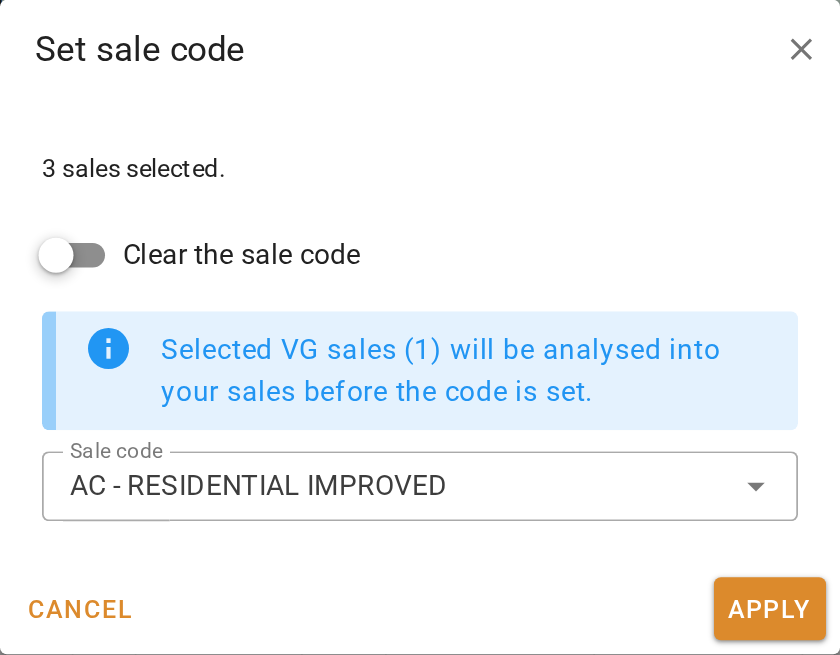
- In the 'Set sale code' dialog, choose the Sale code. The list offers the codes for the sales' state.
- Click Apply. A VG sale in the selection is analysed into a company sale first, and the code goes on that copy.
See Set sale code on selected sales.
What you should see
The results show only the sales you filtered for, with a Reset filters button in the toolbar while a filter is on. The exported file is in your downloads folder with the same rows in it.
Next
Add or analyse a sale. For every column, control and row action, see Sales search results.