

Generate the report
Included with every subscription
A report started from a template already holds the job's details, such as the address, the client, the valuer, the value and the supporting sales.
Before you start
- Your role needs Update valuations. If you do not have it, Set up users shows how an administrator gives it to you.
- Templates need the report templates feature, which is included with Professional and Enterprise, and at least one template uploaded in Set up report templates. Without templates, Preview and Finalise produce VOW's own PropertyPRO pro forma report from the job's fields.
- To edit the draft on your computer, install the VOW Helper. It opens the file in Word and sends it back. See VOW Helper.
- Open the job from Add supporting sales, with its value and evidence in.
Start the report from a template
- Open the Report tab. With no report yet, the panel offers Preview, Finalise, Upload and Use template.
- Click Use template. The Select template dialog lists your company's active templates.
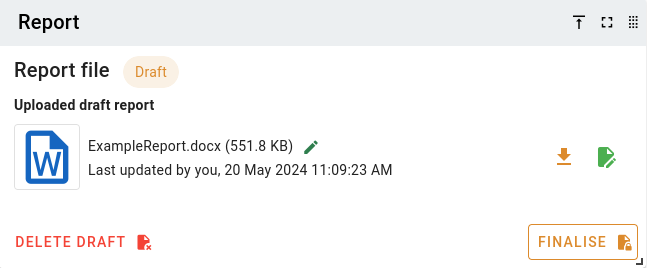
- Click the template for this kind of report and click Select. The draft is made from the template with the job's fields filled in. The panel shows it under Uploaded draft report, with buttons to download and edit it.
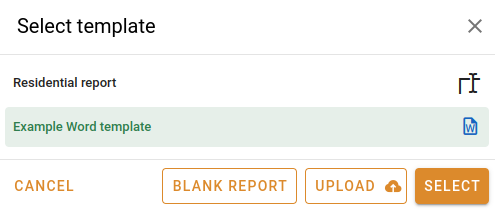
Starting the report from a template
Once the job has a draft, Actions offers Download draft report to save a copy of it. Preview job report is only offered while the job has no draft or finalised report.
Edit the draft in Word
- Click the button on the draft. The first time, your browser asks whether to open the link with the VOW Helper. Tick the option to always allow it.
- The helper downloads the draft, locks it on the job so nobody else edits it at the same time, and opens it in Word. The job's photos and attachments are downloaded beside it, so you can insert them from your file browser.
- Write the report. The template's fields hold the job's values and are read-only until you switch on Allow template editing in the Word add-in.
- Save and close the file.
- In the helper, click Send back on the file. The draft on the job is replaced with your version and unlocked.
Only the person who locked a draft, or an administrator, can unlock it. If you do not want to keep your changes, click Discard in the helper. Do not just close Word.
Finalise the report
- Click Finalise on the Report tab.
- Choose how the final report is made. Tick Use the existing draft as the final report to lock in the draft as it is, or upload a PDF you have exported from Word. A pro forma report asks for a Report filename instead.
- Click Finalise. The panel shows the finalised report, ready to download. The draft is kept but can no longer be edited.
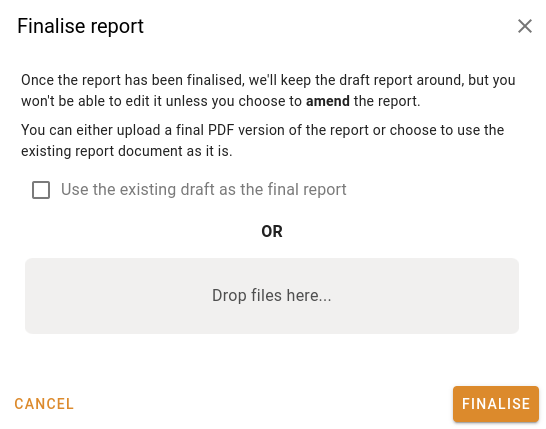
Finalising the report
Change a finalised report
- Click Amend on the finalised report.
- To keep a copy of the finalised report, tick Save to attachments and enter a name under Save as. Without it, the finalised report is deleted.
- Click Confirm. The report goes back to being a draft you can edit and finalise again.
- To show the report as amended, tick Mark as an Amended Report in the Comments panel and click Save. The pro forma report prints this in its header.
What you should see
The Report tab shows the finalised report with its filename. Actions offers Download job report and View job report in place of the preview. Send the report to the client in Send an email from a job.
Next
Invoice the job. For every state of the report panel, see Report. For editing files through the helper, see VOW Helper.