

Set up report templates
Included with Professional and Enterprise
A report template is the Word document a valuer starts from when they write a report. Without one, VOW generates a PropertyPRO style report from the job form. VOW copies the template onto the job, so the original is never changed.
Before you start
Gather the Word documents you use today as the starting point for each kind of report, such as a residential short form and a commercial long form. Take out anything client specific.
Upload a template
- Open Settings | Report templates.
- Click New.
- Choose File upload. The Long form report editor builds reports inside VOW and is still experimental.
- Enter a Template name. Valuers see this name when they pick a template, so use the name your company already uses, such as "Residential short form".
- Choose the Template type. For a valuation report, choose Valuation. The other types are for quotes, projects and requests.
- Enter a Description if the name needs explaining.
- Drop your document onto the upload area, or click it and choose the file.
- Leave Active on, then click Save.
Repeat for each kind of report you write.
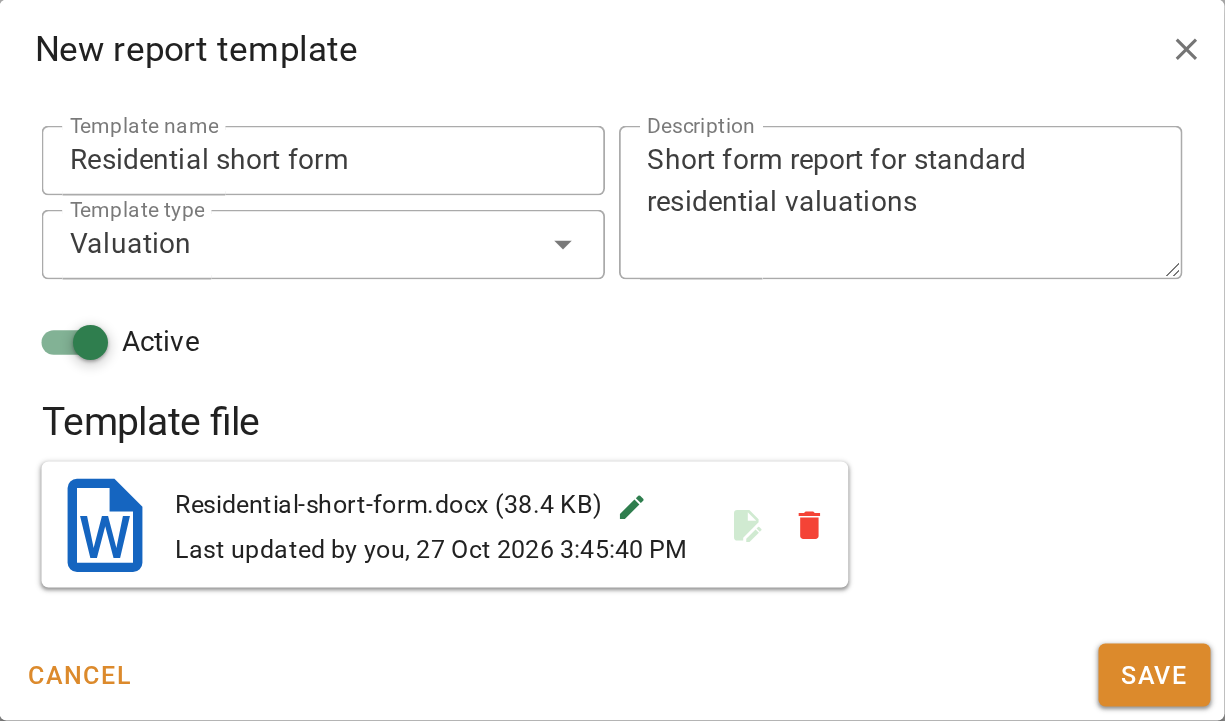
Uploading a report template
On a job, valuers click Use template on the report panel and pick from this list. VOW copies the template onto the job. To edit the copy, they open it from VOW in Word, which needs the VOW Helper installed on their computer.
Put your templates in order
Valuers pick from the list in the order you set here. Put the templates you use most at the top.
- In Settings | Report templates, click Reorder.
- Drag the templates into order.
- Click Save order.
Putting your templates in order
Confirm your setup
Each template is in the list with Active ticked. Open any job, click Use template on the report panel, and your templates are there to choose from.
For every option on the report templates tab, see Report templates.