

Set up sensitivity labels
Included with Enterprise
A sensitivity label marks an email as, for example, Confidential, the same way Microsoft 365 does in Outlook. With labels turned on, every email sent from VOW carries a classification, and you can make a label compulsory so nothing goes out unmarked. A new company starts with no labels.
Set up email integration first. Skip this task if your company does not use sensitivity labels in Microsoft 365.
Before you start
Ask your IT provider for your Microsoft Entra tenant ID and for the list of sensitivity labels your organisation uses in Outlook.
Turn on sensitivity labels
- Open Settings | System.
- In the Emails card, under Sensitivity labels, turn on Enable sensitivity labels. The Manage sensitivity labels button appears beside it.
Turning on sensitivity labels
Add your labels
- Click Manage sensitivity labels.
- Beside Site ID, click the button, enter your Microsoft Entra tenant ID and click Save. This ties the labels on VOW's emails to your tenant, so Outlook recognises them as yours.
- Click + New label. Enter the Name and Display name exactly as the label appears in Outlook. The display name is what goes on the email.
- Enter a User tooltip that tells staff when to use the label.
- If the label sits under another in Outlook, such as Confidential \ All Employees, choose the Parent label.
- Click Save. Repeat for each label your organisation uses.
- Open the label most emails should carry and tick Default label for new emails.
- If your policy requires every email to be labelled, turn on Require sensitivity labels on emails. Staff then cannot send until they have picked a label.
- Click Done.
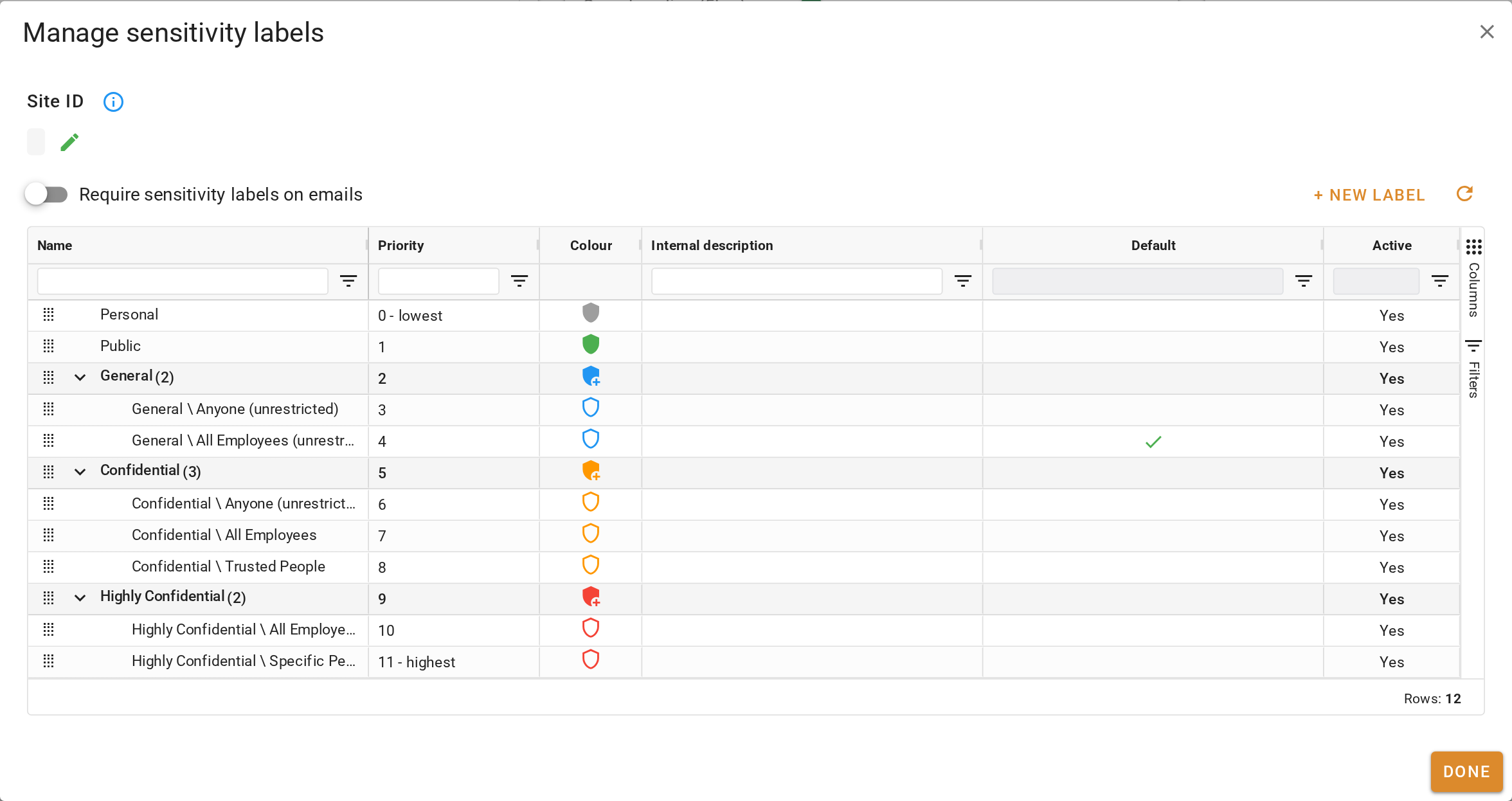
Adding your sensitivity labels
A label can also stamp text on the email. Open the label, turn on Apply content marking to emails using this label, and add a header or footer such as "Confidential, for the addressee only".
Confirm your setup
The list under Manage sensitivity labels matches the labels your staff see in Outlook, with one marked as the default.
This is the last setup task.
For every field on a label, see Managing sensitivity labels.