

Set up roles
Included with every subscription
You never give a permission to a person directly. A permission is one thing someone is allowed to do, such as Create quotes. A role is a named set of permissions. A user has one or more roles and can do anything any of their roles allows. Set up your roles before you add users, so each person gets the right access as you create them.
VOW comes with four roles.
| Role | What it is for |
|---|---|
| Administrator | Full access to everything, including settings. You cannot change it. |
| User | Everyday access for office staff. |
| Valuer | For valuers. Users with this role appear in the valuer dropdowns. |
| Terminated user | For people who have left. They cannot sign in. You cannot change it. |
Check that User and Valuer suit your company. Add a new role only when a group of people needs different access.
Before you start
List the groups of people in your company and what each group needs to do. For example, only some staff may need to create invoices.
Roles control groups, not individuals. A change to a role reaches everyone who has it the next time they refresh VOW. If one person needs something the rest of their group should not have, give them another role instead, in Set up users.
Administrators can do everything on this page. Anyone else needs Update roles to change a role, Create new roles to add one and Delete user-created roles to delete one.
Edit the built-in roles
- Open Settings | Roles.
- Click User to open it.
- Tick the permissions your office staff need and untick any they should not have.
- To let staff add a missing choice to a dropdown list as they work, tick both Create new system list items and Edit system list items and default values. Otherwise only administrators can add list items.
- Click Save. The change applies to everyone with the User role.
- Repeat for Valuer.
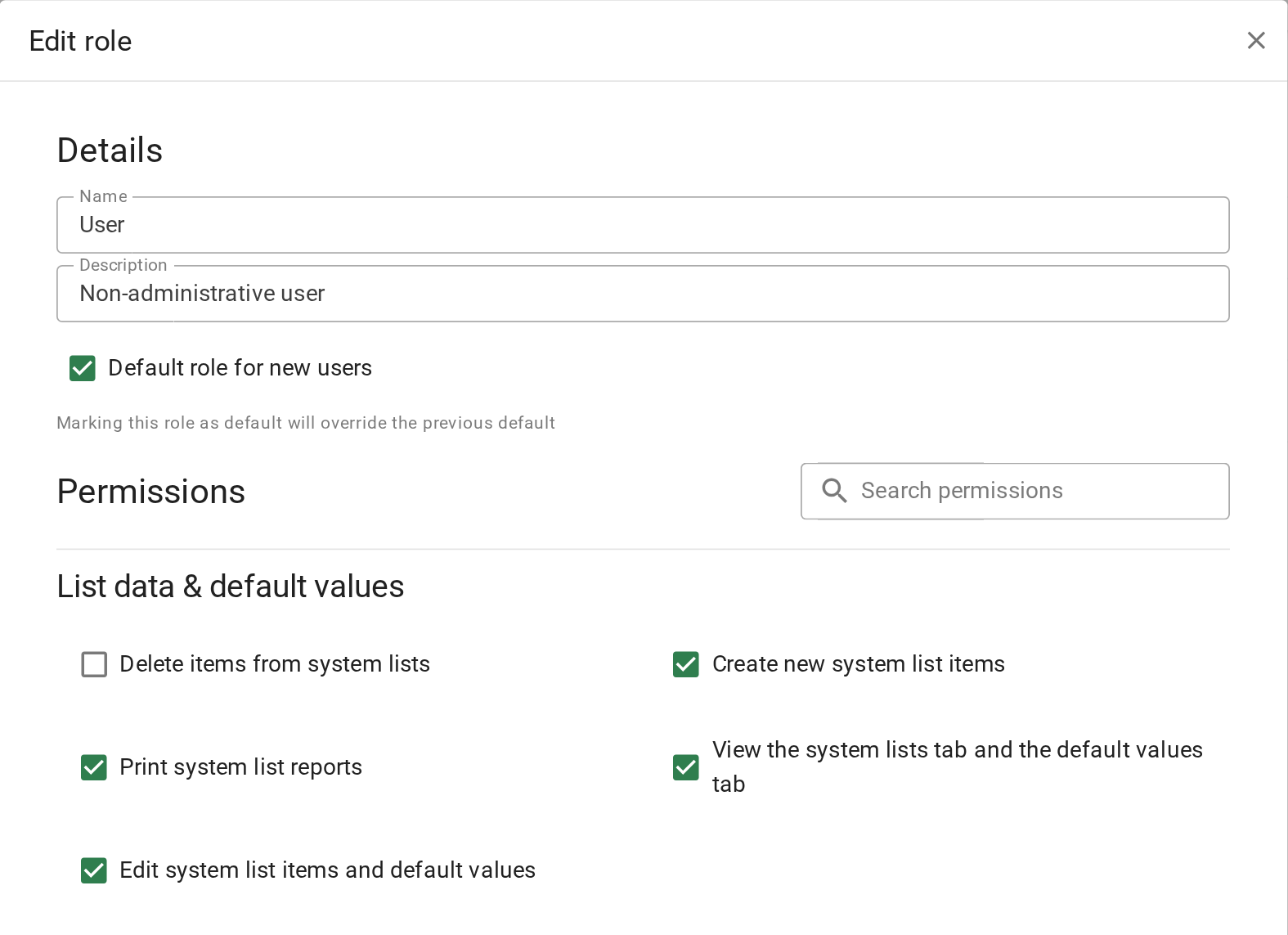
Editing the built-in roles
See what a role allows
When someone cannot see a page or a button, check their roles in Set up users, then check what each role allows.
- Open Settings | Roles.
- Click the role. The editor lists every permission in VOW, grouped by area, with a tick beside each one the role has.
- Type in Search permissions to find one, such as "quote". The groups narrow to the permissions that match.
- Click Cancel to close without changing anything.
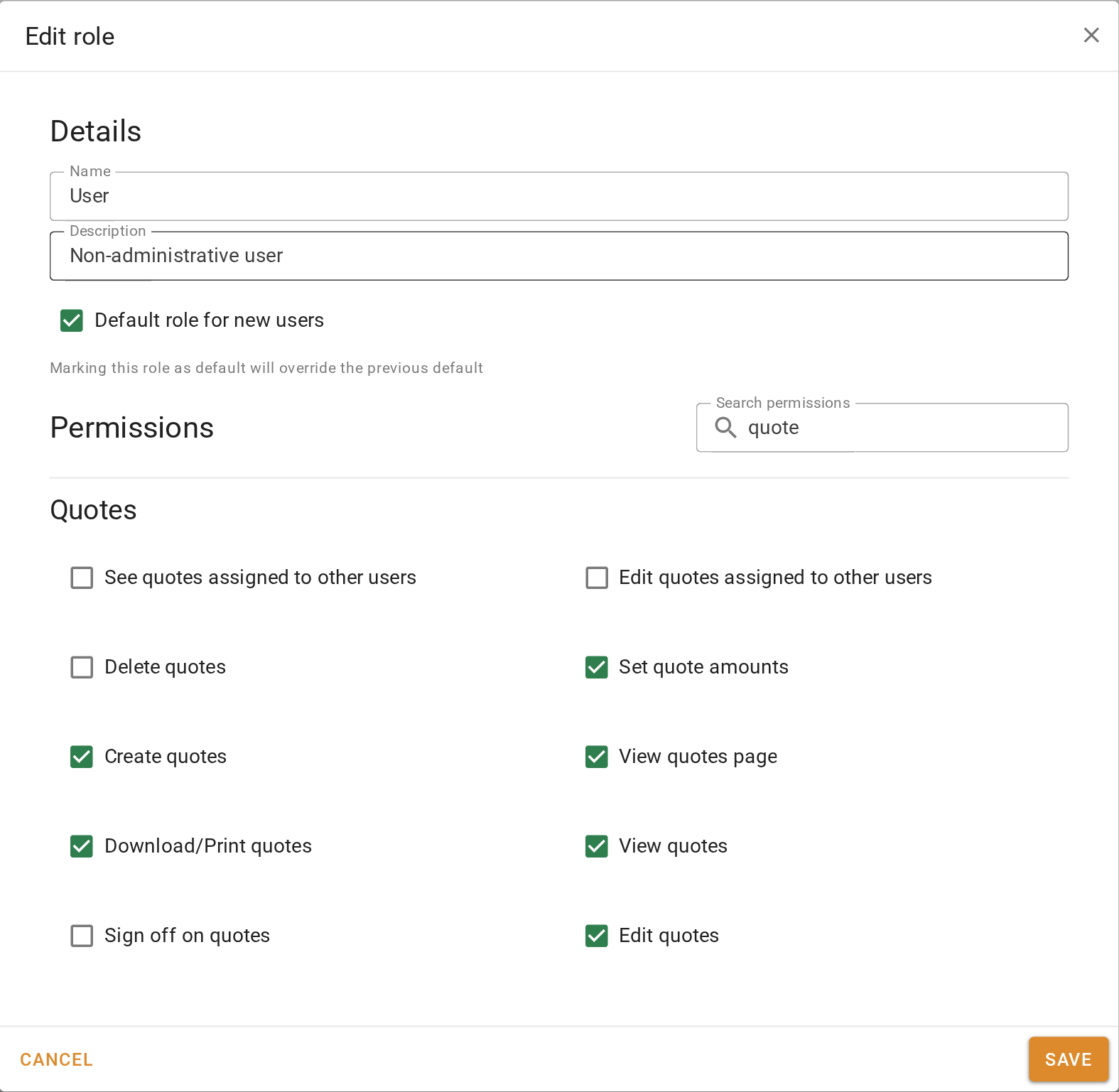
Seeing what a role allows
A person with two roles can do anything either role allows. A page needs two permissions. The page permission, such as View quotes page, puts the page in the menu. The view permission, such as View quotes, lets the records on it open.
Add a new role
Add a role when no existing one fits, such as two people who set quote amounts without being valuers.
- In Settings | Roles, click New role.
- Replace the Name with a name for the group, such as "Office manager".
- Enter a Description. It shows under the name in the roles list.
- Tick the permissions this role needs.
- Click Save.
Adding a new role
A user can have more than one role. A valuer who also runs the office can have both User and Valuer. You do not need a role for every combination.
Choose the default role
VOW ticks the default role for you whenever you add a new user. You can untick it or add other roles as you create each person. A user with no role cannot do anything when they sign in.
Pick the role most of your staff will have. For most companies that is User.
- In Settings | Roles, click that role to open it.
- Turn on Default role for new users.
- Click Save.
Only one role can be the default. Choosing a new one turns it off on the old one.
Choosing the default role
Take a permission away
Unticking a permission on User takes it from everyone with User. Check who has the role first, in the Roles column of Settings | Users. To take something from one person only, take a role off them instead, in Set up users.
- Open Settings | Roles and click the role.
- Find the permission with Search permissions and untick it.
- Click Save. Everyone with the role loses it the next time they refresh VOW.
Unticking a permission on a role
Unticking a permission on one role does not take it from a person who also has it through another role. If they can still do it, check their other roles.
Delete a role you no longer need
In Settings | Roles, click the button beside the role and confirm. The role is removed from every user who had it, so check the Roles column in Settings | Users first.
What a missing permission looks like
VOW hides what you cannot do, so a missing permission shows up as something that is not there.
| What the person sees | What is missing |
|---|---|
| A page is not in the main menu. | The page permission for that area, such as View quotes page or View requests page. |
| The page is there but New quote or New job is not. | The create permission for that area. |
| A record opens but every field is read-only and there is no Save. | The edit permission for that area. |
| They can see their own records but not their colleagues'. | One of the "other users" permissions, such as See quotes assigned to other users or View and search other users' valuations. |
| A permission in the role editor has a lock and cannot be ticked. | Not a permission at all. The feature is outside your subscription. |
Confirm your setup
The roles list shows a Default role chip beside the role you chose, and there is no warning about a missing default role at the top of the page.
For a description of every permission, see Roles.