

Turn on AI features
Included with Professional and Enterprise
With freeform data import, you paste an instruction email into a job and VOW fills in the address, client and job details. With AI request creation, you drop an email or a PDF onto the requests page and VOW turns it into a request. Both are off by default, because the text is sent to OpenAI to be read.
Before you start
Decide whether your company is comfortable sending instruction text to OpenAI. Read the API Platform section at openai.com/enterprise-privacy for how OpenAI treats what you send. If you work under a confidentiality agreement with a client, check it first.
Turn on AI features
- Open Settings | System.
- In the AI features card, turn on the switch in the card's heading.
- Read the terms in the dialog, then click Accept.
- Turn on Enable freeform data import for jobs.
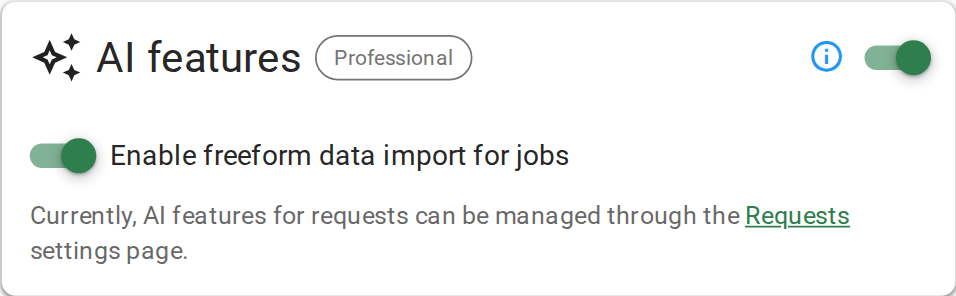
Turning on AI features
Turn on AI request creation
Do this only if your company uses requests.
- Open Settings | Requests.
- Under Unstructured requests, turn on Enable AI request creation.
- Read the dialog, then click Enable.
- Leave Mark created requests as unread by default ticked. Requests created this way then show as new, the same as requests from your website.
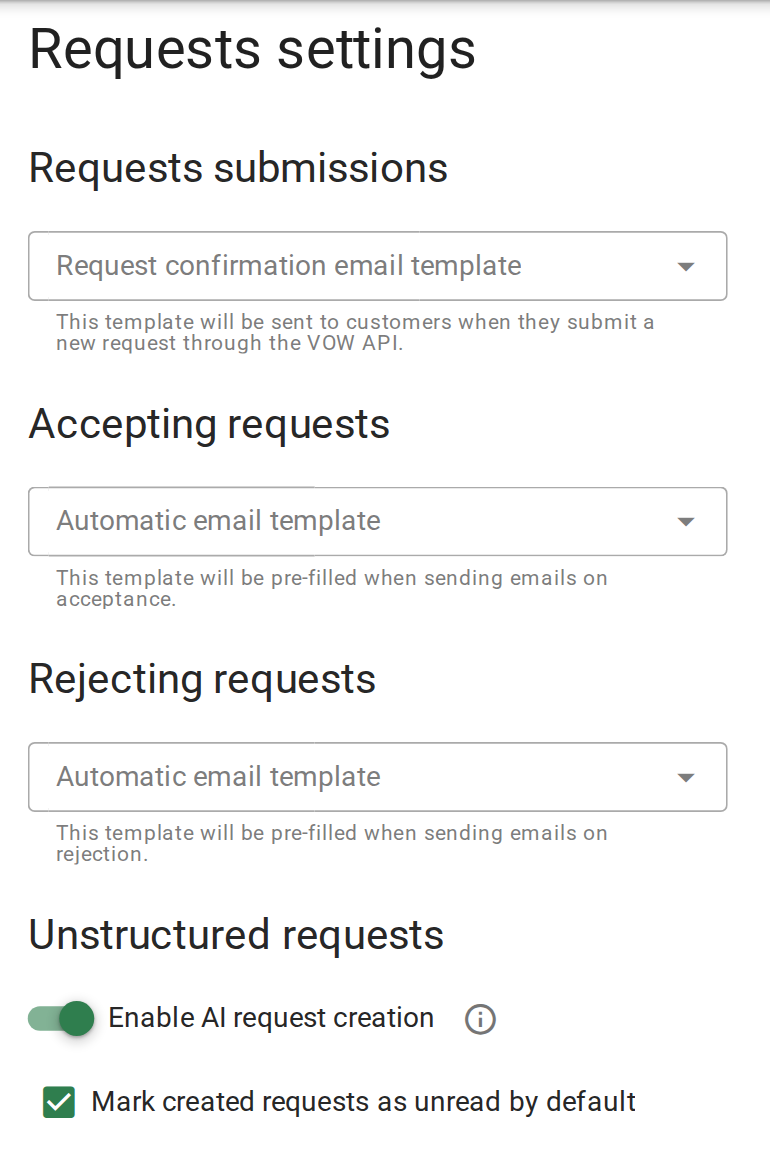
Turning on AI request creation
Confirm your setup
Open a job. The Actions menu has an Import freeform data option. On the requests page, New request offers AI request as well as Form entry.
Next, go back to the setup list for the following step.
For these settings, see AI features and Requests.