

Set up email integration
Included with Professional and Enterprise
With email integration on, staff can send emails from a job, quote or request. Emails come from your company's address and a copy lands in the mailbox's Sent folder. VOW records every email in the record's event log, with who it went to and when.
Before you start
VOW needs a mailbox on your mail server to send from. Most companies use a shared address such as admin@yourcompany.com.au rather than one person's mailbox. Ask your IT provider for these details.
- The username and password for the mailbox.
- The outgoing (SMTP) server name and port.
- The incoming (IMAP) server name and port.
If the mailbox uses two-factor authentication, you may need an app password rather than the normal one. Your IT provider can tell you.
Enter your mail server details
- Open Settings | System.
- In the Emails card, turn on Enable email integration. The mail server settings appear below it.
- Under Mail server configuration, enter the Mail server username and Password.
- Set the Email from address, the address your clients see and reply to. Leave Same as username on if the username is the email address. Otherwise turn it off and enter the address.
- Under SMTP server settings, enter the Outgoing SMTP mail server and Outgoing SMTP port.
- Under IMAP server settings, enter the Incoming IMAP mail server and Incoming IMAP port.
VOW saves these as you type.
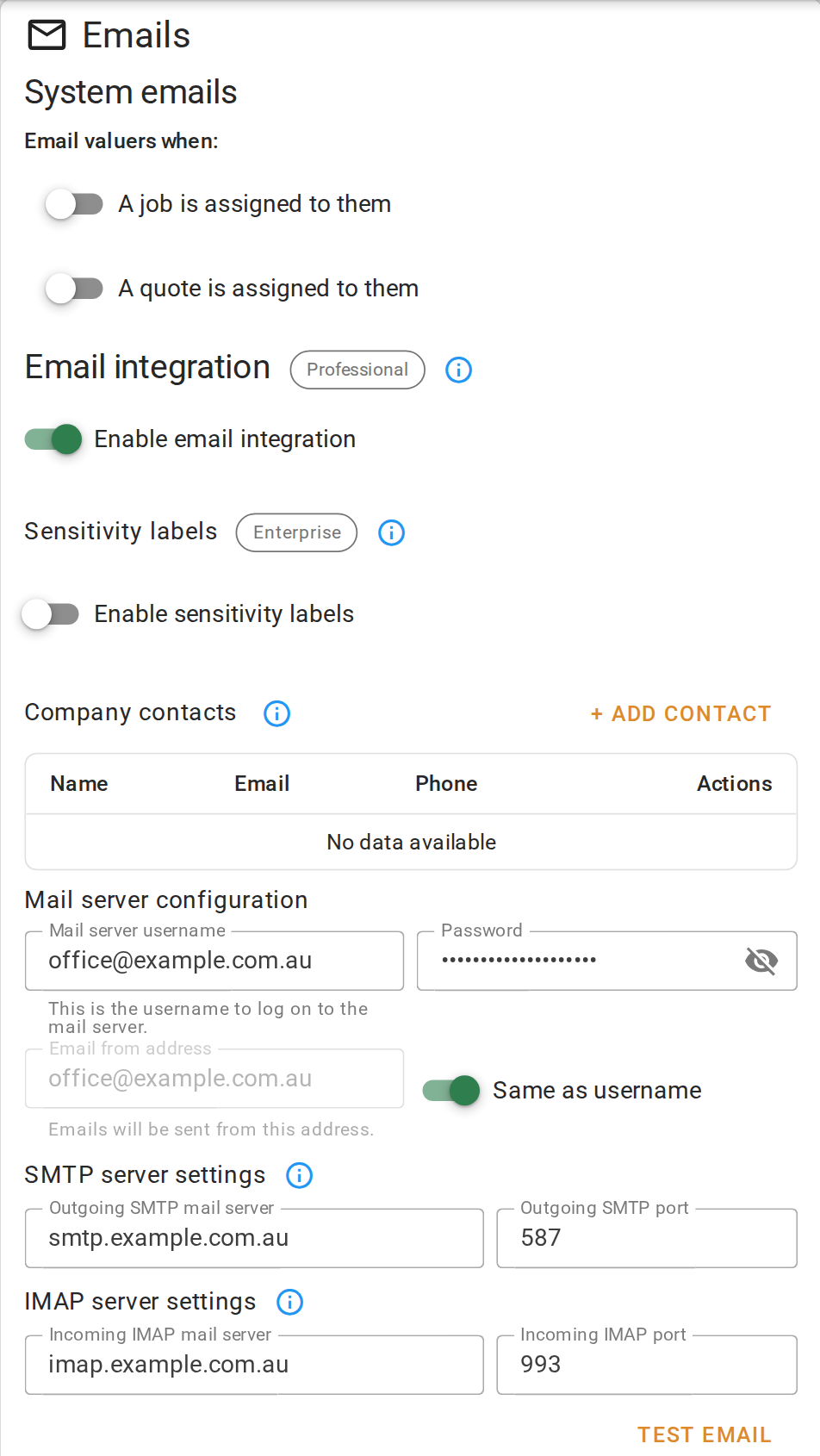
Entering your mail server details
SMTP sends the email. IMAP puts a copy in the mailbox's Sent folder. Without IMAP, emails still go out but the Sent folder stays empty.
Send a test email
- Below the IMAP settings, click Test email.
- Your own name and email address are filled in. Change them to send the test somewhere else.
- Click Send.
- Check your inbox for the test email. Then check the Sent folder of the mailbox you set up.
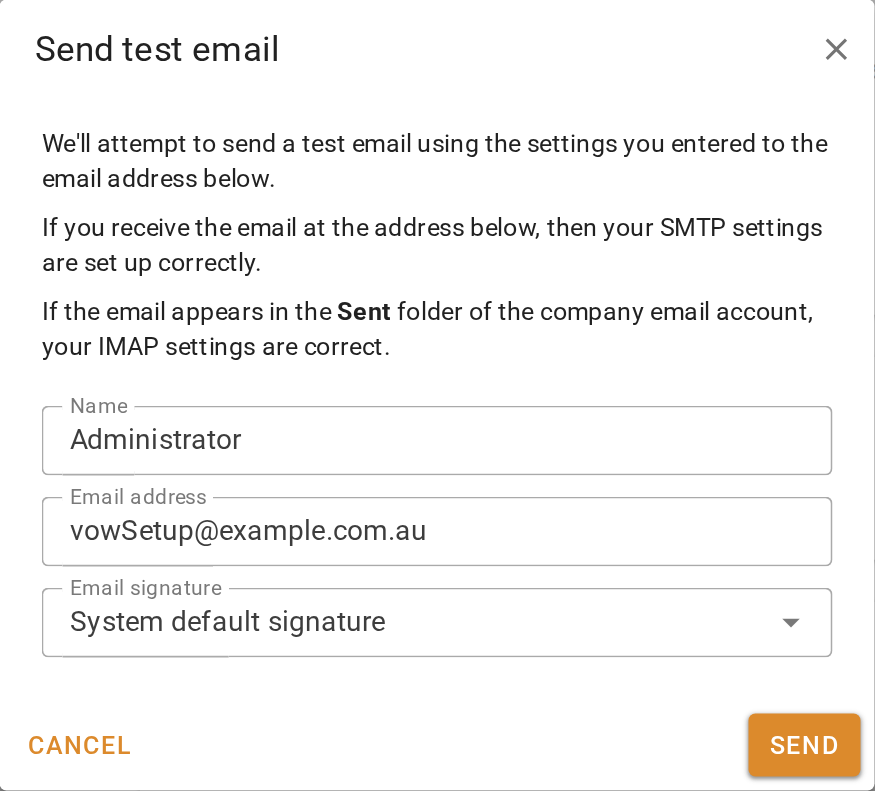
If the email arrives, your SMTP settings are right. If it also shows in the mailbox's Sent folder, your IMAP settings are right. If either is missing, check the details with your IT provider and send another test.
Sending a test email
Add your company signature
Every email sent from VOW ends with a signature. Anyone can pick the company signature.
- Beside Company email signature, click + Add.
- Write the signature with your company name, phone number and website. You can paste your logo in too.
- Click Save.
Adding your company signature
Each person can also add their own signature, with their name and direct number, under Settings | My settings. When they write an email, they choose between their own signature and the company one.
To copy an address on emails often, such as your accounts mailbox, add it under Company contacts with + Add contact. It appears in the recipient list on every email, whichever job is open.
Email valuers when work is assigned
VOW can email a valuer when a job or quote is first assigned to them. These emails come from VOW itself, not your mail server, so they work with or without email integration.
- At the top of the Emails card, under Email valuers when, turn on A job is assigned to them.
- If you use quotes, also turn on A quote is assigned to them.
Emailing valuers when work is assigned
Confirm your setup
Someone with the Send emails from within VOW permission can open a job and send an email from it.
For every field in this card, see Emails.