

Set up invoicing
Included with every subscription
VOW prints your bank details on every invoice and works out the due date from your payment terms.
Before you start
Have your bank account details ready, including the bank name, account name, BSB and account number.
Add your bank account
- Open Settings | System.
- In the Financial details card, click + New account.
- Fill in Account label, Bank name, Account name, BSB and Account number. The label is a short name you see when choosing an account, such as "Operating account". It only shows inside VOW, never on an invoice.
- Click Save. VOW ticks your first account as the Primary account.
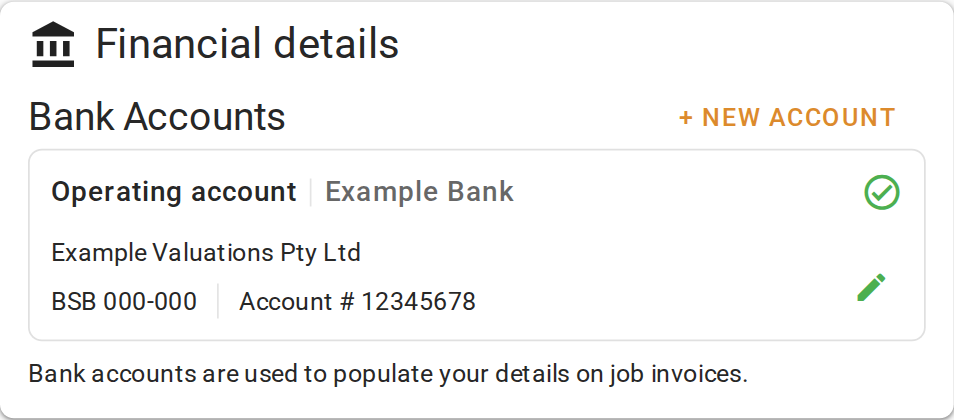
Add any other accounts the same way. VOW picks the primary account on every new invoice, and you can choose a different one on an individual invoice. To make another account the primary one, tick Primary account when you add or edit it. Only one account can be primary.
Adding your bank account
Your invoices show the Bank name, BSB and Account number, with the invoice number as the payment reference.
Set your payment terms
VOW adds the payment period to the invoice date to set the due date. With a period of 14 days, an invoice dated 1 March is due on 15 March. The period also prints in the invoice's payment instructions as "Please pay within 14 days".
- In the References card, find Payment period under Invoices.
- Enter a number and choose days, weeks or months.
- Leave Automatically generate invoice attachments on for VOW to create the invoice document as soon as you create an invoice. If you turn it off, you create the document yourself afterwards.
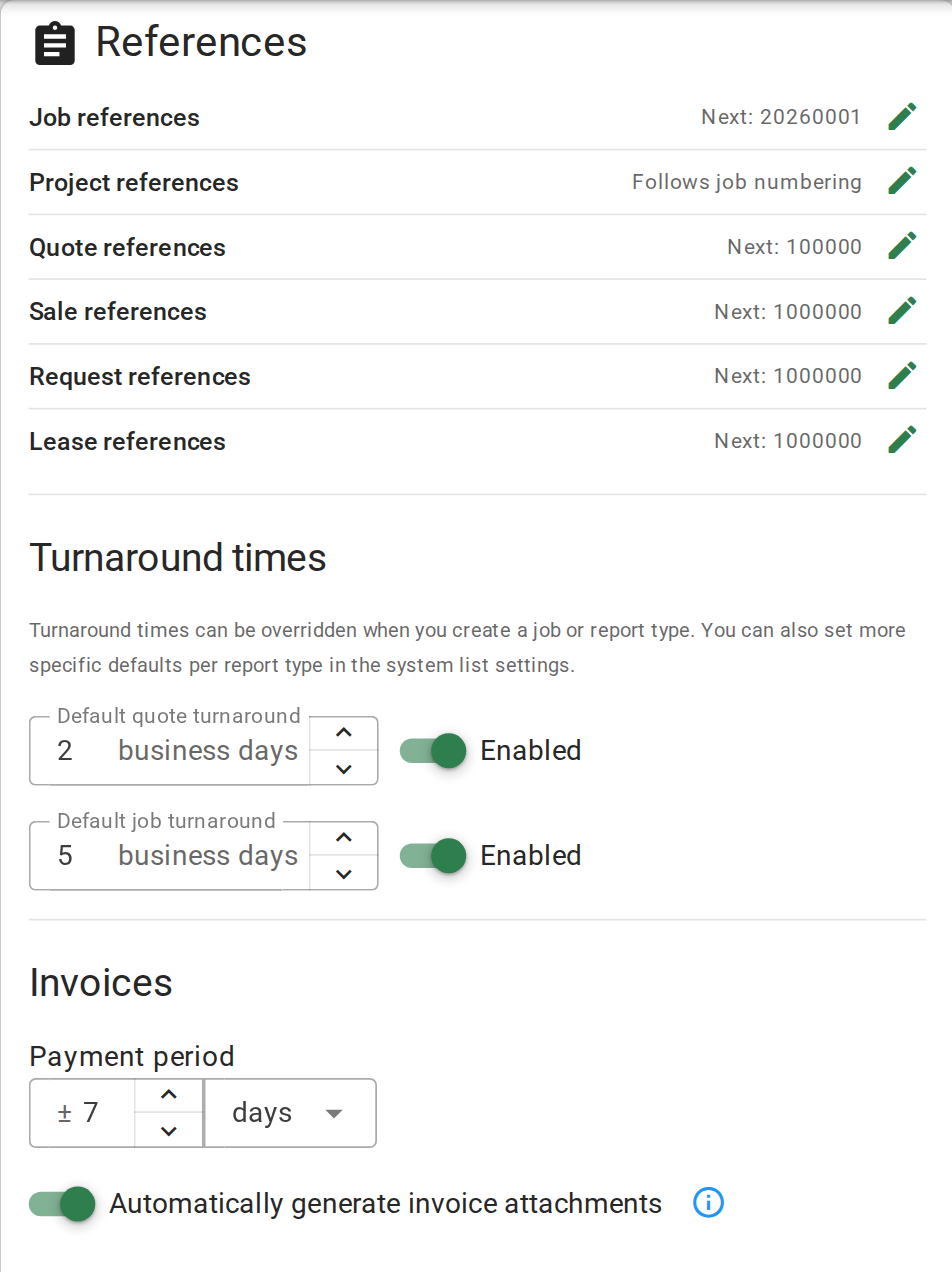
Setting your payment terms
Confirm your setup
Your bank account appears in the Financial details card, marked as the primary account, and Payment period shows your terms.
For more on these settings, see Financial details and Invoices.