

Set up reference numbers and turnaround times
Included with every subscription
The default turnaround times give new jobs a due date. The reference number appears on the documents you send.
Set the format before you create any records. A format change only applies to new references. Existing records keep their old reference.
Before you start
Decide how you want your references to look. If you are moving to VOW from another system, find the last job number you issued, so VOW can continue from the next one and an old job never shares a reference with a new one.
Set up your job references
- Open Settings | System.
- In the References card, click the button beside Job references.
- In Next reference, enter the number for your first job in VOW.
- Set Number length for leading zeros. A length of 4 turns 12 into
0012. - Add a Prefix or Suffix if you want one. The Delimiter separates them from the number, so a prefix of
SYDwith a-delimiter givesSYD-0012. The preview shows the next reference. - Click Save.
Repeat for any other counter you want to change, such as Quote references or Sale references.
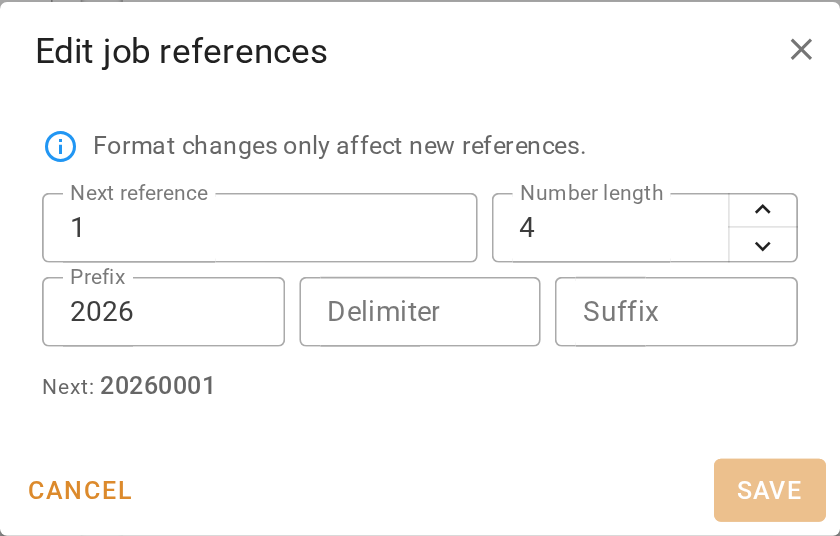
Setting up job references
To restart numbering each year, use a prefix of 2026 and a number length of 4 for references like 20260001. At the start of the next year, change the prefix and set the next reference back to 1.
Set your turnaround times
A turnaround is how long you usually take to finish a job. With a default set, every new job gets a due date as soon as it is created. Staff can still change the due date on any job.
- Still in the References card, enter the number of business days in Default job turnaround. VOW skips weekends and national public holidays when it works out the due date. It does not skip state-only holidays, so allow for those yourself.
- Turn on the Enabled switch beside it.
- If you use quotes, do the same for Default quote turnaround.
VOW saves these as you type.
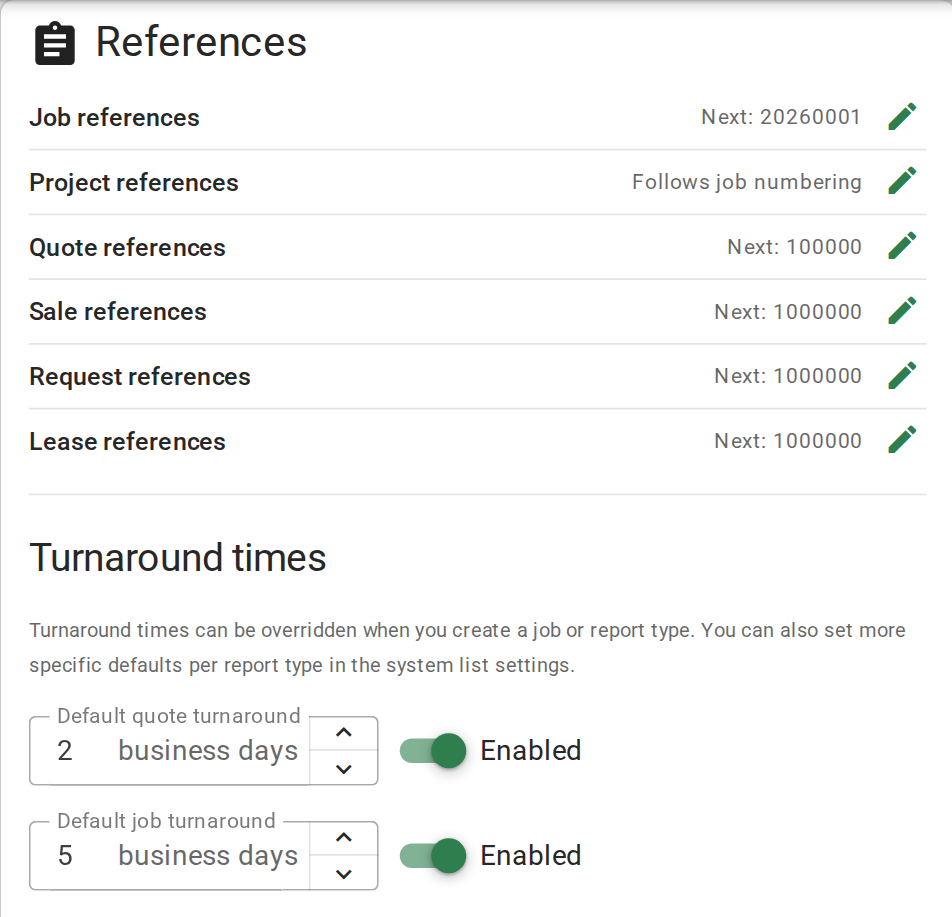
Setting your turnaround times
Report types can have their own turnaround. When someone picks a report type that has one, VOW offers to change the job's due date to match. Set the default here for your most common job.
Confirm your setup
The References card shows the next reference for each counter in the format you chose.
For every option on this card, see References.