

Set up email templates
Included with Enterprise
A template fills in details from the job, such as the address, the client's name and the inspection date. A new company starts with no templates.
Templates are sent through your mail server, so set up email integration first.
Before you start
Gather the wording your company uses for its standard emails, such as the inspection confirmation, the letter of engagement and the report delivery. You will paste each one into a template.
Create your templates
- Open Settings | Email templates.
- Click New.
- Enter a Template name. Staff pick a template by this name, so name it for the message it sends, such as "Inspection booked".
- Choose the Template type. Valuation templates are sent from jobs. The other types are for quotes, projects and requests.
- Write the Subject and the email body.
- In the body, add the details that change with each job as template fields. Type
@and pick a field from the list, or open a group in the Job fields panel beside the editor and drag a field in. A field shows as its name until the email is sent, when it becomes the job's value. - Choose the Signature the template sends with.
- Choose the Recipient(s), who the email goes to by default, such as the client contact on the job. Staff can change it when they send.
- Click Save.
Repeat for each standard email. To stop a template being picked without deleting it, open it and turn off Active. To change the order, click Reorder, drag the templates staff use most to the top, then click Save order.
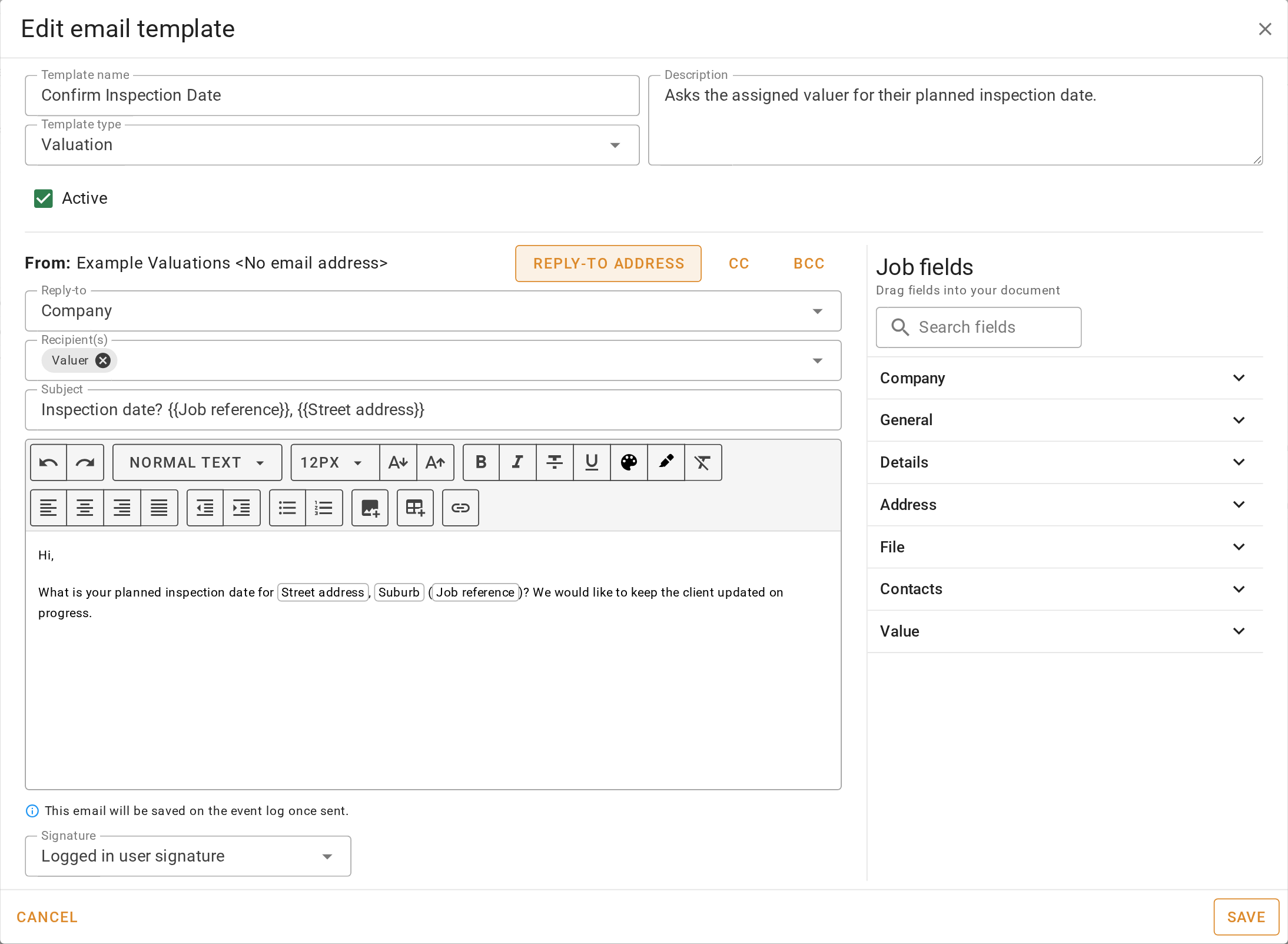
Creating an email template
Automate your request emails
If your company uses requests, VOW can send a template automatically when a request arrives, and pre-fill one when staff accept or reject a request. These need templates with the type Request, so create them first as above.
- Open Settings | Requests.
- Under Requests submissions, choose a Request confirmation email template. VOW sends it automatically when a request comes in from your website.
- Under Accepting requests, choose an Automatic email template. When someone accepts a request, the email opens ready to send.
- Under Rejecting requests, do the same.
Leave any of these empty for staff to write the email themselves.
Automating your request emails
Confirm your setup
Each standard email your company sends is in the list as an active template, with the job's details as fields rather than typed in.
For every field in the template editor, see Email templates. For the request settings, see Requests.