

Find an email you sent
Included with Professional and Enterprise
Before you start
- Reading the event log needs View event logs. If you do not have it, Set up users shows how an administrator gives it to you.
- Open the job or quote the email was sent from. A request has no event log on its form. Look it up from Settings as below.
Find an email you sent
- On a job, click the Event log tab. On a quote, click the button on the strip at the right edge of the form, and the side panel opens on Events. The newest entry is at the top.
- Find the Email sent entry. Under it are the name of the person who sent it and the time.
- Click the arrow beside the entry to open it. It lists the sender, the recipients, the subject and the text of the message. The email itself is attached to the entry as a file.
- To see the email exactly as it went out, with its attachments, click the attached file. It downloads. Open it in your own mail program, such as Outlook.
- To show only email in a long log, choose Email sent under Event type in the filters beside the list.
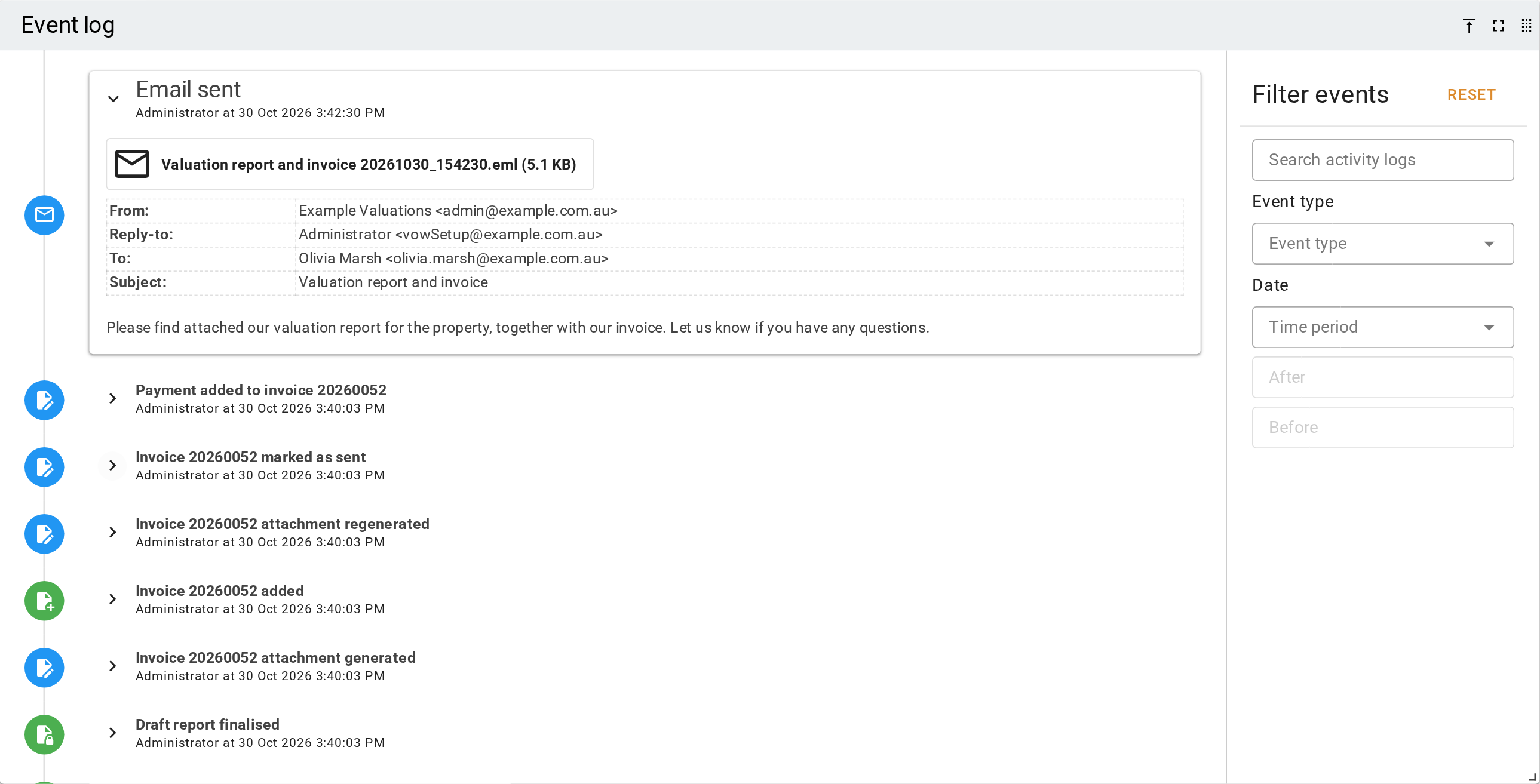
The log holds the emails people send from the composer. For the emails VOW sends on its own, such as a valuer's assignment notice, see Automatic emails.
Look up a record's emails from Settings
- Go to Settings | Event logs.
- Choose the Item type, such as Valuation or Request, type the record's ref and click Search.
- Choose Email sent under Event type.
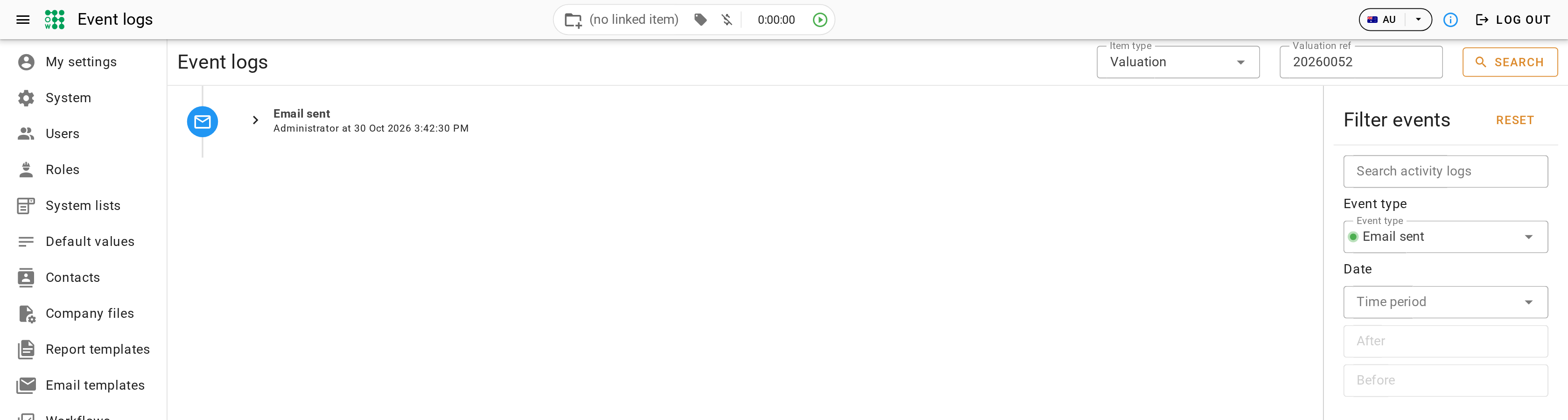
What you should see
The Events panel lists an Email sent entry for each email.
Next
Go back to Working with email for the lesson list, or on to the next module in VOW tutorials. For searching and filtering the logs, see Event logs.