

Accept a request
Included with Professional and Enterprise
Accepting a request opens the job wizard or the quote wizard with the request's contacts, address, report type and attachments already in it. The request closes as Accepted with a link to the new job or quote.
Before you start
- Your role needs Process requests. If you do not have it, Set up users shows how an administrator gives it to you.
- Open a Pending request from the inbox, as in Read a request.
Check the address and the contact
VOW suggests matches for the address and the contact the requester typed.
- Under Address suggestions, click the address that matches what the requester typed. The Address card fills in from the match, LGA included, and the suggestions card goes away. If none of them is right, click Search in the Address card and find it yourself.
- Under Contacts, VOW has already linked the requester to a contact if it found one with the same details. If the list reads No contacts yet., click the button beside Provided contact details to make a contact from what they typed. Or click + Add contacts and pick the existing one.
- Check Request type. It decides whether accepting makes a job or a quote, and the requester may have chosen the wrong one.
- Click Save.
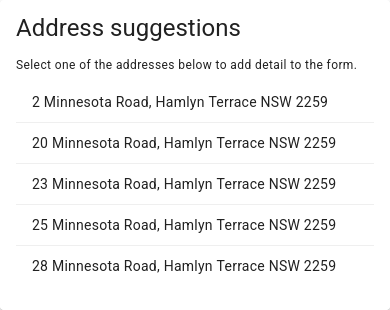
Picking an address suggestion fills the form but does not save it. Accept saves your changes along with the request. Accept request in the card's right-click menu uses the last saved version, so click Save first if you accept from there.
Accept a request as a job
- Click Accept. It is above the request in the inbox view and below it in the table view's dialog.
- The New valuation wizard opens with the request's contacts, address, report type and purpose filled in. The request's Instructions are not copied, so enter anything the job needs from them yourself. Work through its steps. On Valuer details, choose the Valuer and the Date due. On Internal details, enter the Report fee (ex. GST).
- Click Save. The job is created, the request closes as Accepted, and a dialog offers to open the new job. Click Open here to go to it now, or Close to stay with the request.
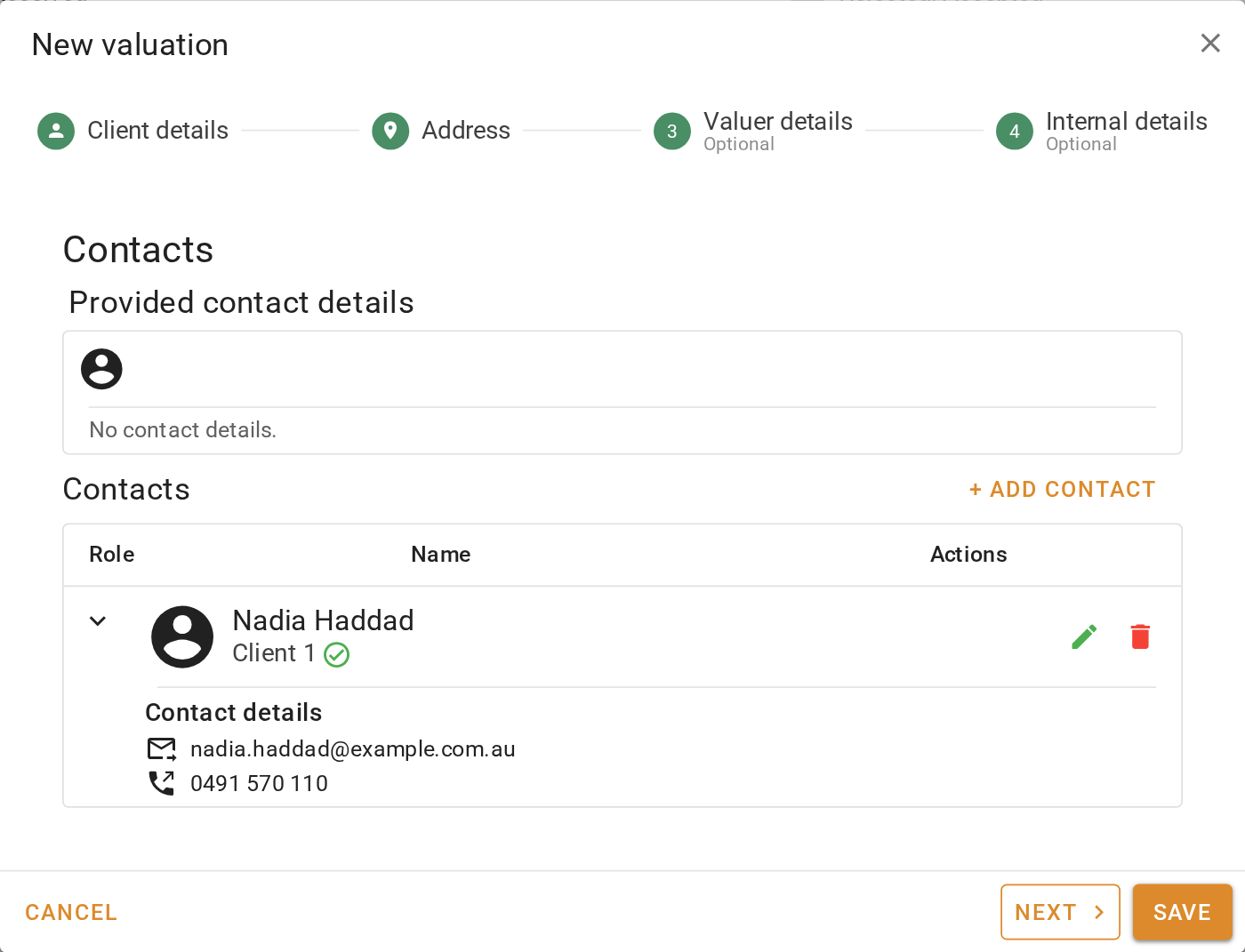
Files attached to the request are copied onto the job.
Accept a request as a quote
- If the request is not a quote already, set Request type to Quote and click Save.
- Click Accept. The Create a quote wizard opens with the request's contact, address, notes and report details filled in.
- On Internal details, choose the Assignee and who will price it under To be quoted by, and click Save. The quote is created and the request closes as Accepted.
- In the New quote created dialog, click Open here to go to the quote, or Close to stay with the request. Price it as in Price and send a quote.
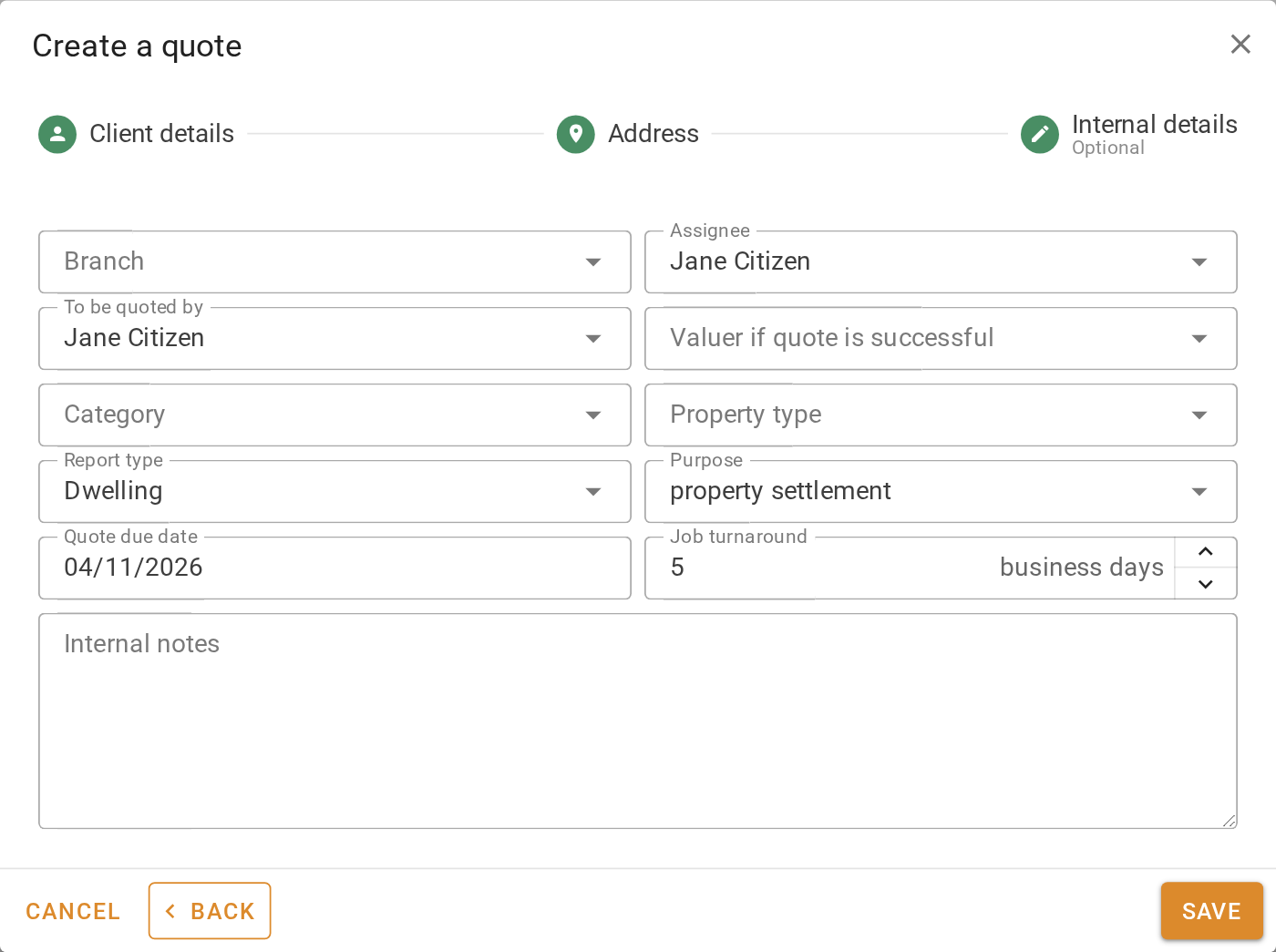
What you should see
The request's stepper shows Accepted complete. A card at the top of the request reads The request was accepted and converted to a job or quote, with the new record's reference as a link. The request has left the Incomplete list. Click All to see it again.
Next
Reject a request, which also covers telling the requester what you decided. For the wizard fields, see Quote wizard.