

Complete a job
Included with every subscription
Signing off records the valuer's approval and puts their signature on the report. Moving the job to Completed archives it, once VOW has checked the job.
Before you start
- Signing off needs Sign off on valuations. Changing the status needs Update valuations. If you do not have them, Set up users shows how an administrator gives them to you.
- Open the job from Job attachments and history, with its report finalised and sent.
Sign off on the job
- Click Actions in the job form's header and choose Sign off on job. The Add signature to job dialog asks you to confirm.
- Click Sign. Your name and signature are now available to the report, and the job records that you signed it.
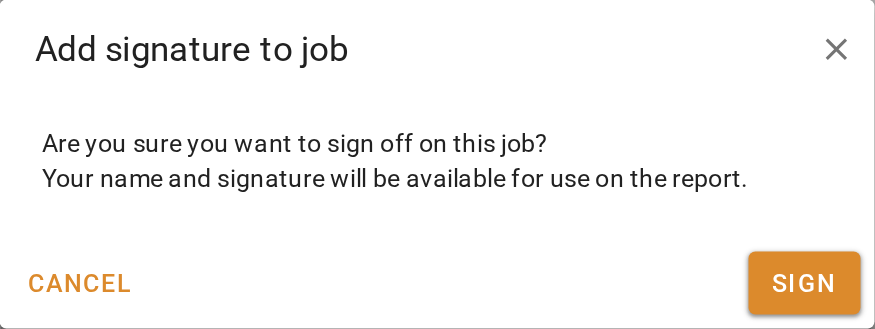
Signing off on a job
Complete the job
- On the File tab under Valuation information, choose Completed under Job status. Or, if your company shows a Completed column, drag the card to it.
- Click Save. VOW checks the job before it archives it. If anything is missing, the save stops with a list. Fill in what is missing and save again.
- The job leaves the column view. It is still in the table with Show archived on, and on the Other jobs tab of the next job at the property.
Completing a job
To be completed, a job needs its Valuation date and Market value, a Valuer, a Report purpose, a Category, a Report fee, a named contact, and every mandatory task done or skipped. If a field is missing, the message that stops the save lists the missing fields. Once the fields are filled in, a second message lists any mandatory tasks still to do.
Cancel a job
A cancelled job is archived without the checks above.
- To stop every unfinished task on the job at once, first add your company's stop task from the workflow panel, such as Stop all tasks. The tasks stop when that task is done, so click Do task on it if it does not run by itself.
- Choose Cancelled under Job status.
- Click Save.
What you should see
The completed job is gone from the column view. In the table with Show archived on, its row shows Completed under Status and Yes under Archived, and its Date out is set.
Next
Go back to Working with valuations for the lesson list, or on to the next module in VOW tutorials. For the status rules, see Valuation information.