

Find and open a file
Included with every subscription
Before you start
- Your role needs View and search for valuations to open the job. If you do not have it, Set up users shows how an administrator gives it to you.
- Open the job's Attachments tab. The files from Upload files to a job are there.
Find a file in folder view
- Click the button at the bottom right of the panel. The folder tree is on the left and the current folder in the middle.
- Click a folder in the tree to open it. Folders are listed before files, both in alphabetical order.
- Click View and choose Switch to list view. Each file is a row with its size, who last changed it and when. Click the Name heading to sort by name, or click Last modified twice to bring the newest to the top. The first click puts the oldest at the top.
- Click a file to select it. The pane on the right shows it.
- Click View and choose Preview pane to read the file in the pane, or Details pane for its size, location, who uploaded it and whether it is locked.
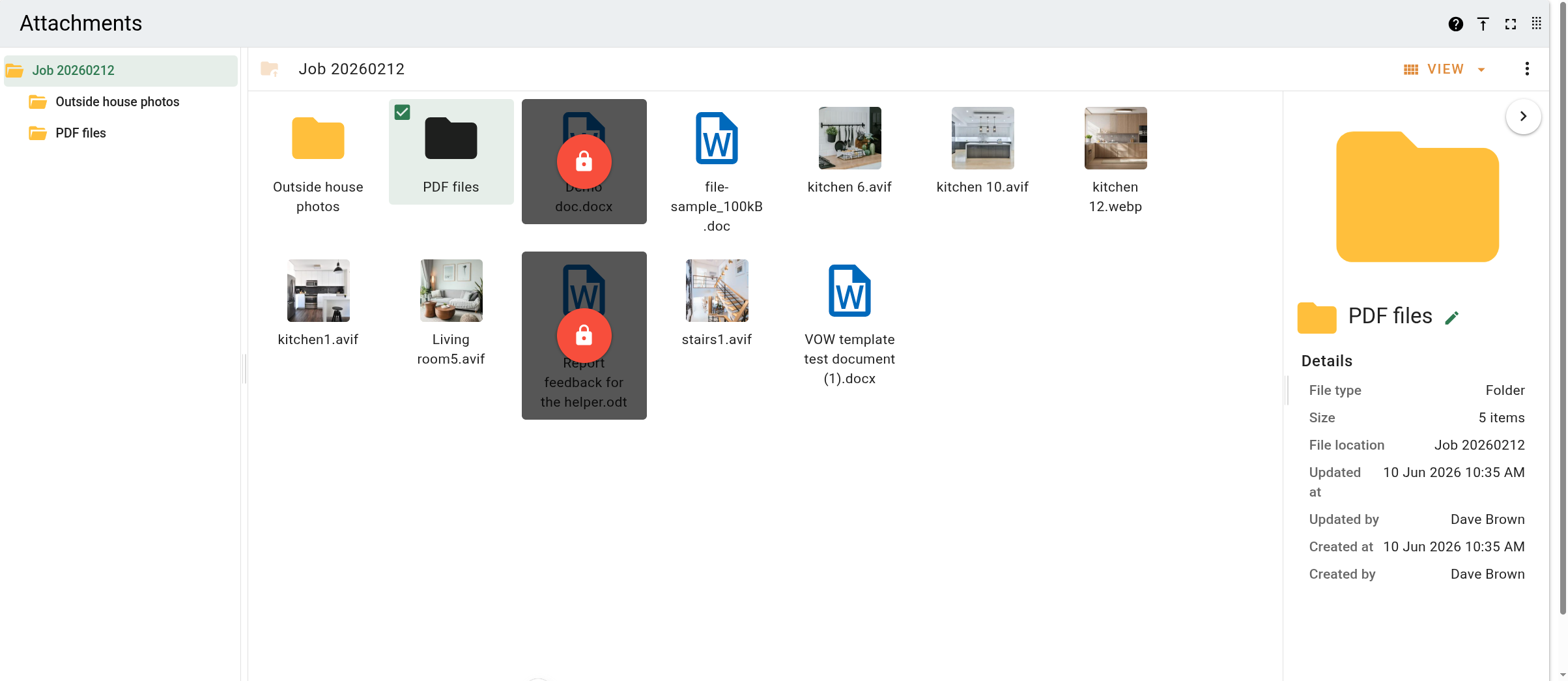
Finding a file in folder view
The preview pane shows images, PDFs, videos and PowerPoint files. Anything else shows its file type icon.
Open or download a file
- Double-click the file. An image, PDF, video or audio file opens in a new browser tab.
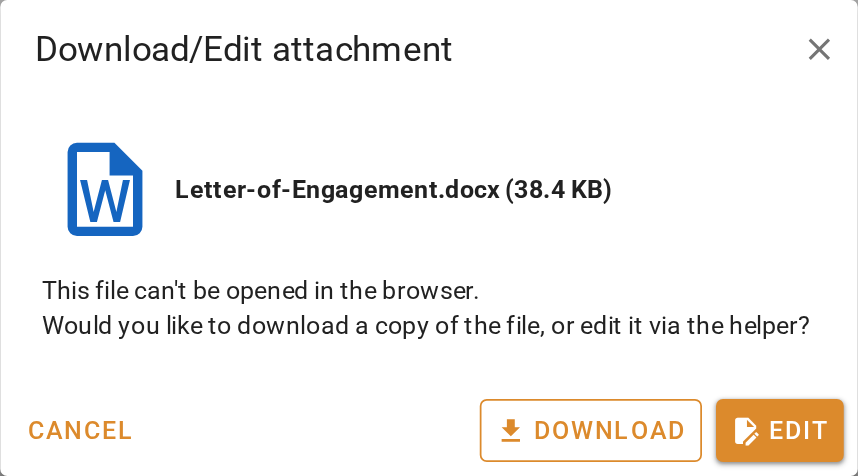
- A file the browser cannot show, such as a Word document or a spreadsheet, opens the Download/Edit attachment dialog instead. Click Download for a copy. Edit is covered in Edit a file with VOW Helper.
- To download without opening, right-click the file and choose Download a copy. For an image, choose Original quality or Resized. For a folder, choose Download folder as a zip.
Select several files
- Hold Ctrl and click to add files to the selection one at a time.
- Hold Shift and click to select everything from the first file to the one you click.
- Press Esc to clear the selection.

Moving, tagging and deleting, covered in the next lesson, work on the whole selection.
What you should see
The file is selected in the current folder and its contents show in the preview pane. If you downloaded it, a copy is in your downloads.
Next
Organise files. For every area of folder view and every option in the View menu, see Attachment panels.