

Reuse a search
Included with Professional and Enterprise
Run a search again from its card on the Recent tab, and keep the searches you use often as favourites. Both tabs are yours alone. They keep the search, not its results, so running a card again shows what the data holds now.
Before you start
- Your role needs View properties page and View properties. If you do not have them, Set up users shows how an administrator gives them to you.
- Run at least one search, from Find a property or Build a full search.
Run a recent search again
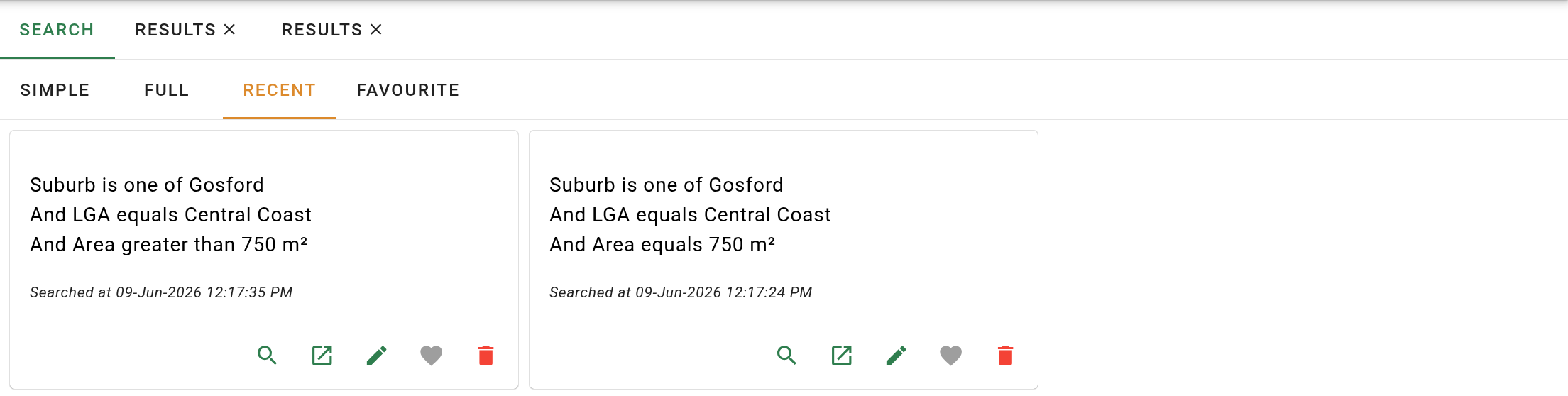
- On the Search tab, click the Recent sub-tab. Each card shows the search's criteria in plain words and when it was last run, newest first.
- Click the button on the card. The results open in a tab, the same as running the search from the form. Click the card itself instead to replace the page with the results.
- To change the search before running it, click the button. The Full tab opens with the criteria loaded, even for a search made on the Simple tab.
Keep a search as a favourite
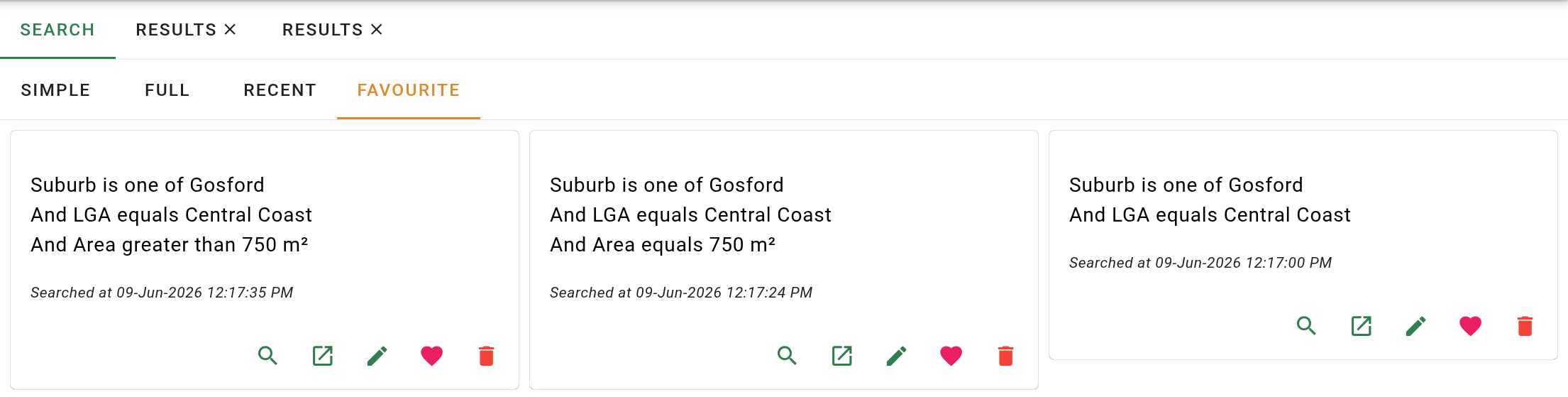
- On the card, click the button. It turns pink, and the card also appears on the Favourite sub-tab.
- Click the Favourite sub-tab. The cards here have the same buttons as on Recent, and they stay until you remove them.
- To remove a favourite, click its pink heart. A message offers Undo. A search that is still among your last fifty stays on Recent as an ordinary search. An older one is not kept.
Only your fifty most recent searches are kept. When a new search pushes an old one past fifty, the old one is deleted. A favourite is never pushed out, so mark any search you will need again.
Delete a search
- On the card, click the button. The search goes from both tabs straight away, with no confirmation.
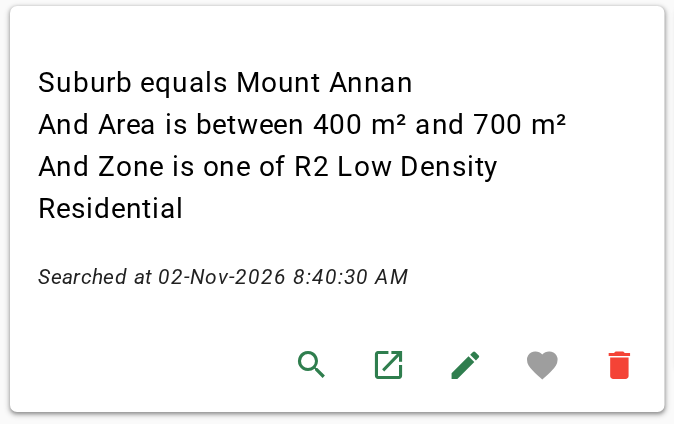
A delete cannot be undone. For a search you might want back, take the heart off instead and let it age out.
What you should see
The search you ran is at the top of Recent with its criteria on the card. With the heart pink, the same card is on Favourite, and its magnifying glass opens a fresh Results tab.
Next
Export the results. For everything on a search card, see Recent and Favourite.