

Edit a quote
Included with Professional and Enterprise
Add the solicitor and correct the address on the quote you created.
Before you start
- Your role needs Edit quotes. Without it the form opens read-only. If you do not have it, Set up users shows how an administrator gives it to you.
- Open the quote you created in Create a quote. Double-click its row, or click its Quote ref for the full page.
The form
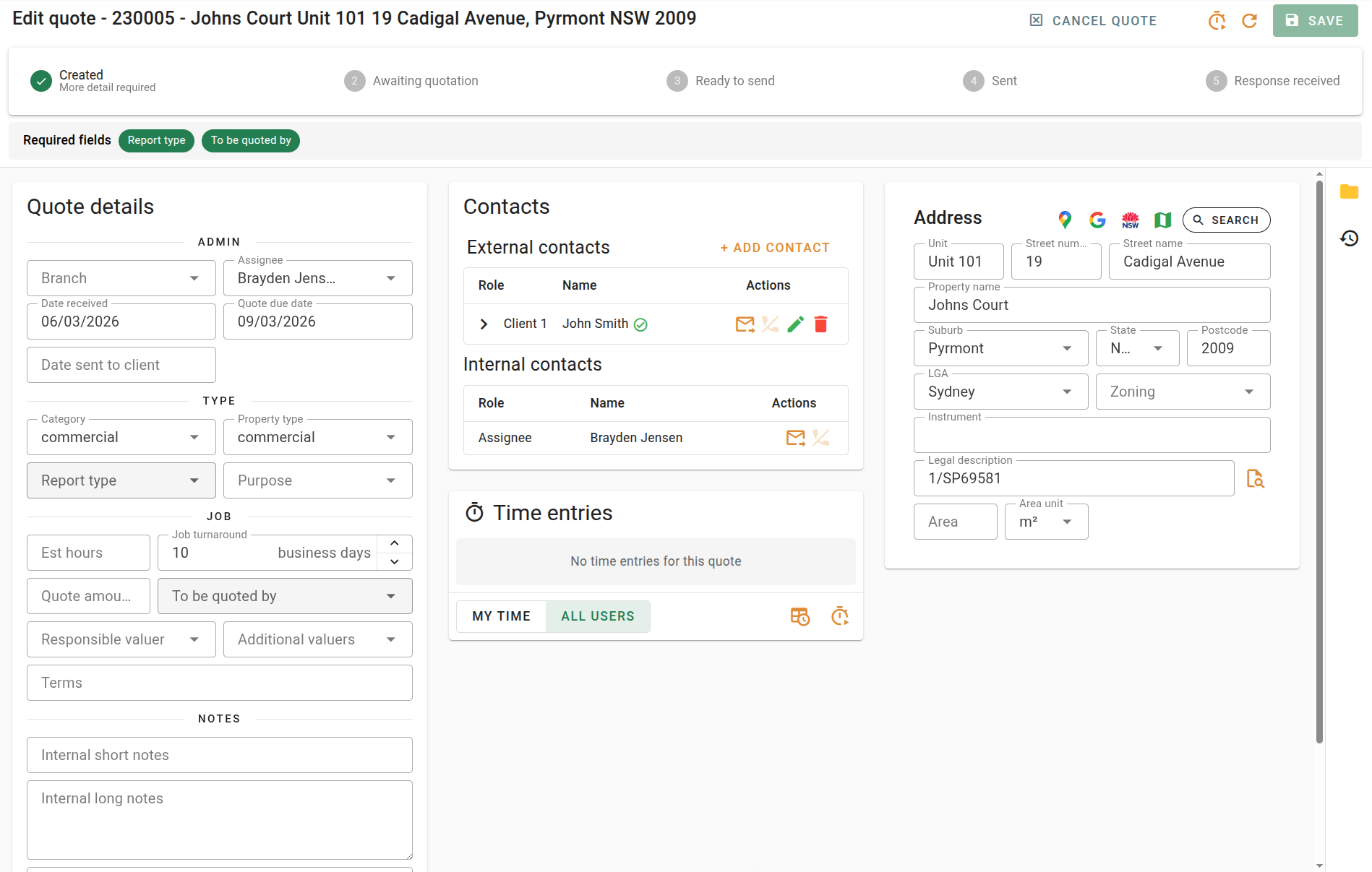
- The stepper across the top shows the quote's status. While the quote is New quote, a Required fields banner under it lists what is still missing. Click a chip to go to that field.
- Quote details has three sections. Admin holds the branch, assignee and dates. Type holds the category, property type, report type, purpose, hours and turnaround, the amount and who is quoting it, and the valuers. Notes holds the internal short and long notes, and the Comments (included in quote) that go to the client.
- Contacts lists the client's people.
- Address is the property. Below it, Other quotes lists any other quote your company has recorded for the same property.
- The strip on the right edge opens the side panel. The folder opens Attachments and the clock opens the Event log. Both are covered in Quote attachments and history.
In the dialog, the arrow in the header, View this quote as a full page, opens the quote as a full page.
Add the solicitor
Contacts on the quote are copied to the job when the quote is accepted.
- Under Contacts, click + Add contact. Search for the solicitor under Contact name or email, or click + New contact and enter their details.
- Click the button on the solicitor and choose their Role, such as Solicitor 1. Changes here apply to this quote only. The contact's own record is not changed. Click Done.
- To take someone off the quote, click the button. The contact stays in your contacts list.
- Click Save quote.
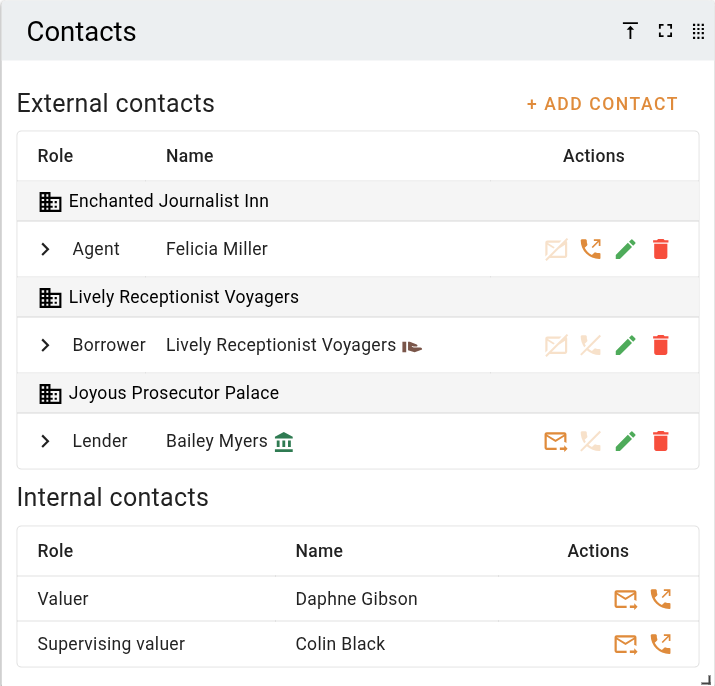
Adding the solicitor
A contact's role on the quote decides where they land when the quote becomes a job. The instructing party becomes the job's Requested by, and a borrower becomes its Borrower name.
Correct the address
The address is in the subject of the email the client receives, so correct it before you send the quote.
- Under Address, click Search and type the corrected address.
- Pick the match. Every address field is replaced, including the LGA.
- Click Save quote.
If only one field is wrong, type over it instead.
Correcting the address
Save and unsaved changes
Save quote is in the dialog footer. On the full page it is Save in the header, or Alt+S. Closing a quote with unsaved changes asks whether to Save and close, Discard changes or Keep editing.
Other quotes for this property
Each row under Other quotes has a button to open that quote in a new tab and a button to clone it. Cloning here makes a new quote from the old one and leaves you on the quote you are editing. The confirmation message has an Open quote button.
What you should see
The quote's row in the table shows the solicitor beside the client and the corrected address. Open the quote again and the changes are there.
Next
Price and send a quote. For every field, see Quote form.