

Read a request
Included with Professional and Enterprise
Open a request from the inbox, read what the requester sent and check it against the original form or file.
Before you start
- Your role needs View requests page and View request details. Clearing the unread mark and putting it back also needs Process requests. If you do not have them, Set up users shows how an administrator gives them to you.
- Open Requests from the main menu. If the page opens as a table, click the button at the top right.
Open a request from the inbox
- Click Unread above the list. Only the requests nobody has opened yet are left. Incomplete shows every pending request, and All adds the accepted and rejected ones.
- Click a request's card. The request opens on the right, and its unread mark clears, so the rest of the company can see somebody has it.
- Read Request details first. Request type says whether they asked for a Valuation or a Quote. Instructions is what they wrote. The banner above the fields says where the request came from.
- Under Contacts, Provided contact details is what the requester typed about themselves. It is read-only.
- Click the arrow above Attachments on the right edge to open the attachments panel and see anything they sent with the request.
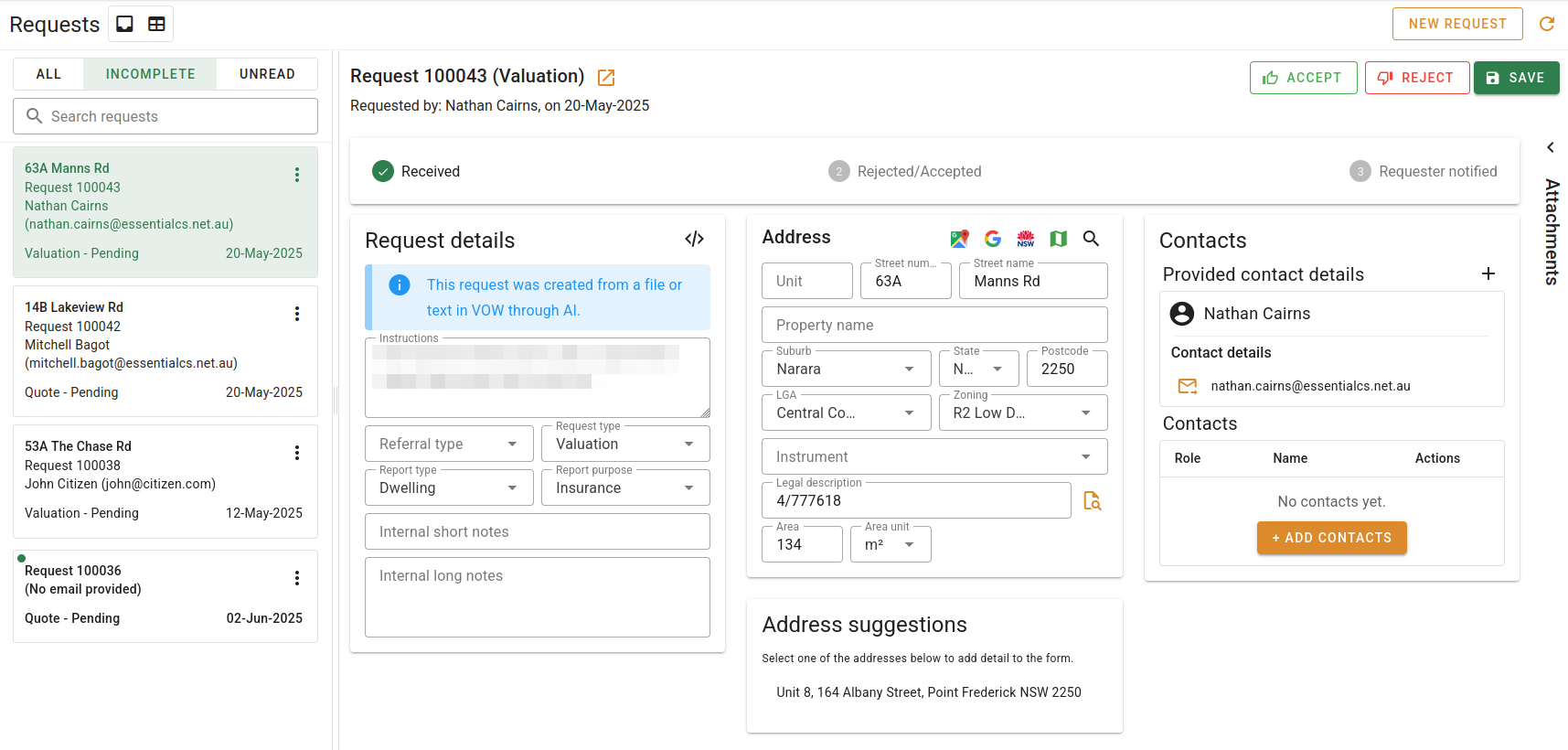
Type in Search requests to narrow the list to requests with that text in the reference, the requester's name, the client, the street address, the date received, the status or the request type.
Check what the requester actually sent
- Click the button in the Request details heading. A request typed into VOW has no such button.
- The Raw request data dialog shows the form's answers, the pasted text or the uploaded files, whichever the request was made from. Double-click a file to open it.
- Close the dialog and correct the field on the request. Click Save.
Hand a request to a colleague
Opening a request marks it read. If it belongs to somebody else, put the unread mark back so they see it.
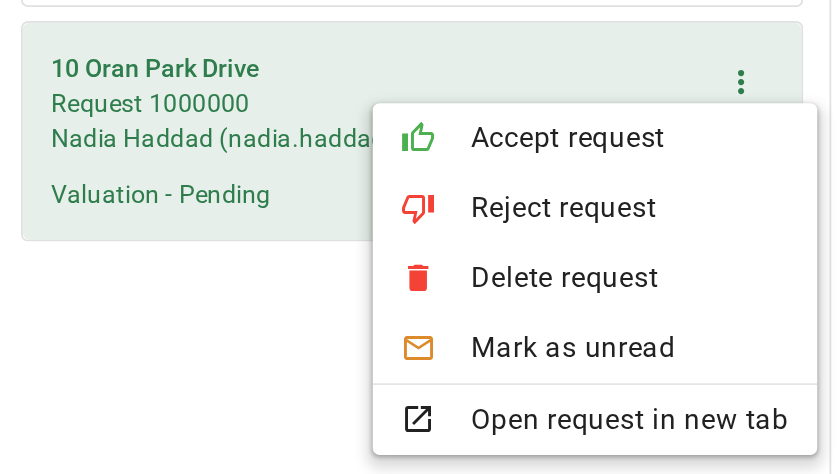
- Right-click the request's card in the list, or click the button on it.
- Choose Mark as unread. The card gets its unread dot back. Do not click the card again, or it is marked read once more.
The same menu has Open request in new tab. The button beside the request's title does the same.
What you should see
The request's card has lost its unread mark and sits in the Incomplete list but not the Unread one. On the right, the stepper shows Received complete and Rejected/Accepted waiting.
Next
Create a request. For every field, see Request editor.