

Use an email template
Included with Enterprise
This lesson sends Priya Raman the company's inspection confirmation.
Before you start
- Your role needs Send emails from within VOW. If you do not have it, Set up users shows how an administrator gives it to you.
- Your company needs at least one active template for the kind of record you are on. An administrator makes them in Set up email templates. Without one, the composer opens blank, and Select template says there are no email templates yet.
- Open a job and start an email from Actions and then Send email.
Apply a template
- The 'Select a template' dialog opens over the composer. Pick the template and click Use template. To write from scratch instead, click Blank email.
- The composer opens with the template's recipients, the subject, the body with the job's details in place, and the signature.
- Change anything you need. The change applies to this email only, not the template.
- Click Send.
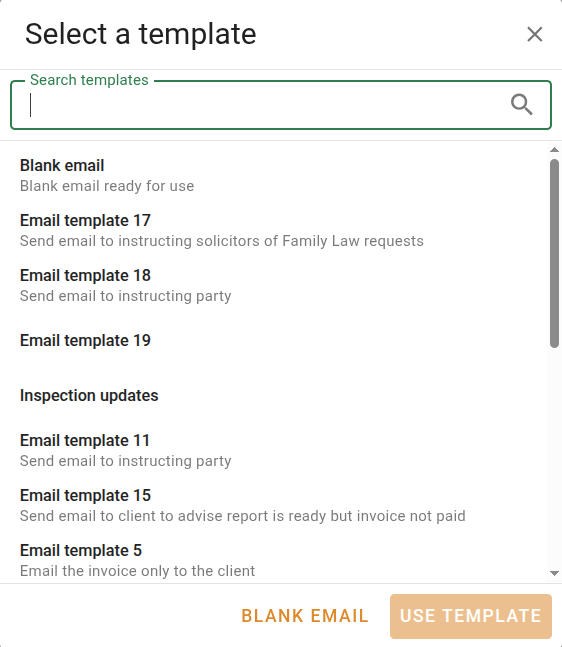
Select template in the composer's footer applies a template to an email you have already started. The template replaces the subject, message and attachments you have so far, without asking. If it would drop any recipient you chose, a 'Recipients changed' confirmation warns you first. Click Apply to use the template's recipients, or Cancel to keep yours and pick a different template.
Drop the job's details into the message
- In the composer, find the fields panel in the right-hand column. On a job it is headed Job fields, grouped by the part of the job the fields come from.
- Drag a field, such as the inspection date, into the body. It shows the job's current value straight away.
- To insert a field from the keyboard, type @ in the body and pick the field from the list.
- To stop a value following the job, select the field and click Replace variable with text in the toolbar. It becomes plain text.
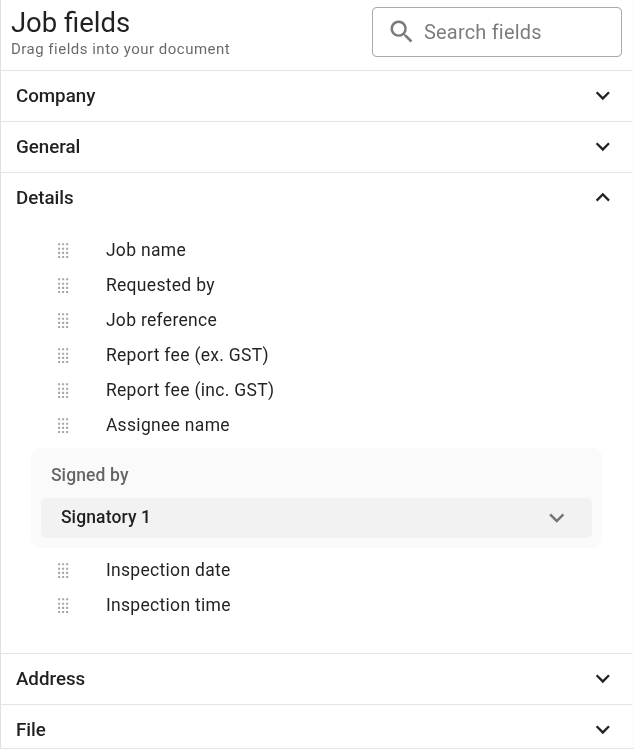
Dropping a field into the message
What you should see
The composer opens with the subject, body and recipients filled in, and every field in the body shows a value from the job. A field with no value on the job shows its name followed by "not set." on a yellow background. Fill in the job or remove the field.
Next
Apply a sensitivity label. For what a template can hold, see Email templates.