

Send an email from a job
Included with Professional and Enterprise
The email is addressed from the job's contacts, written from your company's template with the job's details filled in, and carries the report and the invoice from the job's files. It is kept on the job's event log.
Before you start
- Your role needs Send emails from within VOW, and your company needs email integration turned on under Settings | System. See Set up email integration. If you do not have the permission, Set up users shows how an administrator gives it to you.
- Open the job from Invoice the job, with its report finalised and its invoice raised.
Send the report and the invoice
- Click Actions in the job form's header and choose Send email.
- If your company has email templates, the Select a template dialog opens first. Choose the one for sending a report and click Use template, or click Blank email to write from scratch.
- Check Recipient(s). A template fills in who it was built for, such as the instructing party. Add anyone else from the list, which offers the job's contacts and the people in your company who are on the job.
- Read the Subject and the message. The template's fields have been replaced with this job's values. Check them where the job has more than one client.
- Under Email attachments on the right, tick Report and the invoice. Report is the finalised report. A ticked invoice is marked as sent when the email goes.
- Choose your Signature and click Send.
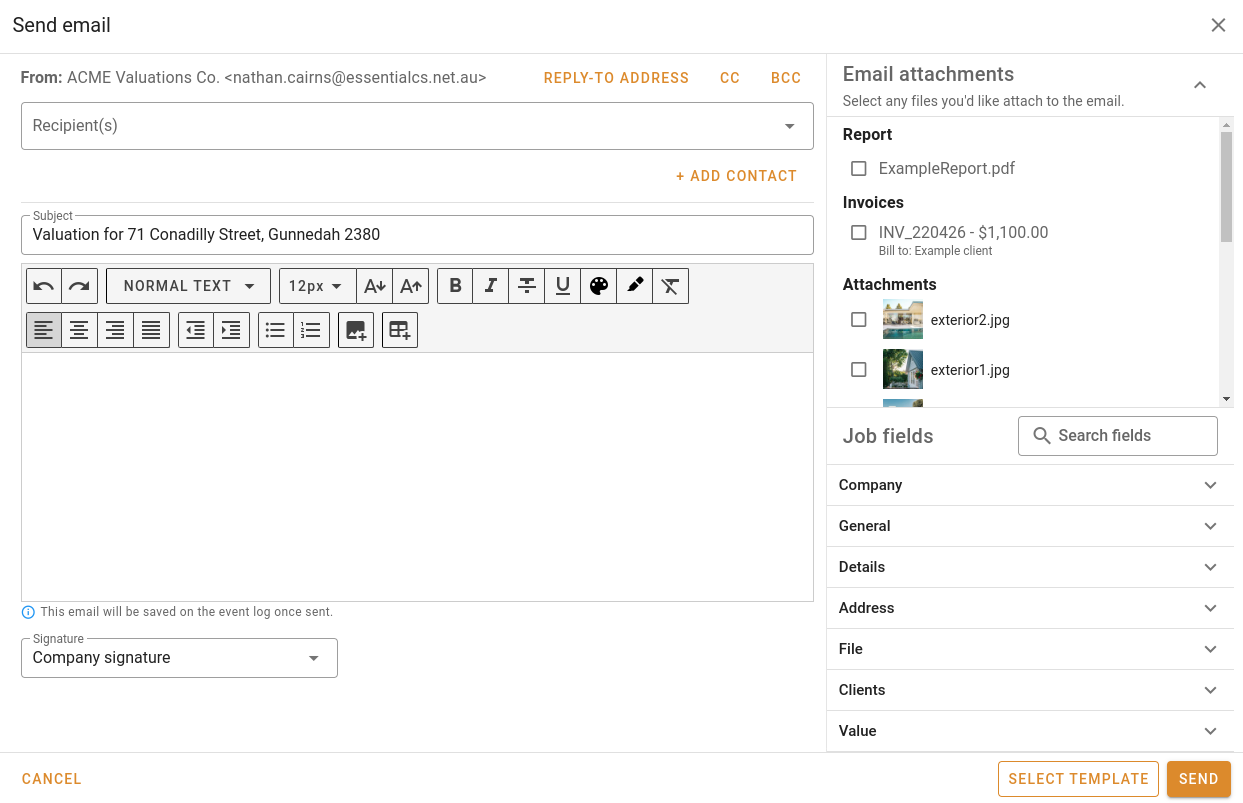
Sending the report and the invoice
A template's client fields refer to the first client on the job. With a lender and a borrower both on it, read the greeting before you send.
What you should see
The email is on the job's Event log with its recipients and attachments, the invoice shows as sent, and the client has the report. For the composer's formatting, template fields, sensitivity labels and signatures, see Working with email.
Next
Job attachments and history. For every control in the composer, see Email composer.