

Apply a sensitivity label
Included with Enterprise
The label marks how sensitive the email is and adds any header or footer text your company set for it. It does not stop the recipient forwarding or printing the email.
Before you start
- Your role needs Send emails from within VOW. If you do not have it, Set up users shows how an administrator gives it to you.
- Your company needs sensitivity labels turned on and at least one label. An administrator sets them up in Set up sensitivity labels. Without them the composer has no Sensitivity block.
- Open a job and start an email.
Apply a sensitivity label
- Look at the Sensitivity block above the content. If your company has a default label, it is already there with its colour. Clicking Blank email when VOW offers templates removes it. With no label, the block reads Sensitivity not set.
- Click the button beside it. The list of your company's labels opens.
- Pick the label. A label with an arrow is a group and cannot be applied on its own. Point at it to open its sublabels and pick one of those.
- Write and send the email as usual.
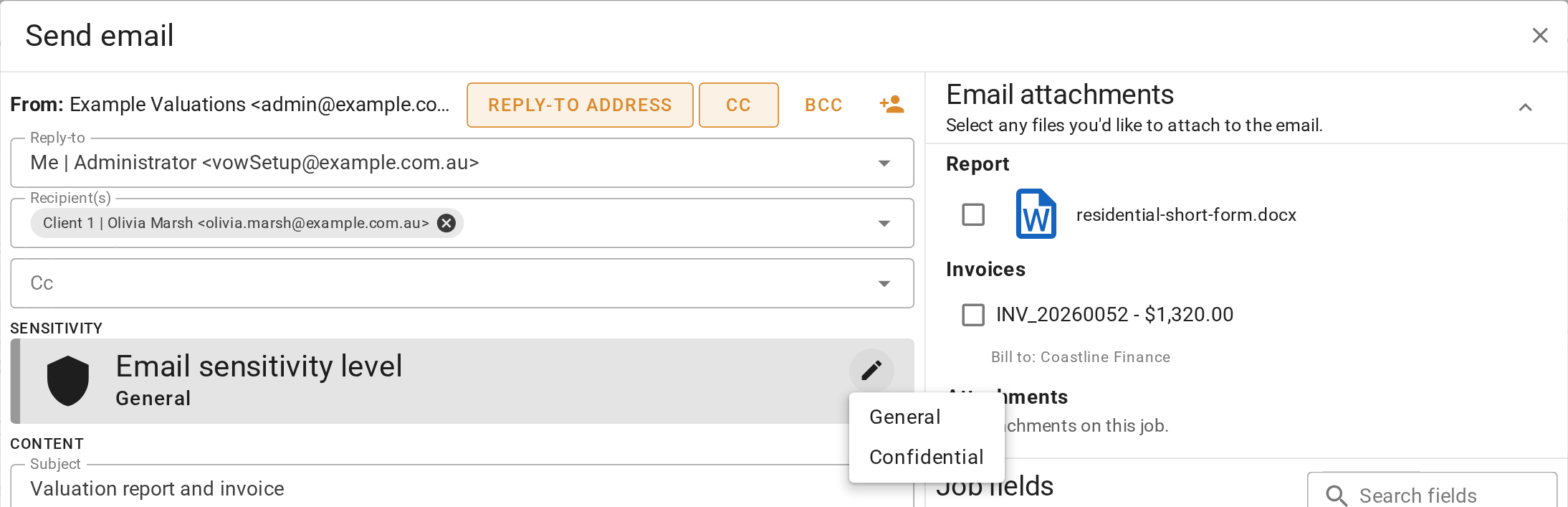
Applying a sensitivity label
When your company requires a label, the block shows in red until one is chosen, and Send refuses to go without it. When labels are optional, click the button beside the label to take it off.
Labels that come with a template
An email template can carry its own label. Applying the template applies the label too. Change it afterwards the same way.
What you should see
The label's name and colour show in the Sensitivity block as you write. The recipient sees any header or footer text your administrator attached to the label.
Next
Find an email you sent. For how labels are set up and what each setting does, see Settings | System.