Searching for properties
There are a few different ways to search for a property.
The simple search and the full search are used to create new searches using selected fields, while the recent and favourite tabs are used to rerun previous searches.
Simple search
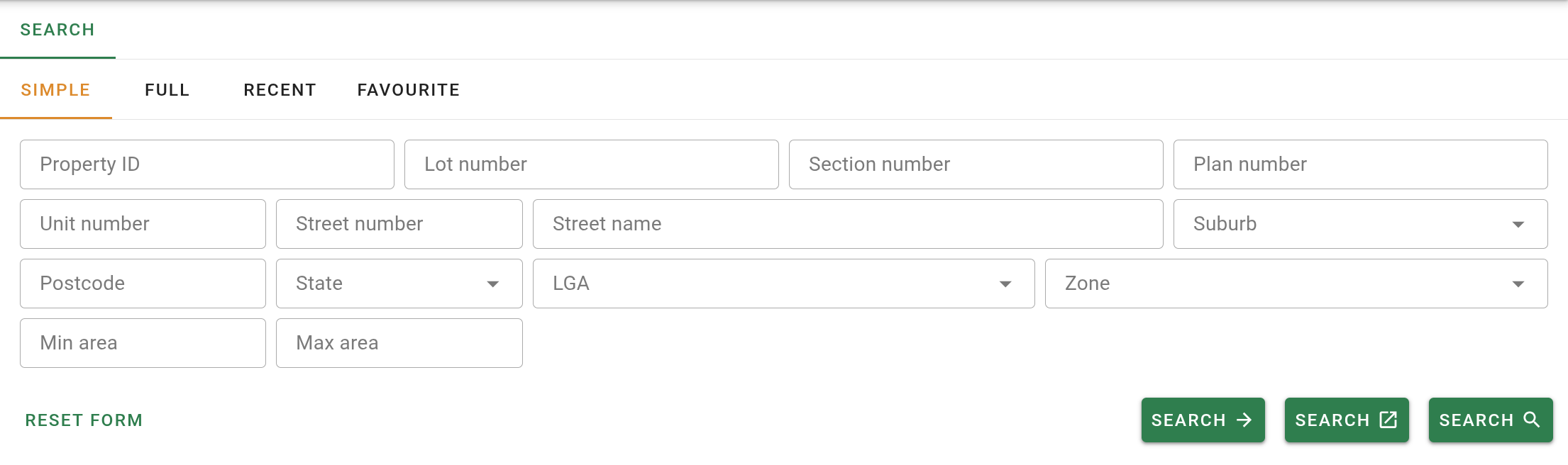
The Simple search is the easiest way to create a new search. This tab contains some common property fields that you can use to quickly create a new search.

Simple search fields
Below is a list of the fields you can search by, the data type and the comparator used for the search.
| Input field | Data type | Comparator |
|---|---|---|
| Property ID | Number | Equals |
| Lot number | Text | Includes |
| Section number | Text | Includes |
| Plan number | Text | Includes |
| Street number | Text | Matches |
| Street name | Text | Matches |
| Suburb | Selection | Equals |
| Unit number | Text | Equals |
| Postcode | Number | Equals |
| LGA | Selection | Equals |
| Zone | Selection | Equals |
| Min area | Number | Greater than, if using max area as well, comparator will be between. |
| Max area | Number | Less than, if using min area as well, comparator will be between. |
Including the LGA in your search criteria will speed up your search.
Once you have selected the fields you which to include in your search, click on one of the three search buttons to start your search.

The search button will go to the results as a full page.
The search button will go to the results in a new browser tab as a full page.
The button will go to the search results as a tab in the same page, allowing you to open multiple searches at once in the same page.
You can clear the all the search fields by clicking the Reset form button at the bottom left of the form.

How to use the simple search
Example 1:
If you select the Street name 'Pacific hwy' and the LGA 'Central coast' in your simple search criteria. Click on one of the three green search buttons below. The search results will then return all the properties with the LGA of 'Central coast' and with the street name 'Pacific hwy'.

Example 2:
If you select the Street name 'George St' , the Suburb as 'Waterloo' and the LGA as 'City of Sydney'. Click on one of the three green search buttons below. The search results will then return all the properties in the 'City of Sydney', within the suburb of 'Waterloo' and with the street name of 'George St'

Full search
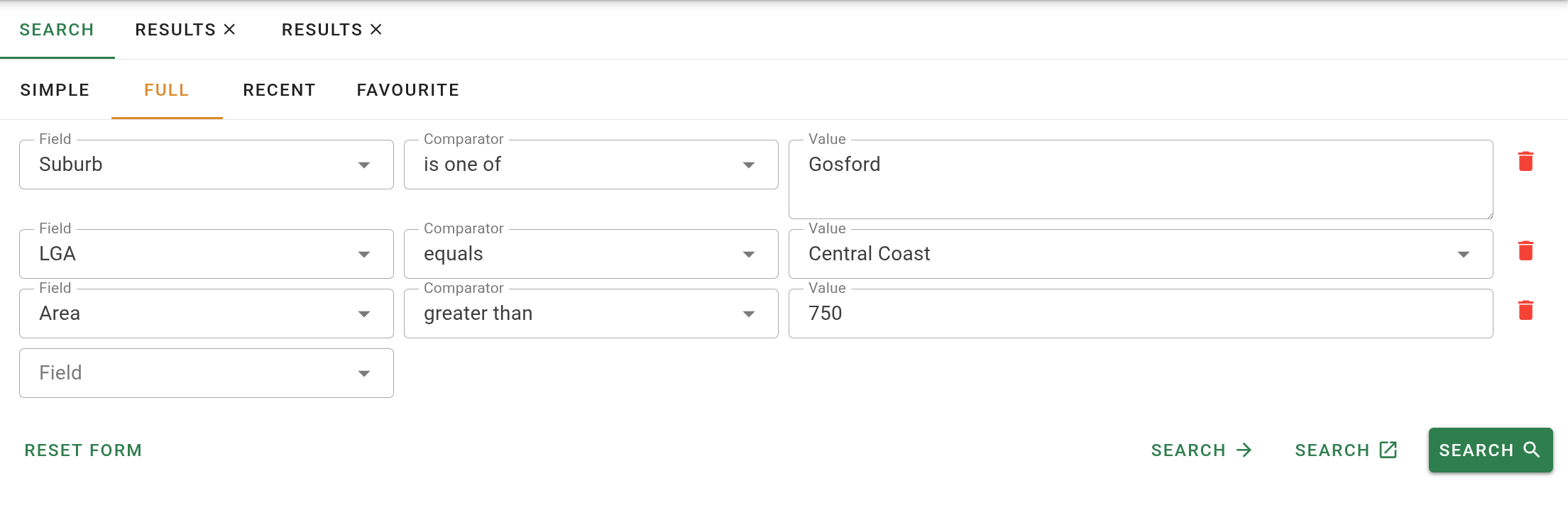
The Full search enables you to make much more complex searches. It contains an input text box with a dropdown list of the various fields you can search by. When you have selected your field you can then select a comparator. The comparator text box will contain a dropdown list of all the different comparators that are available for that search field.
Some fields will show a different list of comparators used to filter your search results.
After choosing a comparator you can then enter the values you wish to compare the fields to. Another field text box will appear under the first where you can choose another field to include in your search.

You can remove any unwanted criteria using the button found at the end of each row.
Like the simple search there are three different search buttons that when clicked will take you to your search results.

The search button will go to the results as a full page.
The search button will go to the results in a new browser tab as a full page.
The button will go to the results as a tab in the same page, allowing you to open multiple searches at once in the same page.
You can clear the all the search fields by clicking the Reset form button at the bottom left of the form.

Full search fields
To select a field to include in your search, click the input text box and choose from the available fields presented in the dropdown list.
The fields that are available for you to search by are:
| Field name | Type | Description |
|---|---|---|
| Area | Number | A value ending with h, H, ha or HA will be interpreted as hectares. Anything else will be interpreted as m². |
| LGA | Dropdown | Choose from a selection of active districts. |
| Street number | Text | This searches by street number. |
| Lot / Plan number | Number | Comparison type is INCLUDES. |
| Property nature | Dropdown | Choose from a selection of property natures. |
| Property ID | Number | This is the PID. Unique to each property. |
| Postcode | Number | This searches by postcode. |
| Legal description | Text | This will search by legal description. |
| Property name | Text | Name of the the property. |
| Property type | Dropdown | Choose from a selection of active property types. |
| Property purpose | Dropdown | Choose from a selection of active property purposes. |
| Suburb | Dropdown | Choose from a selection of active suburbs. |
| Street name | Text | Searches by the name of the street. Default comparison type is MATCHES. |
| Unit number | Text | This searches by unit number. |
| Land value | Number | This searches by the current land value of the property. Do not use the dollar $ key in your criteria |
| Zone | Dropdown | Selection from a list of active Zones |
The comparators will allow you to compare different values to your selected field.
Below is a list of how the comparators work for the different fields:
| Comparator | Type | Description |
|---|---|---|
| EQUALS | any | The value associated with the property must be an exact match with what’s specified in the search criterion. |
| IS NOT SET | any | The value associated with the property must not be set. There is a difference between an empty value or zero and a value that is not set. |
| IS SET | any | The value associated with the property must be set. |
| LESS THAN | number | Applying specifically to numbers, the flag associated with the property must be less than the value you specify. |
| GREATER THAN | number | Applying specifically to numbers, the flag associated with the property must be greater than the value you specify. |
| IS ONE OF | any | The value associated with the property must be one of the items specified in this list. You can separate the list of values with line breaks, white space (spaces, tabs) and/or commas. This is a bit problematic when it comes to values that contain commas and/or spaces (like legal descriptions). |
| IS NOT ANY OF | any | The value associated with the property must not be ANY of the values in the list. |
| IS BETWEEN | any | The value associated with the property must lie between the values you specify. |
| IS NOT BETWEEN | any | The value associated with the property not must the values you specify. It must be less than the lower value OR greater than the upper value. |
| CONTAINS | any | The value associated with the property must contain the string of characters specified in the search criterion. |
| STARTS WITH | any | The value associated with the property must start with the string of characters you specify. |
| ENDS WITH | any | The value associated with the property must end with the string of characters you specify. |
| INCLUDES | number | The value associated with the property must include the the string of characters you specify. Applies specifically to Lot/ Plan number. |
| MATCHES | any | Applying specifically to Street name, the value associated with the property must match the name specified. This search is case insensitive and takes street name abbreviations. |
Once you have chosen your comparator you can then add the value(s) you wish to search by.
If any of the fields fail to match the value being compared the search will not return anything.
How to use the full search
Example 1:
If you choose the field Street name, with the comparator matches and a value of 'View st'. A second field as LGA, using the comparator equals with a value of 'Blue Mountains'. A third field for Suburb, with the comparator contains and a value of 'Blaxland', and a forth field Area, using the comparator is between which allows you to enter two values such as '600' and '1200' to search between.
Your search results will return every property in the 'Blue Mountains' LGA, within the Suburb of 'Blaxland', with a Street name that matches 'View st' and with a property Area between '600m²' and '1200m²'.

Example 2:
If you choose a field LGA, the comparator is one of with the values of 'Central Coast' and 'Gosford'. A second field Suburb, the comparator equals, with a value of 'Terrigal'. A third field of Street number, the comparator contains with a value of 2, and a final field of Zone, the comparator is not any of with the values 'B2 Local centre', 'IN1 General Industrial'.
Your search results will return every property whose LGA is either in 'Central Coast' or 'Gosford', where the Suburb Equals 'Terrigal', the property has a House number that contains a 2 (such as 32, 12A, 362, 27-29, etc.) and is not listed in the 'B2 Local centre' or the 'IN1 General Industrial' Zones.

Recent
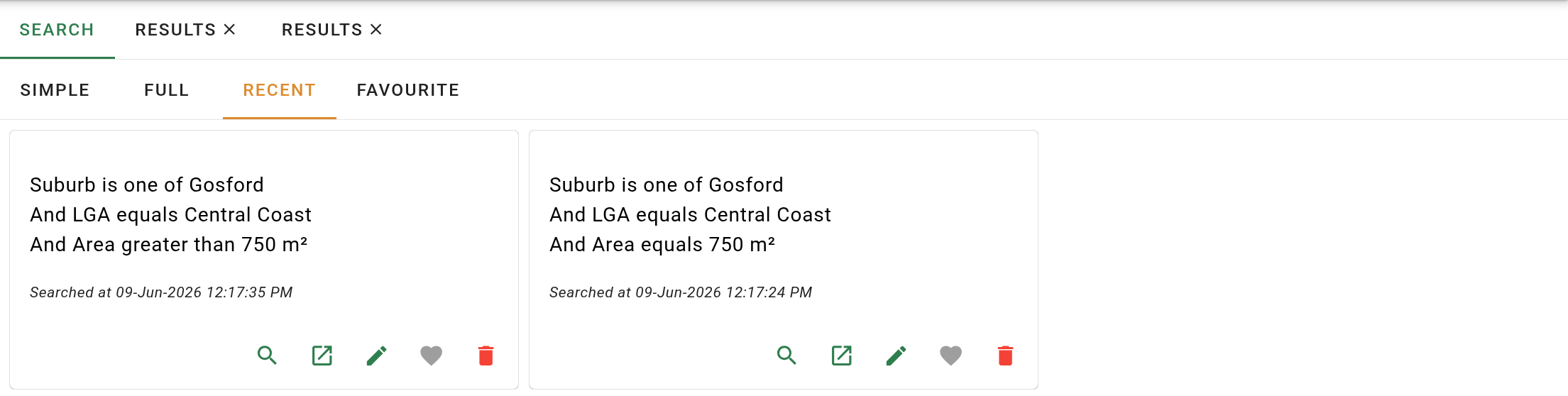
The Recent tab will keep track of your previous searches.

It includes the search criteria and the date and time the search was last used. Clicking on the card will open the search results on the same page.
Recent searches contain saved search criteria, not saved search results. If the data has changed, the search may return different results.
At the bottom of the card there is a collection of icons.
The will open the search results in a tab on the same page.
The will open the search results in a new browser tab.
The will open the search in the full search tab to allow you to edit the search criteria.
The will add the search to your favourites or remove it.
The will delete the search from your history.
Removing a search will remove it from both the Recent tab and the Favourite tab.
See Recent searches
Favourite
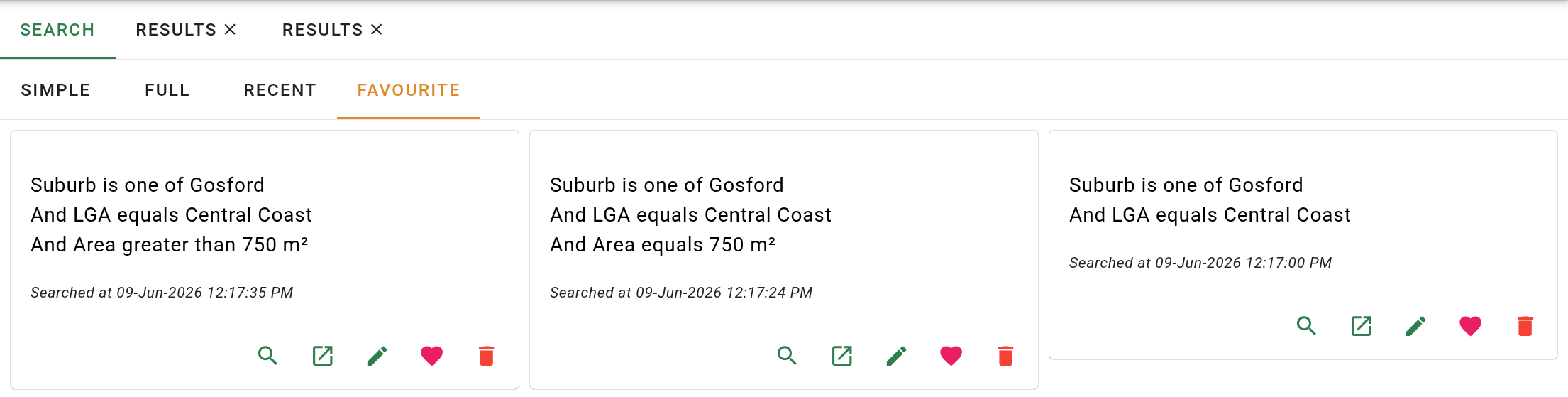
The Favourite tab is a way to keep those property searches you find useful and may want to use again.

It includes the search criteria and the date and time the search was last used. Clicking on the card will open the search results on the same page.
Favourites contain saved search criteria, not saved search results. If the data has changed, a favourite search may return different results.
At the bottom of the card there is a collection of icons.
The will open the search results in a tab on the same page.
The will open the search results in a new browser tab.
The will open the search in the full search tab to allow you to edit the search criteria.
The will remove the search from your favourites.
The will delete the search from your favourites.
Removing a search will remove it from both the Recent tab and the Favourite tab.


Edit icon
Heart icon