

Search comparators
A comparator defines how a search field value is compared to the value you enter. Available comparators depend on the field's data type and selecting one may change the value input shown.
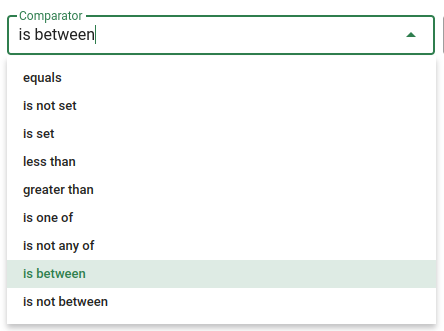
| Comparator | Applies to | Value input | Description |
|---|---|---|---|
| Equals | Any | Single value | The field must exactly match the value entered. |
| Is not set | Any | None | The field must have no value assigned to it. |
| Is set | Any | None | The field must have a value assigned to it. |
| Is one of | Any | Multiple values | The field must match at least one of the values entered, each on a separate line. |
| Is not any of | Any | Multiple values | The field must not match any of the values entered, each on a separate line. |
| Includes all of | Multi-select | Multiple values | The field must include all of the values entered, each on a separate line. Used for Zone. |
| Less than | Number | Single value | The field must be less than the value entered. |
| Greater than | Number | Single value | The field must be greater than the value entered. |
| Is between | Number, Date | Two values | The field must fall between the first and second values entered. |
| Is not between | Number, Date | Two values | The field must not fall between the first and second values entered. |
| Contains | Any | Single value | The field must contain the string of characters entered. |
| Starts with | Any | Single value | The field must begin with the string of characters entered. |
| Ends with | Any | Single value | The field must end with the string of characters entered. |
| Includes | Lot / Plan number | Single value | The field must include the number entered. Used for Lot and Plan numbers. |
| Matches | Text | Single value | The field must match the value entered. Used for street names (case-insensitive, recognises common abbreviations) and house numbers (a hyphenated range, e.g. 12-18, matches every number in that range). |
| On or before | Date | Single date | The date field must be on or before the date selected. |
| On or after | Date | Single date | The date field must be on or after the date selected. |
| Is Yes | Yes/No | None | The field must be set to Yes. Used for Confirmed and Provisional. |
| Is No | Yes/No | None | The field must be set to No. Used for Confirmed and Provisional. |
| Is not Yes | Yes/No | None | The field must not be set to Yes. Used for Confirmed and Provisional. |
| Is not No | Yes/No | None | The field must not be set to No. Used for Confirmed and Provisional. |
All criteria in a search must match for a result to be returned. If any single criterion does not match, the search returns nothing.