

Searching for Properties
There are a few ways that you can search for properties:
- Use the Simple search tab to create a new search from commonly used fields.
- Use the Full search tab to create a new search using any available field, choosing your own comparison operators.
- Use the Recent or Favourite tabs to re-run a previous search.
When you run a search in any of these ways, you'll see all the properties that match your criteria in a search results table.
Simple search
The simple search is the easiest way to create a new search. This tab contains some common property fields that you can use to quickly create a new search.
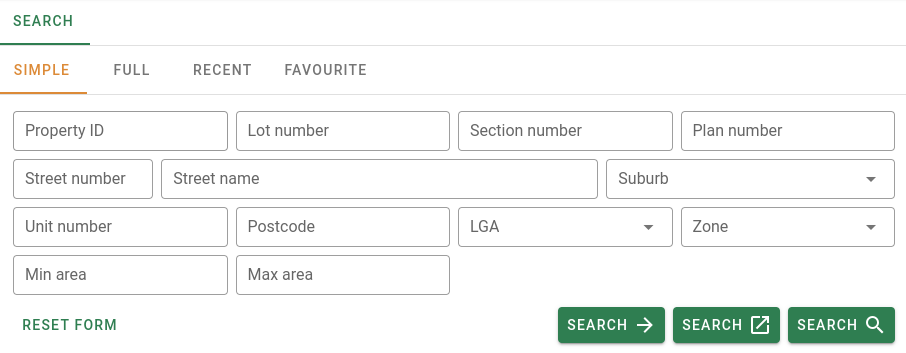
You don't need to enter data in every field, just the ones you need to build your criteria.
The search will be faster if you include the LGA in the search criteria.
If you make a mistake and want to start from scratch, you can click the Reset form button at the bottom left to clear all the fields in the form.
To run a search, you just need to enter your criteria, and hit one of the Search buttons at the bottom right.
Click the Open in full page search button to go to the results as a full page.
Click the Open a new tab search button to go to the results in a new browser tab as a full page.
Click the Open search button to go to the search results as a tab in the same page, allowing you to open multiple searches at once in the same page.
For more information see the Simple search.
Full search
The full search enables you to make more complex searches.You can choose any field on the property to search by, as well as how that field is used to match results.
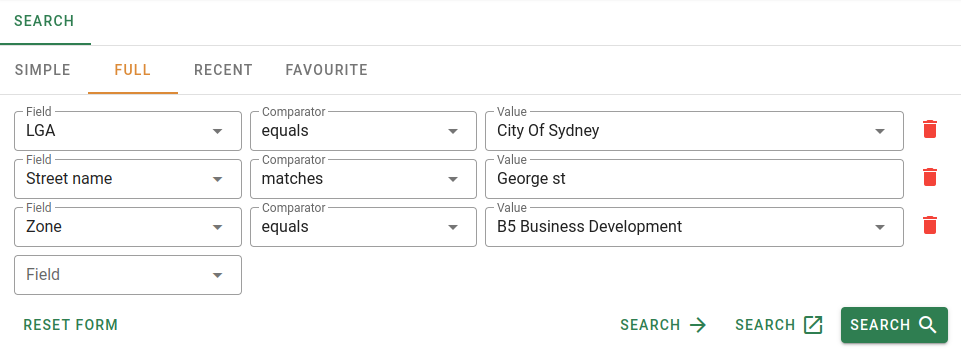
To use the Full search:
- Select a field from the first dropdown.
- Select a comparator from the second dropdown. This determines how the field will be compared to the value.
- Enter a value to be compared with the field.
- Repeat steps 1-3 until you're happy with your criteria. You can add as many fields as you need to narrow down your results.
- Finally, Click on one of the search buttons to see your results.
Click the Open in full page search button to go to the results as a full page.
Click the Open a new tab search button to go to the results in a new browser tab as a full page.
Click the Open search button to go to the search results as a tab in the same page, allowing you to open multiple searches at once in the same page.
If you make a mistake and want to start from scratch, you can click the Reset form button at the bottom left to remove all the fields in the form.
If you only want to remove a single row, click the Delete button at the end of the row.
When adding multiple conditions for the same field, make sure that it's possible for a property to fulfill every condition. We only include properties that match every condition you've entered. If you want to match multiple values for a single field, try using a range or grouping comparator (e.g. between or one of).
If you enter conflicting criteria, you won't get any results.
Recent and Favourite tabs
The Recent and Favourite tabs will keep track of your recent and favourite searches as well as when the search was last used.
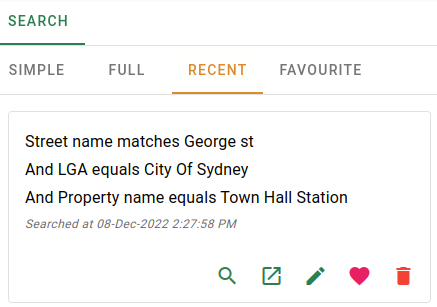
Recent and Favourite searches contain saved search criteria, not saved search results. If the data has changed, the search may return different results.
Click the card itself to go to the search results as a full page.
Click the Search button to go to the search results as a tab in the same page.
Click the Search button to go to the results in a new browser tab as a full page.
The Edit copies the search criteria, placing it in the "Full search" tab. You can edit it from there.
The Favourite button adds or removes the search from your Favourites tab.
The Delete button removes the search.
Removing a search will remove it from both the Recent tab and the Favourite tab.
See Recent searches or Favourites for more information.