

Viewing properties
Explanation of the Property card
The property view contains details about the property, as well as related valuations and sales.
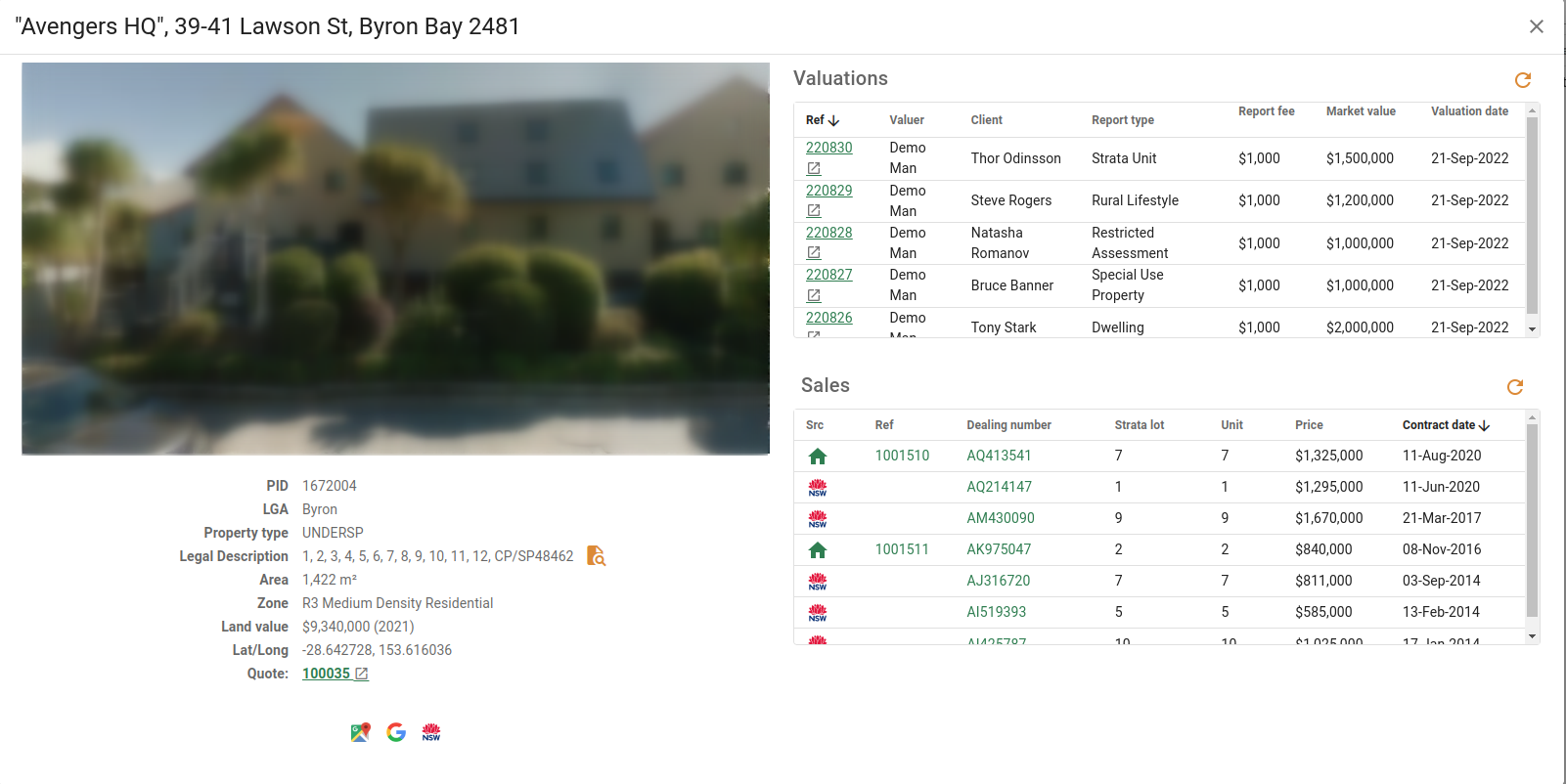
Property image
If you have Google Maps API Key, we'll fetch a Google Street View image of the property. If no image is available, or you don't have an API Key, we'll display a placeholder image.
Property information
Below the image you can see information about the property.
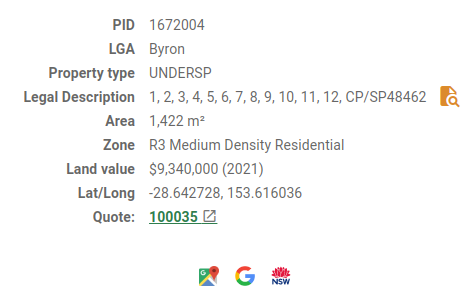
You can search for or add plan documents to the property by clicking the Find plans button next to the legal description.
Click on the Quote link to view the most recent quote for the property.
The quote field won't appear if there haven't been any quotes at the property.
Click the Google Maps button to view the property in Google Maps in a new tab.
Click the Google Search button to run a Google search for the property's address in a new tab.
Click the Six Maps button to view the property in SIX Maps in a new tab.
Valuations
Valuations that relate to the property are visible in a scrollable table on the top right. This includes valuations done for units at a larger property, which may not match the address exactly.

Click on the Ref link to open the valuation in a separate tab.
You can click the Refresh button to reload the valuation table.
For more on valuations, see working with valuations.
Sales
Sales that relate to the property are presented in a scrollable table underneath the valuation table.
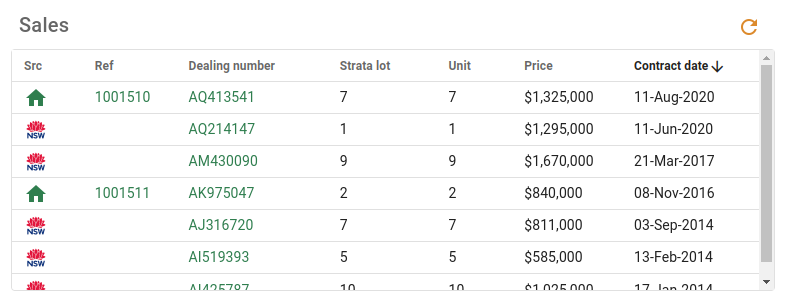
To view a sale, click on either the Ref number or the Dealing number to open it in a new tab.
Click the Refresh button to reload the sales table.