Generating reports
There are a few kinds of reports you can use in VOW - Manually uploaded reports, PropertyPRO proforma reports, and long-form editor reports.
Manually uploaded reports are files that you've uploaded to the system (e.g a Microsoft Word document).
PropertyPRO proforma reports are generated directly from the information in the job form.
Long-form editor reports are designed within VOW by you, and can utilise fields in the form. Their content is editable within the app, and we'll convert it to a PDF when you're ready to finalise it.
The long form report editor is currently experimental and can be quite slow and/or unstable large reports, so we recommend you avoid it for now if your report is likely to be longer than 10 pages.
Adding a report
A job won't initially have a report associated with it. The report panel will look like this:
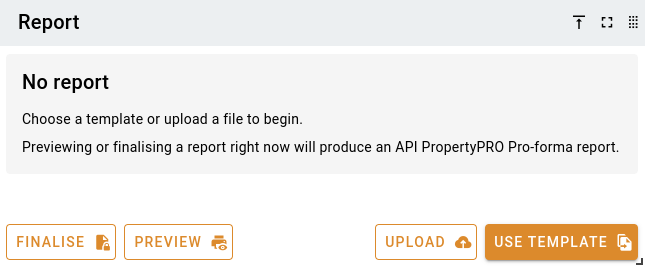
At this stage, you have no report template selected, and generating or finalising the report will create a PropertyPRO report.
To create a custom report, upload a file or use a template.
Use a template
Click the Use template button on the report panel.
You'll be shown a popup with your company's report templates. Click on the template you want to use, then click the Select button to apply it to the valuation. After the template has been added, you'll be able to edit the report on the job.
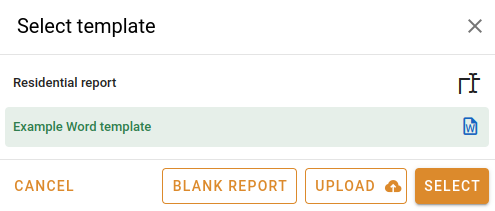
If you want to add a report type that isn't in your template list, click the Upload button to upload a new file, or click Blank report to use the in-browser long-form report editor.
Edit a manually uploaded report
To be able to edit manually uploaded files, you'll need have installed and configured the VOW attachment helper on your computer.
Once a report document has been uploaded, the report panel will look something like this.
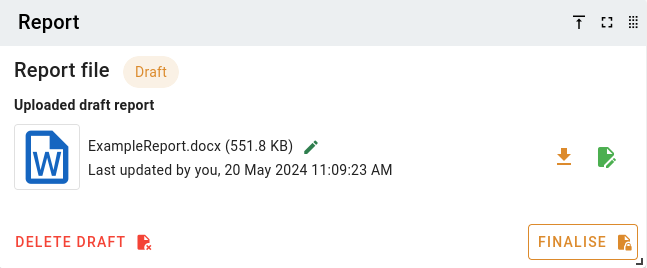
You can edit the document using the Edit file button. This will lock the report for editing by you. When the report is locked, nobody else can edit or delete it.
When you edit the report, the file will be downloaded to your computer and opened in the appropriate program for editing. The attachment will be kept locally until you are done with your changes, and you sync it back to the server.
The file will be automatically unlocked when you sync it back to the server. If you don't want to save your changes, use the Unlock button to make it available to others for editing.
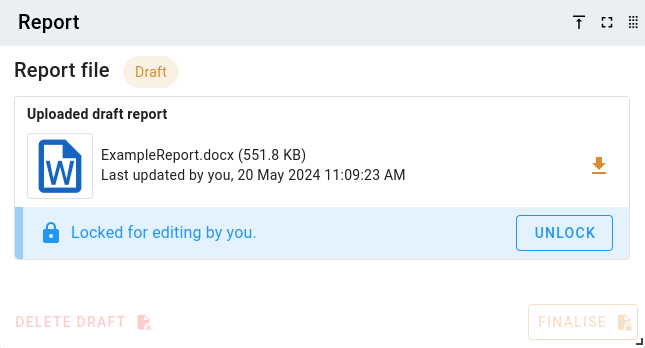
When a report is locked for editing, it can only be unlocked by a system administrator or the user that locked it.
Finalise a report
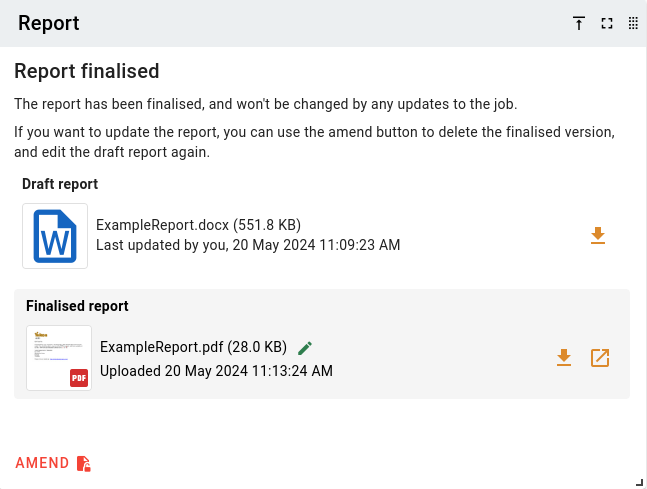
On every kind of report, there's an option to Finalise the report. This is to lock in the changes and mark the report as complete and immutable.
For PropertyPRO and in-browser long-form reports, this button will generate a PDF and attach it to the job as the finalised document.
For manually uploaded report types, you can either:
- Export your report document to a PDF, and upload it.
- Use your existing draft as the finalised report document
- This will lock in the attachment as it is, and prevent you from editing it further.
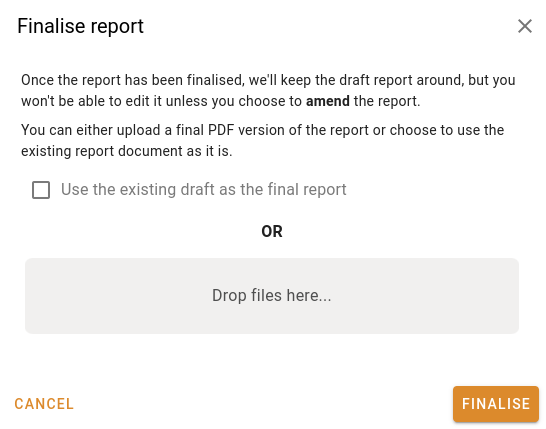
After the report has been finalised, you can only change it if you bring it back to the draft stage using the Amend button.