

Your first login
Your first login to VOW will look a bit different to what you'll do every day after that.
Invitation email
When the system administrator creates you as a user in the system, you will be sent a password reset email. Consider it an invitation to use the system. Click the password reset link.
Setting username and password
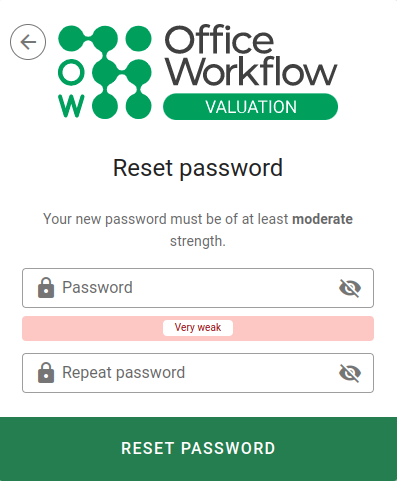
When you click the reset password link, VOW will show you a form where you can enter your new password.
Your new password must have at least a moderate strength. Once you've entered your new password, click the Reset password button to complete the process.
Logging in
After you've set your new password, VOW will show you a login form.
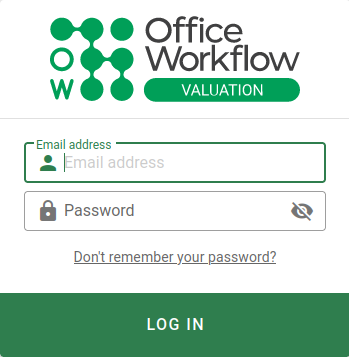
Enter your Email address and Password, then click the Sign in button.
If you provided the correct details, you'll then be taken to a QR code to scan to set up two-factor authentication.
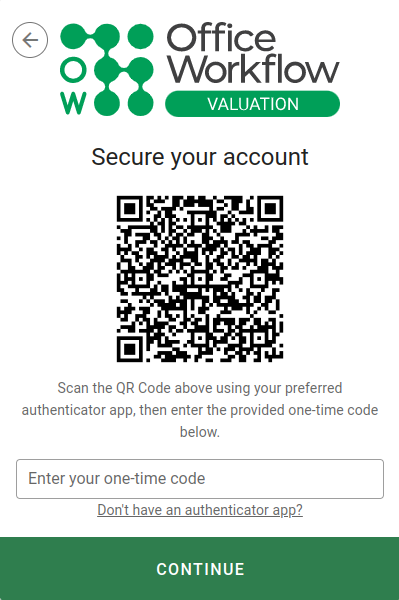
You will need to put Google Authenticator (or some other OTP app) on your phone to take the next step.
Getting Google Authenticator
- Go to your phone’s app store.
- If you use Android, go to the Google Play Store.
- If you're using iPhone, go to the App Store.
- Search for Google Authenticator.
- Download and install the app onto your phone.
Scanning the QR code
- Open Google Authenticator on your phone.
- Click Begin (or, tap the + button).
- Select Scan a QR code.
If this is your first time using the app, you will need to allow it access to your camera.
Camera access is used to scan the barcode only. Access to camera does not grant access to your photos.
- Now point the phone at the QR code. When the QR code is in the middle of the focusing box, it will automatically scan.
If it doesn’t scan immediately, try moving the camera further away, or rotating it slightly.
You now have a Google Authenticator entry that identifies your company name, email and the frequently-changing six digit code.
The authentication entry in the app will tell you the username and the company (you might have to change to landscape mode to see all details).
This is important if you have multiple logins, as you’ll need to enter the correct code when logging in. This screen also has a timer, circled on the right, which shows how long you have until the code changes.
The Google Authenticator might require you to Click to reveal PIN before you see the code.
Completing the login
Now that you have the QR code scanned into Google Authenticator, you are ready to complete the login.
Enter the current six digit code and submit the form.
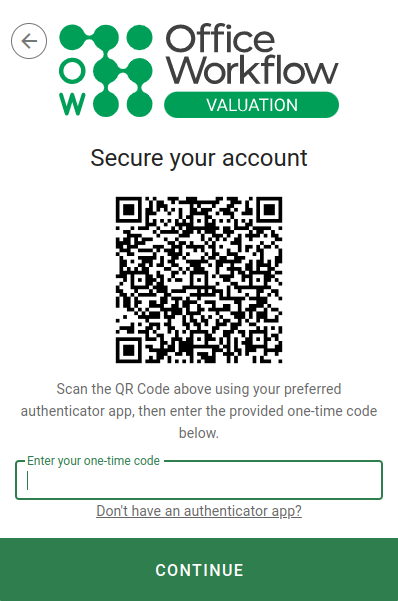
If you enter the code incorrectly at the setup stage, you’ll need to scan the QR code again to generate a new code. This will just update the entry you already have.
For subsequent logins, you won’t be asked to scan another QR code, you’ll just be presented with a field to enter the secure code.
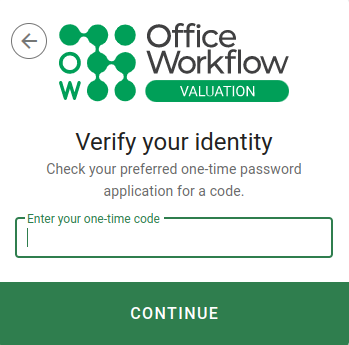
When this happens, open up the Google Authenticator app and enter the current code.