

Navigating VOW
VOW is designed to support high productivity for everyone involved in property valuation. Here are some of the key ways you can navigate the application.
Dashboard
On first logging in, you are presented with a dashboard that contains useful data summaries and links to specific sets of data. You can click any of the links in order to jump straight to the data you want to process.
You can instantly see where the processing of valuations are up to and leap straight into editing them.
Navigation drawer
The navigation drawer provides access to both data items and to VOW functionality. Click a menu link to go to a section of the application.
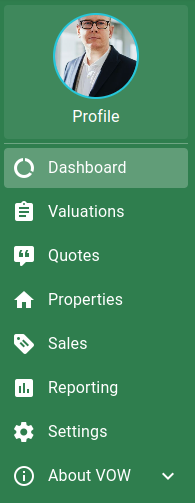
Items with an Expand icon can be expanded to show more links.
If you need more screen space, the entire navigation drawer can be hidden by clicking the Menu button in the top left-hand corner. Click the button again to bring the menu back.
button in the top left-hand corner. Click the button again to bring the menu back. Panels, Tabs and Layouts
VOW makes use of panels throughout the application. Where information and entry fields can be grouped into logical groups, they will be grouped together in a panel.
Popup and full-screen dialogs
VOW uses popup dialogs to provide information or additional options when using many types of commands, or to edit items such as valuations or quotes.
Sometimes dialogs are so large they take up the entire page.
You can use the Close or Cancel button to close most popups.
Pagination
Some tables show a fixed number of rows per page. You can navigate between pages using the pagination controls at the bottom of the table.
