

VOW Tools Word add-in
VOW offers an add-in for Word called VOW Tools, designed to help you to create and use report templates.
You must have access to the Report Templates feature module to be able to use automatic data population with Word files. This is available on Professional or higher subscriptions.
Overview
The add-in allows you to insert placeholders into your Word report templates that reference fields in VOW. It does this using something called a content control, which is a text box that encloses some content in Word.
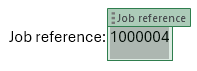
This is what they look like:
Template field

Selected template field

These template fields start out as read-only by default. You can enable editing if you want to change the placeholder content, or add styling to the field.
When you use a Word file with these template fields as the report on a job, VOW can automatically populate the template fields with corresponding data from the job. If you want recent changes to the job to be reflected in the report, you can trigger this automatic content update at-will using the Auto-populate button.
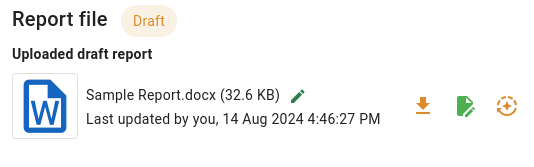
This will update every template field in the document, even if you’ve edited the content.
To prevent a template field from being updated again, you can unlink it by removing the content control using Word’s right-click menu, or the Edit panel.
Opening VOW Tools
After you’ve installed the add-in, you should have a button in your Home ribbon in Word that looks like this:

Click this button to open the VOW tools sidebar.
Navigating VOW Tools
The add-in has two main panels (Edit and Fields) and two supplementary panels (Data and About).
Edit panel
The Edit panel includes useful tools for editing a document that already contains VOW template fields. This is the most useful panel for working on reports themselves, rather than creating template documents.
You can use the actions in this panel to interact with existing template fields by removing the content control, or enabling editing.
You can also use this panel to cycle through the template fields in the document.
Fields panel
The Fields panel contains a categorised list of all the template fields that are available for use.
This panel is most useful for creating new template files, but you can use it to add template fields to existing reports. You can trigger the automatic content population once you send the file back to VOW.
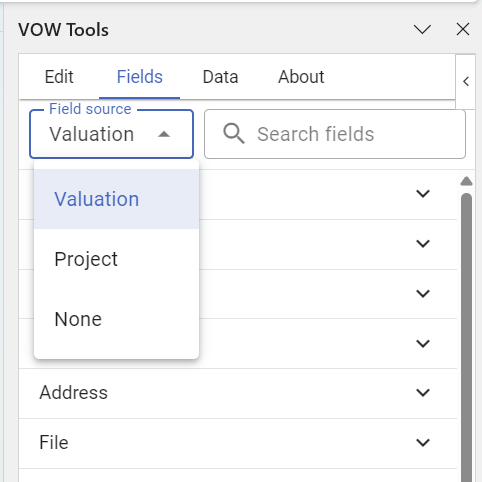
The fields that show up in this panel depend on what you've selected as the Field source. The field source is the kind of item you want to make a template for. We currently support projects and valuations.
You can search for the field you want to insert, or you can pick from a recently inserted field.
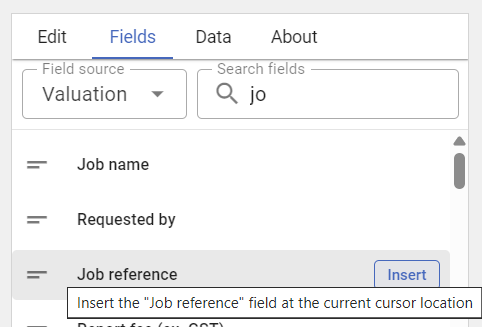
To insert a field into the document, hover over the field and click Insert field.
Data panel
The Data panel is where you can manage the local data in VOW Tools.
If you intend to add client information into your reports, make sure you load your data file in this panel.
This allows VOW Tools to insert template fields that reference contacts on jobs by their role.
About panel
This panel contains basic information about the add-in, and you can use it to check the version number or access support.
Creating Word report templates with VOW Tools
VOW report templates are regular .docx files that can serve as a starting point for a valuation report.
To make a Word report template for VOW, begin by creating the document as you normally would. When you come to a stage where you want to add a placeholder, use the Fields tab to find and insert a template field.
Choosing the source type
The kinds of fields that appear in the Fields tab are determined by the selected Field source.
The field source is the type of item that you want to make a report for, e.g. Valuation or Project.
When you change the field source, the list of available fields will change, and we’ll update any existing fields in the document.
If we can find an equivalent field for the new source type, we’ll convert the old field to target the new item automatically. But if a field in the document is incompatible with the newly selected item type, it’ll turn red, and we’ll ignore that field when we populate data.

Invalid fields appear red, with an error message in the sidebar.
Inserting template fields
You can insert template fields from the Fields tab. Double-click a field or mouse over it and click Insert to add the field to the document at the current cursor location.
The template field will be inserted at the cursor location. The field will be locked by default, unless template editing is enabled in the Edit tab.
After inserting a field, you’ll need to click on the document again to continue typing.
There are a few different types of template field that you can insert. An icon next to each template field indicates its type, as seen in the screenshot below.
The different kinds of template fields

- Text fields are the most common type of field, including regular text, numbers and dates.
- Tables are used for displaying a bunch of information about one or more items. An example of tabular data is the supporting sales for a valuation.
- Pictures represent single instances of specific images associated with the job. Examples of this are the hero image, and signature images. There is also a field for a picture placeholder — this allows you to manually select an image from the file system.
- Picture grids represent the list of pictures on the job that are selected for inclusion in the report.
Picture controls aren’t updated when you change the Field source, and aren’t accessible using the Prev/Next buttons.
Once your template file is ready to be used on jobs, you can create a report template in VOW using the file.
You must have the System | Manage report templates permission to be able to do this.
- Go to Settings | Report templates
- Click New and choose File upload
- Give your template a name, then upload the file.
- Note: The name is to identify the template in VOW - it isn’t the name of the file itself.
- Save the template.
Once you’ve saved the template, you can apply it to jobs in VOW.
Automatic data population
You can populate the template fields in the report whenever you want with the Auto-populate button next to the report in VOW.
This will find all the template fields in the document and replace their contents with data from the job in VOW.
If you’ve made changes to content inside a template field in the report, this process will overwrite them. If you want to make sure your changes stick around, you need to remove the content control in Word.
Editing reports with template fields
Once you’ve populated the template fields, you can edit the report just like a normal document.
To edit a Word report on a valuation, we recommend you use the VOW Helper.
The template fields begin as read-only, and will look just like a normal part of the report until you mouse over them, or otherwise place the cursor inside them.
Selecting fields
When you mouse-over a template field, you’ll see a light-green highlight:
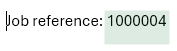
When you move the cursor inside a field, you’ll be able to see the containing text box and its label:
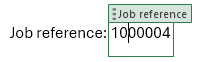
To select an entire field, click on the label. This allows you to move or delete the field (along with its content).
If you just want to check each template field in a document, you can easily scan through all the fields in the document using the Prev and Next buttons.
Editing fields
Since the field is read-only, you won’t be able to change a field’s content until you enable editing, but you can move or delete it. To move a field, click on the label, and drag it. To delete a field along with its content, select the entire field by clicking on the label, and then press either the Backspace or Del key.
To change a field’s content, go to the Edit tab and switch on Allow template editing.

This allows you to update the content inside a template field, while maintaining the field’s link to VOW. If you re-populate the fields though, you’ll lose these changes, and whatever is in VOW will replace the content in the field. If you don’t want your changes to be overwritten, you’ll need to remove the content control instead.
Removing content controls
Content controls are structural objects in Word documents that we use to enclose template fields and store information about them. They appear as the text box that encloses a template field.
Removing a content control will make a field’s content become a regular part of the document, and remove the text box and label from the field. This will also prevent the field from being updated by VOW.
There are two ways you can remove a content control without deleting the text inside it:
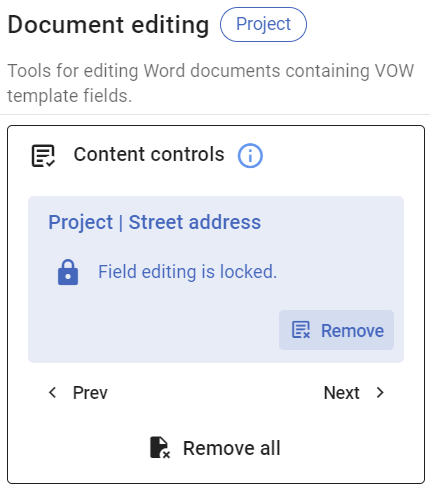
Method 1: In the Edit tab, click Remove while the field is selected.
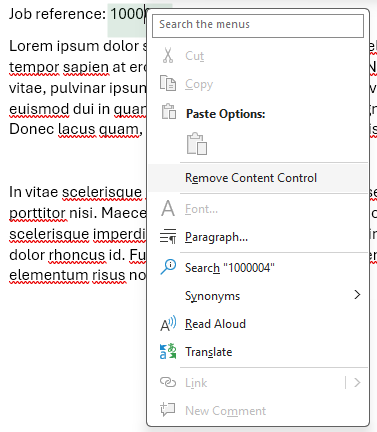
Method 2: Right-click the field, and choose Remove content control from the context menu:
Uploading data to VOW Tools
VOW Tools has a bunch of default template fields available for you to insert into the document, but some fields get built based on your system lists in VOW. To get this data into the add-in, you need to import a file from VOW.
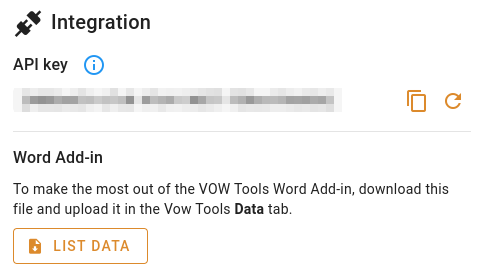
- First, open VOW and go to Settings | My settings.
- There is also a link to this page in the Data panel of VOW Tools.
- Go to the Integration panel, and click the
 List Data button.
 - This will download a file named
Vow Tools Add-in data.YYYY-MM-DD.json, which contains your company’s list data.
- This will download a file named
- Upload the file to the Data panel.
- Drag & drop this file onto the drop zone in the VOW Tools Data panel.
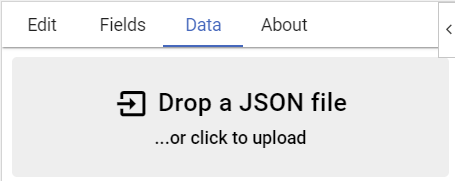
You should see a confirmation message to let you know the file was imported successfully, and the Contacts section in the Fields tab should now have items that correspond to your contact roles in VOW.