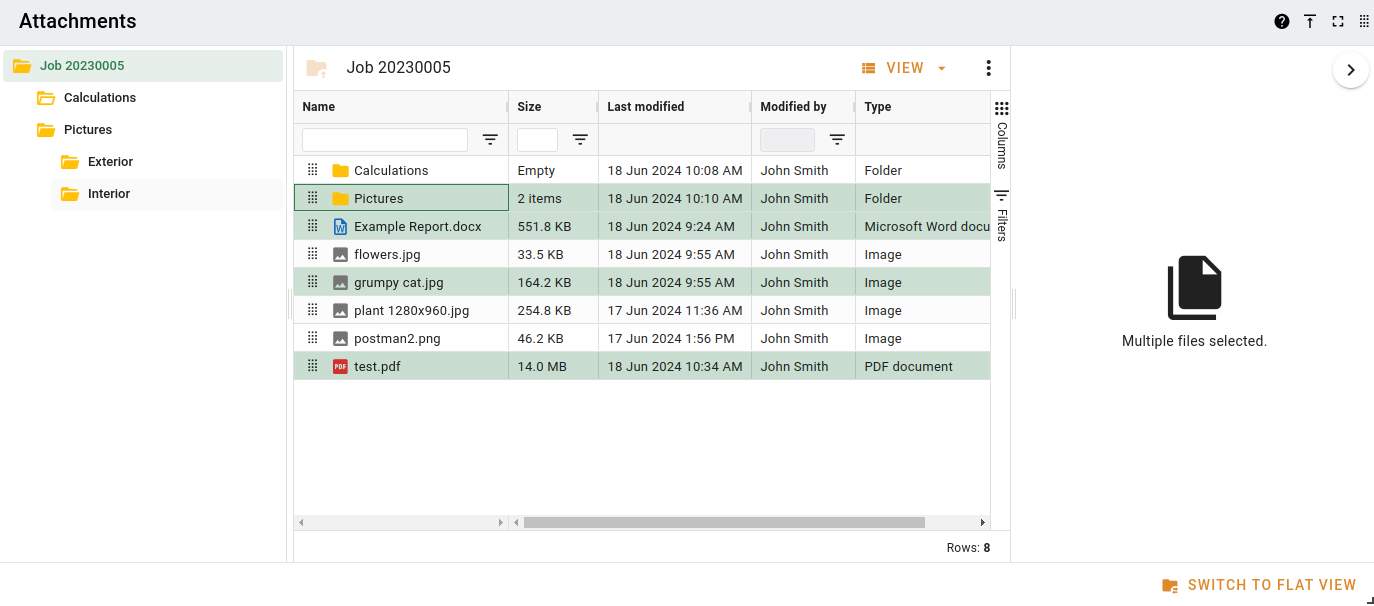
Folder view
The folder view offers a lot more ways to interact with attachments than the flat view, including folder organisation and the ability to move, download and delete multiple files at a time. There is also a View menu in the folder toolbar that allows you to configure the way that files displayed.
You can interact with files in the folder view is using the context menu, which you can activate by right-clicking on a file, or by clicking the Menu button at the top right of the current folder view when you have files selected.
Layout
There are three main components to the folder view. From left to right, the are the folder tree, the current folder, and the detail panel. Shown below is an example of the full folder view.
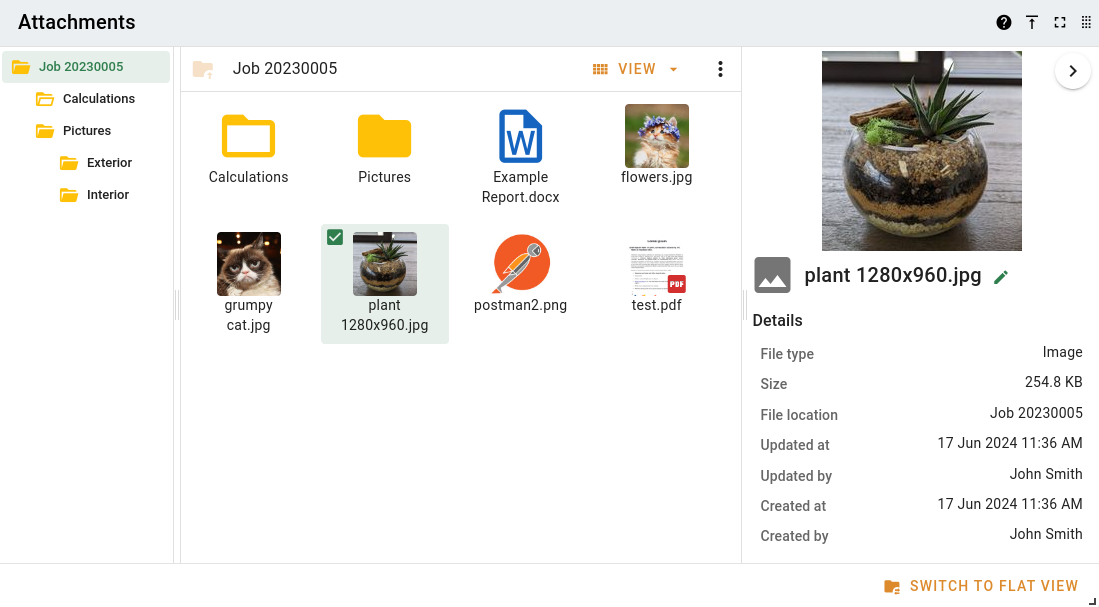
You can resize the panel widths in the folder view by dragging the vertical dividers.
Uploading files
There are two ways to upload files to the folder view - through the context menu, or dragging and dropping from the operating system.
When you upload through the context menu, the files will be uploaded to the directory you right-clicked on, or into the same folder as the file you right-clicked.
When you drag and dop filed from the operating system, if you drop the files into a folder, they'll be uploaded there. Otherwise, they'll be uploaded to your current folder.
If the files you dropped contain one or more folders, the entire folder structure that you dropped will be uploaded to the job, along with all the files inside them. The only exception is empty folders, which will not be uploaded.
The side panel
The side panel is used to show additional information about the currently selected file.
There are two modes for the side panel: Detail mode and Preview mode.
- Preview mode shows a larger version of the file you clicked on.
- Detail mode shows the thumbnail of the item you clicked on, but it also shows file properties, such as size and last update time.
You can switch the mode of the side panel by using the View dropdown menu. The side panel can be expanded or collapsed using the button in the top right-hand corner.
Detail mode selected
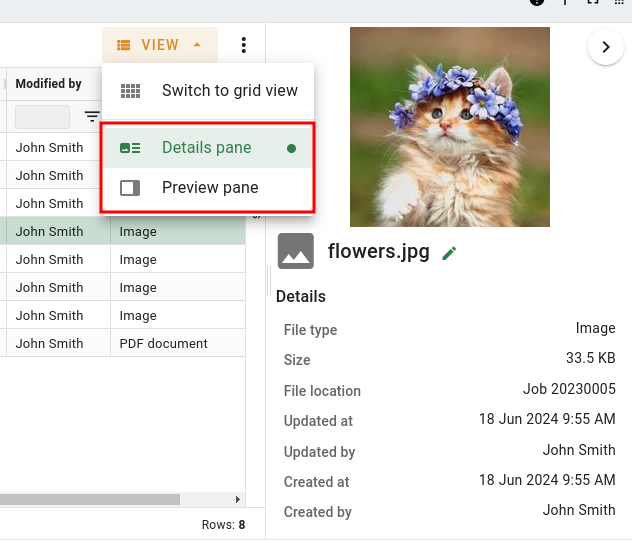
The purpose of the side panel is to allow you to see more information about a file you have selected before you perform an action on it.
We currently support file previews for:
- Images
- Videos (first frame)
- PDFs (first page)
Other file types will need to be downloaded to view their contents.
Grid view vs List view
In the folder view, there are two ways to view your files - as a detailed list or as a grid.
Grid view shows you the thumbnails for the files, and the larger area that files takes up makes them easier to click and to drag around when moving them.
List view is more compact and informative, and lets you see file details like size, when a file was changed (and by whom), and lets you know who has locked a file.
You can switch between list view and grid view using the view dropdown menu.
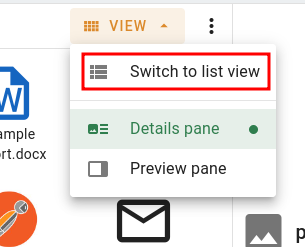
List view customisation
In addition to regular file operations, the list view allows you to customise the information you see.
You can:
- Sort the files by clicking on the header of the column you want to sort by
- Reorder columns by dragging them around by the headers
- Show/Hide columns by (un)ticking them in the
 Columns sidebar menu.
 - Resize columns by dragging the column dividers
The root folder
The top level folder on a project, valuation or sale is always named after the item you're viewing. We call this the root folder, and you can't delete it. This is the default location for files uploaded to the flat view.
Working with folders
You can create folders by opening the context menu and clicking New folder .
.
Once you have multiple folders, you can navigate between them by:
- Clicking a folder in the folder tree
- Double-clicking a folder in the current folder view
- Clicking a folder link at the top of the current folder view
- Clicking the Go to parent folder
 button at the top left of the current folder view.
Working with files
You can interact with files in the folder view in a few different ways, but the main way is through the context menu, which appears when you right-click a file or file selection. The context menu shows every available action that can be taken on the currently selected file(s).
There are also some shortcuts to interacting with files:
- Click on a file to select it. If the side panel is open, the file you clicked will be shown there in more detail.
- Double click a file to open it.
- Depending on the file, this will either open the file in a browser tab, or ask if you want to download the file, or edit it using the Helper.
- Press F2 to rename a file
- Press DEL to delete the current selection of files.
Context menu
The context menu has a list of available actions for your file selection. You bring it up by right-clicking, and any actions you click will be done on the item you right-clicked (or the current folder if you right-clicked the background).
The first item in the context menu will always tell you which item(s) the context menu relates to. The item name won't do anything if you click it.
If you want to perform an action on multiple files at once, you can select them all, then right-click one of them. Note that when the context menu is active for multiple items, some actions will be unavailable.
If you right-click a file outside your selection, that file will be automatically selected, and the context menu will apply to it.
If you right-click the folder background, the context menu will apply to the current folder.
Some items in the context menu can be performed via keyboard shortcuts - the shortcut key is noted at the right of the menu, and you don't need to open the menu to use them.
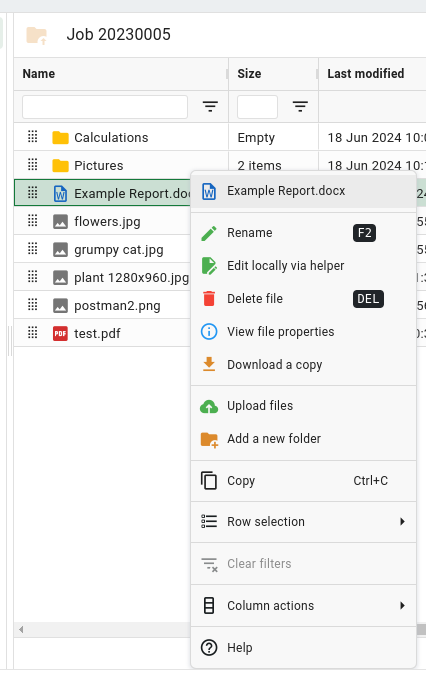
Moving files
You can move files around between folders by dragging them. You can drop files into folders in your current folder view, or the tree on the left. You can't move a file into a folder if there is already a file there with the same name.
If you're viewing the files as a grid, you can drag from anywhere on the file card. In list view, you need to use the drag handle next to the file name to be able to drag files around.
File selection
You can select a file by clicking it. You can select more than one file by holding Ctrl or Shift.
If you Ctrl + Click a file, it will be added to your selection.
If you Shift + Click a file, your new selection will be every file between that file and the first one you clicked, inclusive.
If you Ctrl + Shift + Click a file, your new selection will be your existing selection, plus every file between that file and the one you clicked before it.
Selected files are highlighted in the current folder view.
You can clear your selection by clicking on the folder background, or navigating to a different folder.
Selected files in the grid view
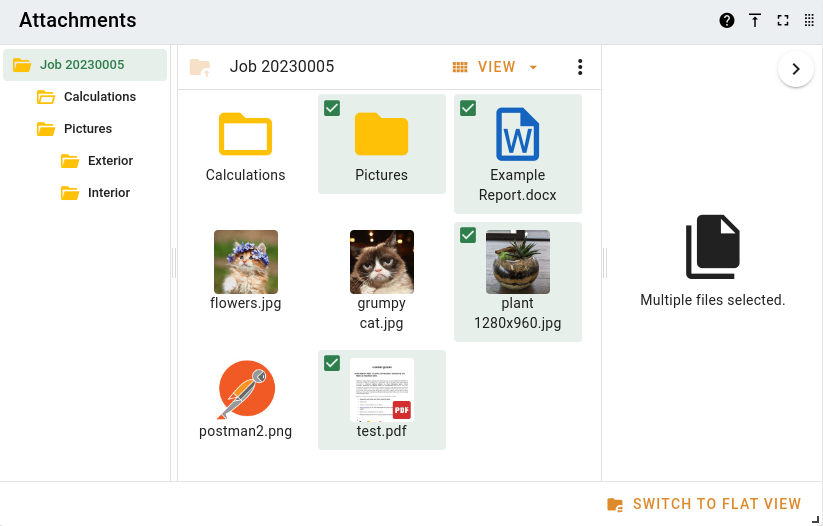
Selected files in the list view