

Updating valuations
You can update a valuation from the column view or the table view by clicking on the valuation card or row.
When you click on a valuation, the valuation full-screen popup will show.
You can also open the valuation in a new browser tab by clicking the Open in new tab button. This will open the valuation as its own page, not a popup.
Saving the form
If you have made changes to the valuation, the Save button will be enabled.
You'll have to click this button before closing the job to make sure your changes are saved to the job. This applies to any fields you change, or files you upload to the Attachments tab.
The save button will be disabled until you have changes to save.
Changes that don't need to be saved
There are some parts in the job form that are saved immediately, and don't need the save button to lock in changes. These are Invoices, Manually uploaded reports, and Workflows/Tasks. Any changes made to these things take place immediately.
Changes to invoices, manually uploaded reports, and tasks don't need to be saved.
You also don't need to save the job if you update it by running a task in the Actions menu at the top left of the page.
Closing the form
If you make changes to the valuation and try to close the popup or page without saving it, you'll get a warning:
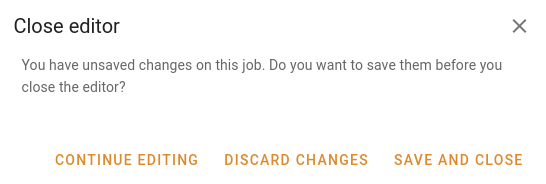
If you Continue editing, click the Close button, or click outside the popup, nothing will happen, and you can go back to editing the valuation.
If you Discard changes, all your unsaved changes will be discarded, and the popup or window will close.
If you Save and close, your changes will be saved to the job, and the form will close.
Status changes
You can move a job into a new status by dragging and dropping it to a new column in the column view.
You can also change the status of a job by selecting a new status in the File tab of the edit form, then saving the job.