

Valuation table view
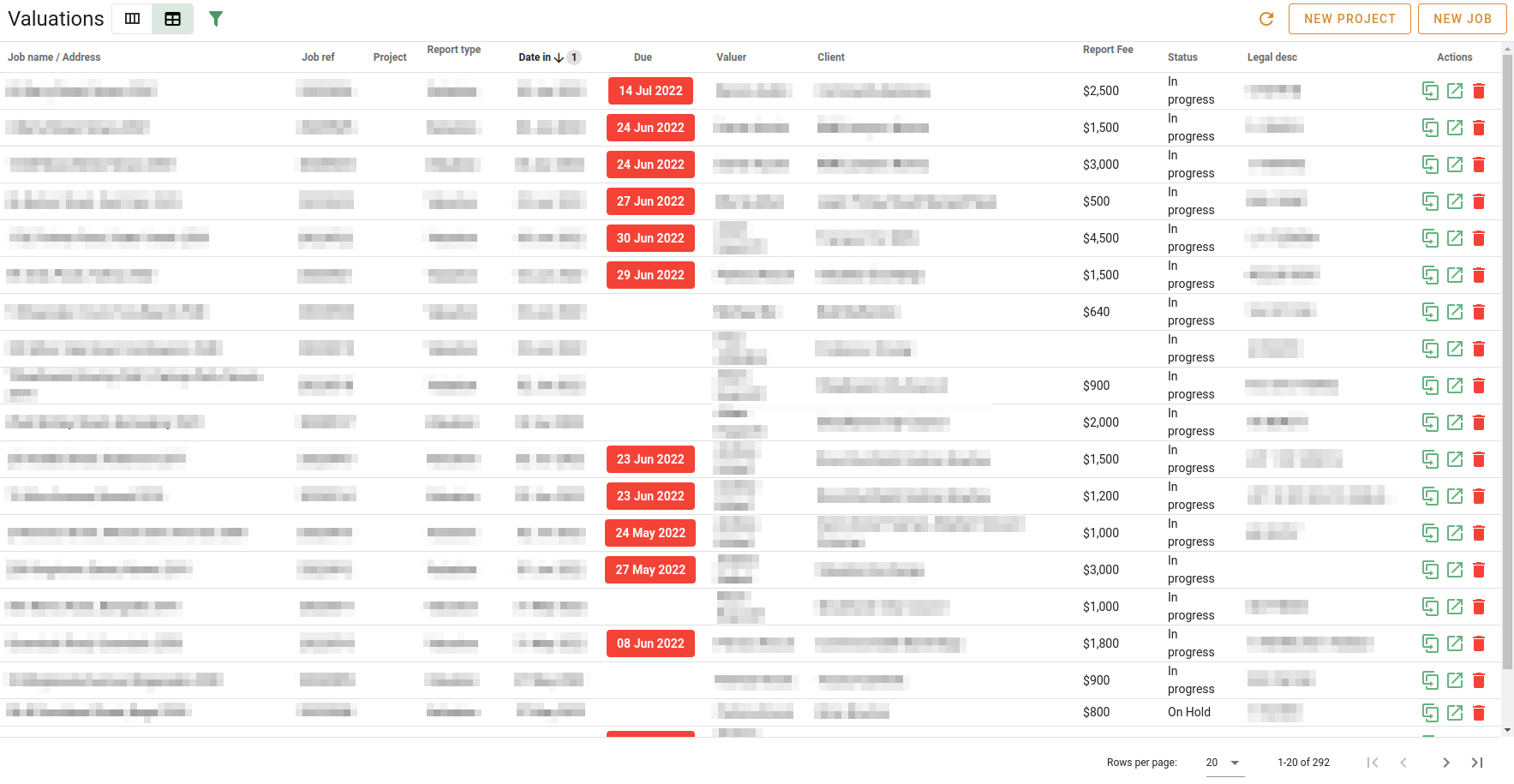
The table view of the valuations is way of viewing valuations in a scrollable table where each valuation has its own row. Unlike the column view, you are able to see jobs that have been archived.
View selector
You can click the buttons in the view selector to choose your view. In the image above, the user has chosen to have the table view displayed.
Filtering
Click Filter to toggle the Filter panel's visibility.
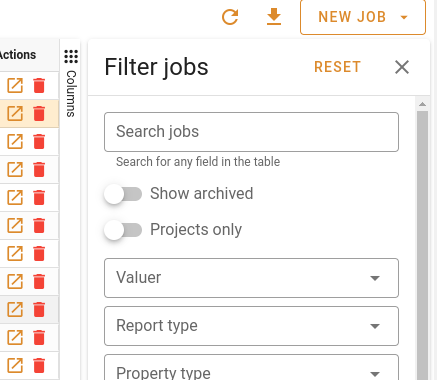
The Filter panel will show on the right-hand side of the page. You can hide the Filter panel by clicking Filter again, or by clicking the Close button at the top left of the panel.
You can filter the rows in the table by specifying any of the following criteria:
- The job has the entered text in one of the fields shown in the table
- Whether the job has a status that is flagged as an archive status
- Whether the job is a project
- Valuer
- Report type
- Property type
- Property category
- Report purpose
- Zoning
- Job status
- Branch
- Date in (range)
- Inspection date (range)
- Due date (range)
- Date out (range)
- Date requested (range)
Click Reset to clear the filters you have set.
Tools

Refresh
Click the Refresh button to fetch the valuation information from the server again.
New project
Click New project to create a new project. See Working with projects to see more information about projects.
New job
Click New job to create a new job. See Working with valuations to see more information about jobs.
Table navigation
At the bottom left of the page, there are some table page navigation tools:

Use these to:
- Go back to the first page
- Go back to the previous page
- Go forward one page
- Go to the last page