

Email templates
Email templates are used when creating emails to send from within VOW. You must choose a template type to ensure that the template you're creating can be used at the appropriate time.
Click the New button to create a new email template.
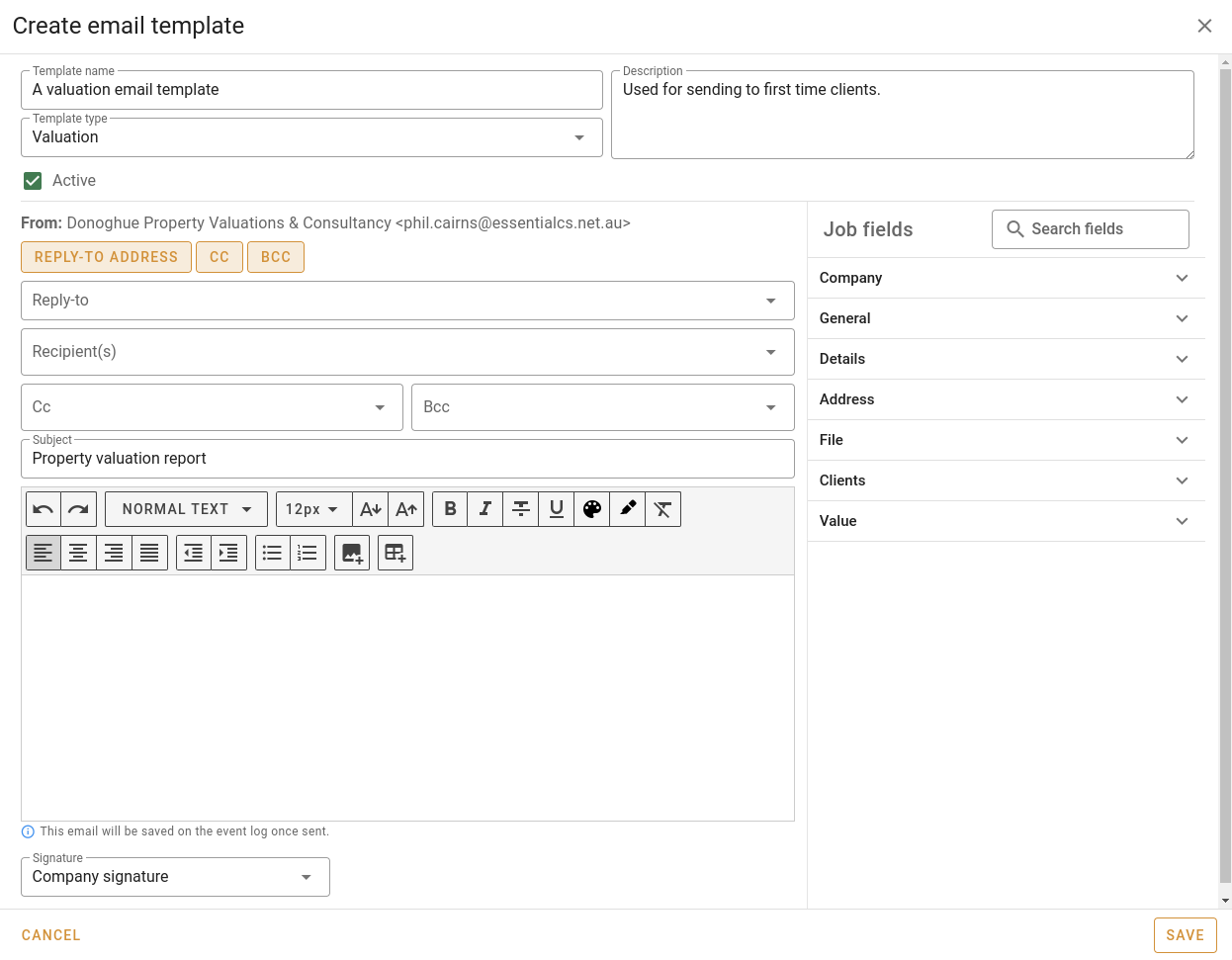
| Field | Description |
|---|---|
| Template name | Name of the template, used when selecting the template from a list. |
| Description | Obvious. |
| Template type | One of Valuation, Quote or Project. This determines when the template will show up in a list. |
| Active | Only active templates will appear in lists. |
| Reply-to address button | Click this button to show the Reply-to entry field. |
| CC button | Tick this button to show the Cc entry field. |
| BCC button | Tick this button to show the Bcc entry field. |
| Reply-to | Select a single role from the dropdown. The system will use this person's email address in the email's "reply to" field. |
| Recipient(s) | Select at least one receipt from the dropdown list. The email will be sent to these people. |
| Cc | If including "CC" recipients, select at least one receipt from the dropdown list. The email will be sent to these people. |
| Bcc | If including "BCC" recipients, select at least one receipt from the dropdown list. The email will be sent to these people, but other recipients won't see their email addresses. |
| Subject | The subject line for the email. If this is a valuation email template, you can include fields from the job in the subject line. |
| Email body | The template for the email body, and you can format the text. If this is a valuation email template, you can include fields from the job in body. |
| Signature | The signature to use in the email. |
Click Save to save the changes that you've made to the email template. This will close the popup.
Read more about sending email and working with the email editor here.
Email template list
The email template list shows all the active email templates, and lets you work with them. By default, only active templates are listed.
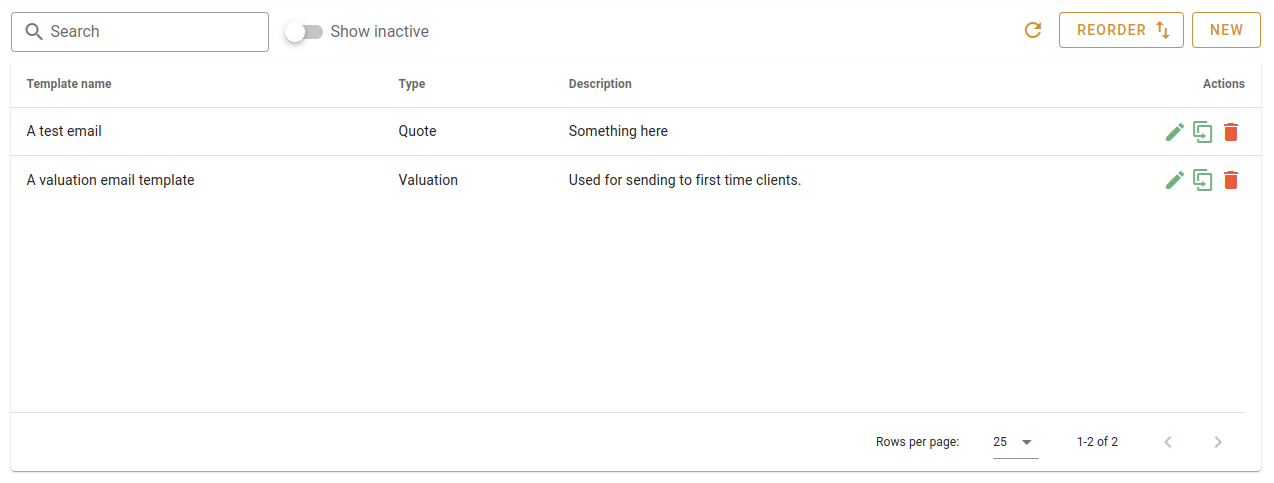
Click in the Search input and type something to find the email templates containing that text.
Turn the Show inactive switch on to see email templates that have been marked as inactive.
Click the Refresh button to refresh the list.
Click the Reorder button to open a popup that will allow you to reorder the email templates by dragging them up or down (see below).
Click the New button to open a popup and edit a new email template (see above).
Click the Edit button at the end of the row to edit an email template.
Click the Duplicate button at the end of the row to clone an email template.
Click the Delete button at the end of the row to delete an email template. You'll be asked to confirm this.
Reordering email templates
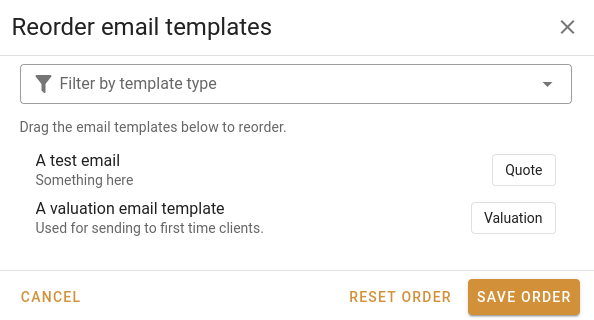
Click Save order to commit your changes to the database.