

System
These settings your entire company.
Company details
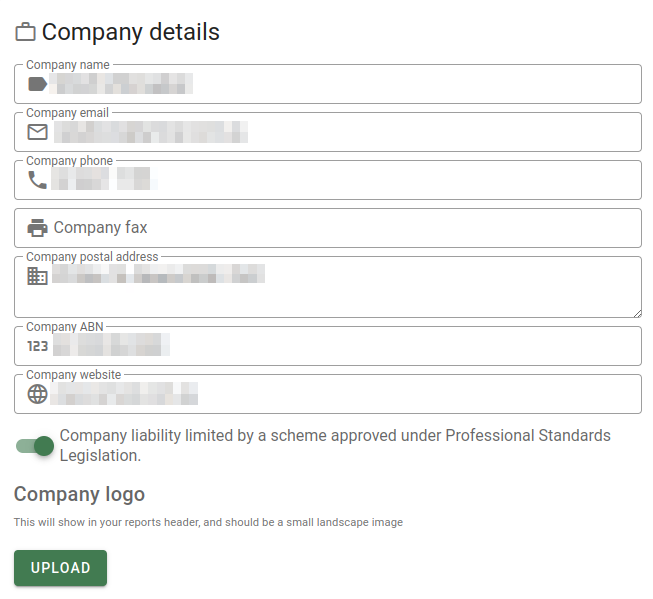
| Setting | Notes |
|---|---|
| Company name | The company name is used in various reports, on the invoice and as a field that you can drop into email and report templates. |
| Company email | The company email is used in various reports, on the invoice and as a field that you can drop into email and report templates. |
| Company phone | The company phone is used in various reports, on the invoice and as a field that you can drop into email and report templates. |
| Company fax | The company fax is used in various reports, on the invoice and as a field that you can drop into email and report templates. |
| Company postal address | The company postal address is used in various reports, on the invoice and as a field that you can drop into email and report templates. |
| Company ABN | The company ABN is used in various reports, on the invoice and as a field that you can drop into email and report templates. |
| Company website | The company website is used in various reports, on the invoice and as a field that you can drop into email and report templates. |
| Liability scheme | Turn this switch on to have the "liability limited" statement appear on reports, on the invoice and as a field that you can drop into email and report templates. |
| Company logo | Click the Upload button to import an image that will be used on your reports and invoices and as a field that you drop into email and report templates. The image should be a fairly small landscape image to fit with the report and invoice layouts. |
Security
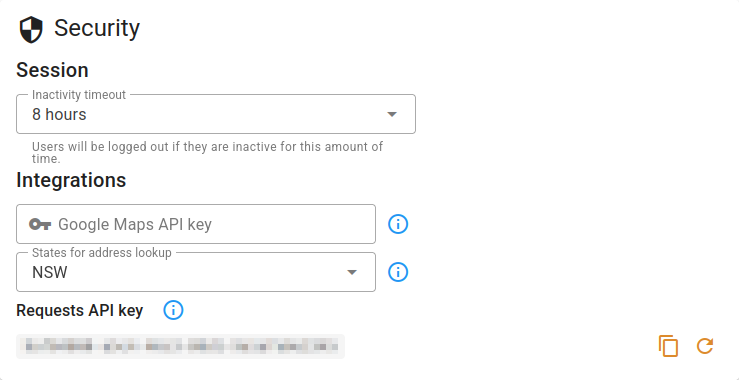
| Setting | Section | Notes |
|---|---|---|
| Inactivity timeout | Session | You can select the period of time after which a user will be logged out if they don't interact with the system. The options are:
|
| Google Maps API key | Integrations | Enter a Google Maps API key to see Street View images of properties for which you have no photos. Click the Info button to learn more. button to learn more. |
| States for address lookup | Integrations | Select any number of states from this list to restrict address lookup suggestions to those states. If no states are selected, suggestions from all Australian states will be shown. Click the Info button to learn more. |
| Requests API key | Requests API key | Generate a key to use the VOW requests API for sending new work requests into VOW from outside the system, such as from your existing website. Can be copied with the Copy button, or reset with the Refresh button, or reset with the Refresh button. button. |
Financial details
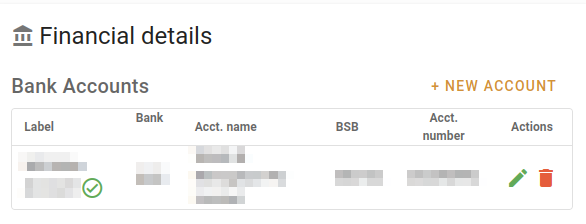
This panel is a list of bank account details with a label that you can use throughout the system when selecting a bank account, and the rest of the regular account details required for transfers.
Your bank account details will show up on invoices.
Add a new account by clicking the + New account button, and use the Edit and Delete
 buttons to update your list.
You can mark one bank account as the primary bank account. This one will be selected by default if the system isn't able to select one by other means.
Jobs
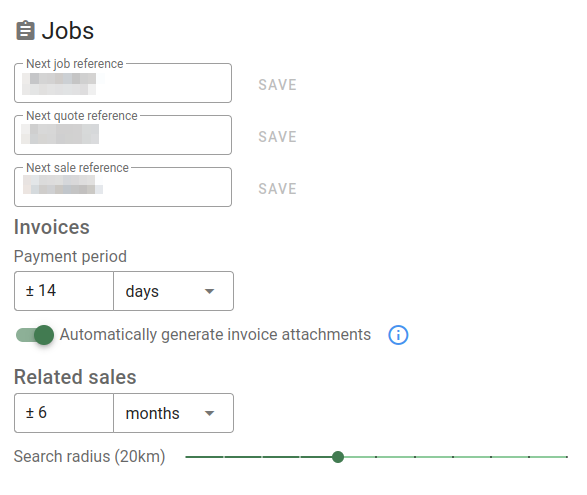
| Setting | Section | Notes |
|---|---|---|
| Next job reference | Jobs | The system will automatically generate sequential job numbers for you. You can set the next job number to be used by entering it here and clicking the Save button. |
| Next quote reference | Jobs | The system will automatically generate sequential quote numbers for you. You can set the next quote number to be used by entering it here and clicking the Save button. |
| Next sale reference | Jobs | The system will automatically generate sequential sale numbers for you. You can set the next sale number to be used by entering it here and clicking the Save button. |
| Payment period | Invoices | Specify invoice payment period in days, weeks, or months. This will be used to determine the invoice due date. |
| Automatic invoice attachments | Invoices | Switch this on to have the system automatically generate your invoice documents and attach them to the job. If this option is switched off, you'll have generate the attachments manually. |
| Search interval | Related sales | Specify the default period of time to search backwards for sales to be used as support for valuations. |
| Search radius | Related sales | Specify the default geographical radius to be used when searching for sales to be used as support for valuations. |
Emails
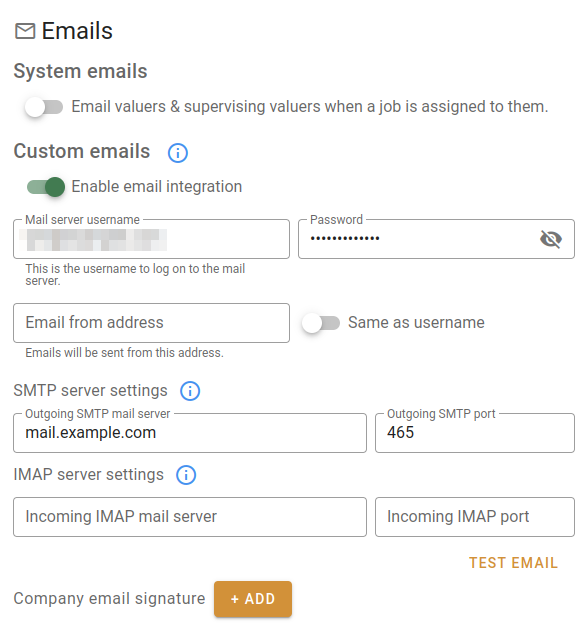
It may be worth talking to your IT support people about this option. VOW has the ability to send emails on your behalf, and have those emails stored in your email account's sent items folder ... but only if the settings are entered correctly.
| Setting | Section | Notes |
|---|---|---|
| Notify valuers | System emails | Switch this option on to have the system notify valuers via email when a job is assigned to them for action. |
| Email integration | Custom emails | Switch this option on to enable custom emails (see the following fields). If this option is not switched on, those fields will be not be visible, and you won't be able to use email templates in the system. |
| Mail server username | Custom emails | This is the identifier you use to log into your mail server. |
| Mail server password | Custom emails | This is the password associated with the identifier you use to log into your mail server. |
| Email from address | Custom emails | Recipients will see this address and replies will be directed to it. Outlook may display this emails as being sent on behalf of this email address. |
| Same as username | Custom emails | Turn this switch on if your sender email address is the same as your username from above. The Email from address field will be disabled and synced to Mail server username. |
| Outgoing SMTP mail server | SMTP server settings | This is the mail server that VOW will ask to send your email. |
| Outgoing SMTP port | SMTP server settings | This is the port that the SMTP mail server will be listening on. |
| Incoming IMAP mail server | IMAP server settings | This is the mail server that VOW will ask to store the sent email. |
| Incoming IMAP port | IMAP server settings | This is the port that the IMAP mail server will be listening on. |
| Test email | IMAP server settings | Click this button to show a popup that will let you send a test email using your settings.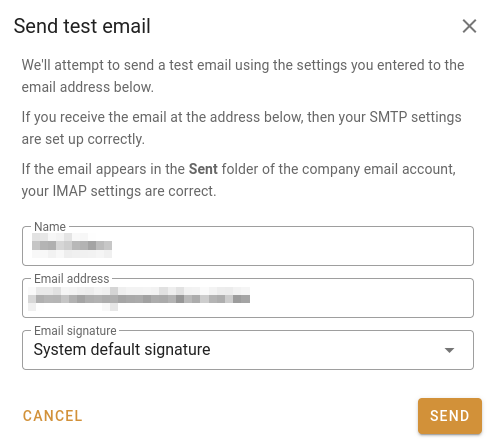 |
| Company email signature | Click the Add button to add a company signature. Your signature can be formatted, and can include images. Once you have a signature saved, the button caption will change to Edit. This signature will be available to select when sending emails after you've added it. |