

Request editor
The request editor is the main interface that you can use to modify the details of an existing of new request. The form follows a similar design to the quote editor, and is shared across the two views and the standalone request page.
Editor panels
Request details
This panel provides fields for the request. Most of these are provided by the user when requests are submitted through the API. In cases where these are incorrectly set, you are free to adjust them as needed.
- Instructions: Special instructions from the client for the work.
- Referral type: How the client was referred to your business.
- Request type: The type of work being requested. Can be Valuation or Quote
- Report type: The type of report being requested.
- Report purpose: Equivalent to the report purpose on a job, or the purpose on a quote.
- Internal short notes: Internal short notes. Equivalent to the same fields on a job or quote's internal notes.
- Internal long notes: Internal long notes. Equivalent to the same fields on a job or quote's internal notes.
The request details panel also includes an informative banner at the top that you can check to determine how a request was created. At present, requests can be created in one of four ways:
- Manually, in VOW, using the editor
- In VOW, through uploading files or pasting text
- Externally through a specifically structured form (API)
- Externally through the upload of unstructured forms or files (API)

Raw request data
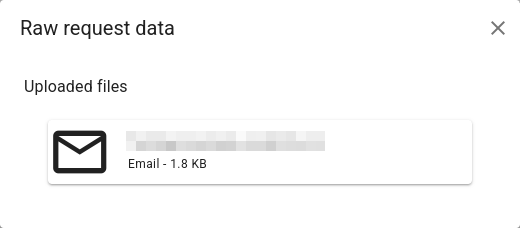
If you need to check the data or files that were used to create a request, you can click the </> button in the request details panel. This shows a dialog that provides the raw text, form values, or files that the request was created from. You can double-click a file to open it in a new tab or download it.
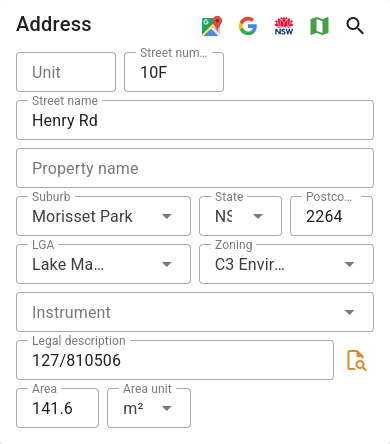
Address
A standard address form, as is present in the quote and job editors. Address details can be entered manually, or you can search for an address and fill in the form automatically.
Address suggestions
When requests are created through the API (as opposed to manually created), VOW will produce a shortlist of suggested addresses based on the provided address fields. If you want, you can select one of these to auto-fill the full address details.
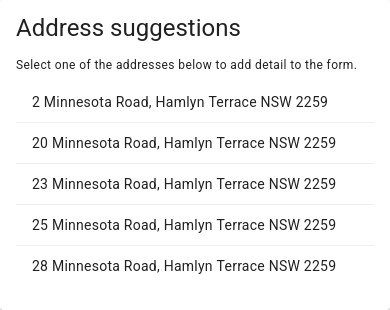
Please be aware that auto-filling an address does not automatically save the request. You must manually save after selecting one of the addresses.
Contacts
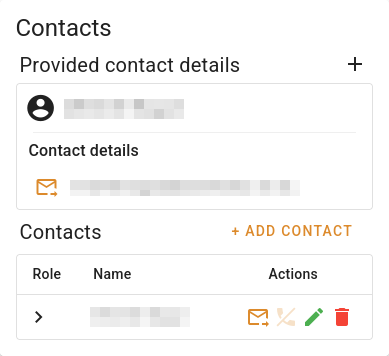
A standard contact form, as is present in the quote and job editors. This contact form also includes a read-only copy of any contact data that is provided by the user from requests provided through the API.
When new requests are created through the API, VOW will attempt to link to an existing contact in the system for you. Where there is no existing contact, you can quickly create one from the provided details using the + button on the right, or add one of the existing contacts by searching for it.
Accepted job/quote
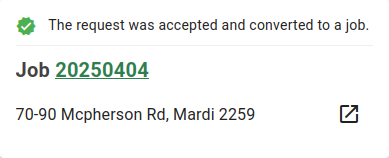
After a request is accepted, this panel provides a quick link to the created quote or job, alongside the address. This is similar to the same panel in the quotes.
Attachments sidebar
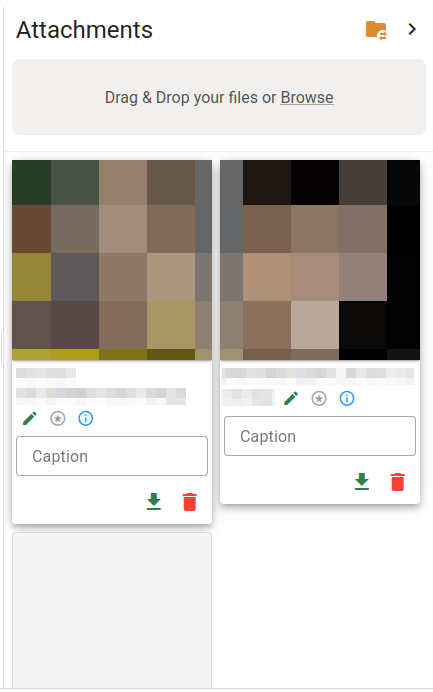
The attachments sidebar allows you to quickly work with the attachments on the request. Attachments can be added, removed, rearranged, or edited here. Any attachments present here are automatically copied to the quote or job when you accept the request. See Attachment panels for more information on working with the attachment sidebar.
Action buttons
| Button | Action |
|---|---|
| Accept | Accepts the request being edited, and opens the corresponding wizard for additional details, depending on the request type field. This button is only visible if the job is pending. |
| Reject | Rejects the current request. This button is also only visible if the job is pending. If the corresponding settings are enabled, both this and the accept buttons will automatically prompt to send an email. |
| Send email | Sends an email to any contacts listed on the request. If you have email integration in VOW, this will open an email editing dialog with the recipients pre-filled. See Sending emails for more information. |
| Save | Saves the current request. |
The action buttons outlined here can be above the editor, or below it, depending on where you're using the editor. For example, they are below the editor in the grid view pop-up, but above it in the inbox view.