

Valuation column view
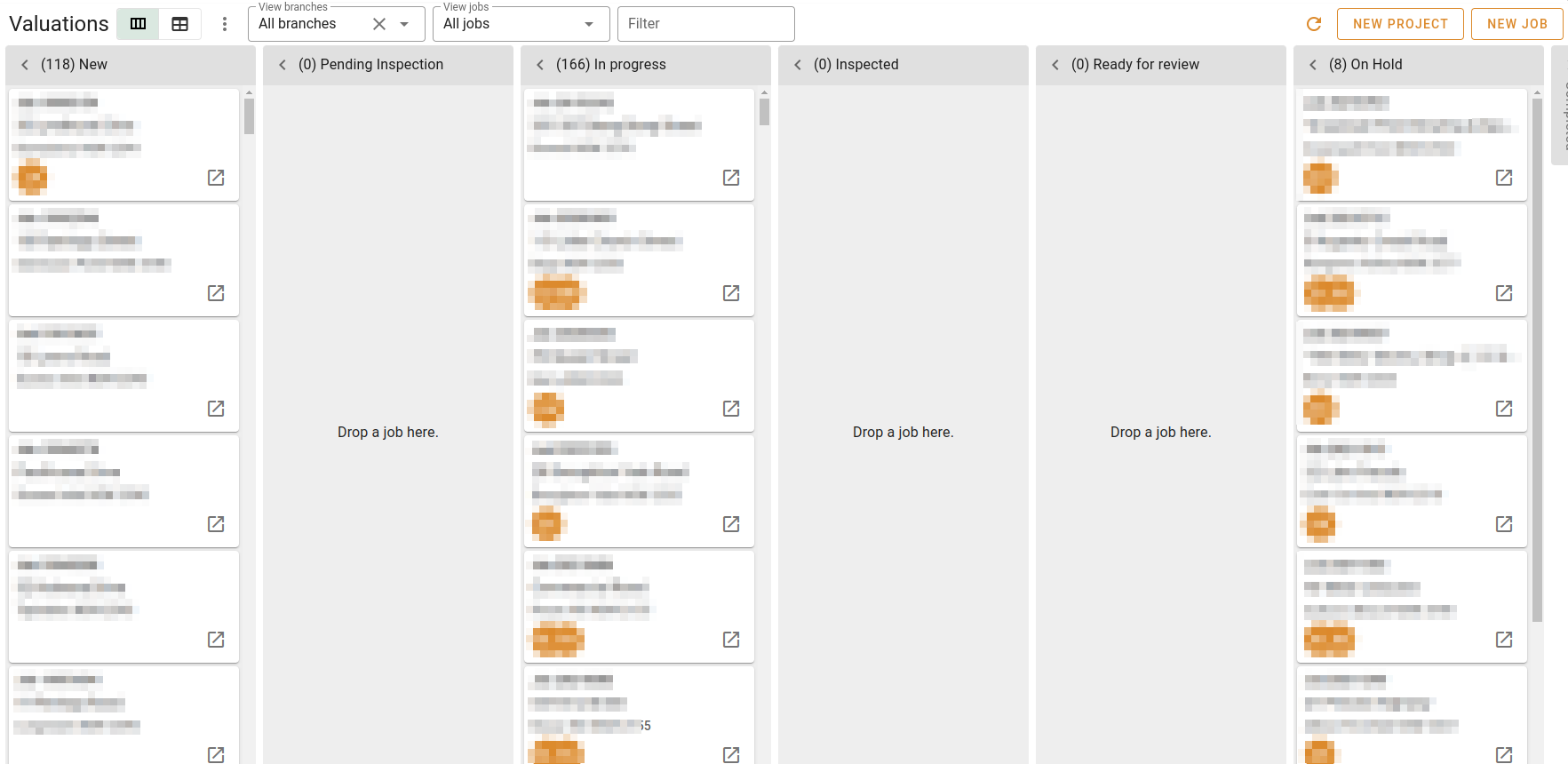
The column view of the valuations is a "swimlane" view. It shows the jobs that are in each status. Where a status is not marked as a "Show jobs in this status", the column will be empty regardless of how many jobs have that status.
View selector
You can click the buttons in the view selector to choose your view. In the image above, the user has chosen to have the column view displayed.
Actions
Pressing the Action button will show you the following popup:
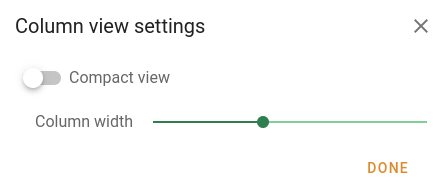
You can choose a compact view for your list items, showing only the job number and the street address, with the valuer icons minimised at the top right; or the regular view, showing the job number, street address, suburb and larger valuer icons under the address.
You can click and drag the circle on the slider to set your column width.
Your changes will be reflected immediately in the column view. Click the Done button when you're finished.
Filters

Filters work together. Using the first two filters, you could say that you want to see the valuations for Jim in the Sydney branch; in addition, you could type "Pitt" to see jobs for properties in Pitt St.
Branches
You can edit your list of branches in Settings | Lists | Branches. The branches in your system will show up in this dropdown, and if you choose a branch, only jobs associated with the selected branch will be shown in the columns.
To clear the filter, click Clear .
.
Jobs
To view only the jobs assigned to a particular valuer, choose an item from the View jobs dropdown.
To go back to view all active jobs in the system, choose All jobs from the dropdown.
Filter
This field is a general filter, and it will search for jobs where the entered text appears in any of the following:
- address
- job number
- name of any client name
- job name
- responsible valuer's name
- supervising valuer's name
- assignee's name
Tools

Refresh
Click the Refresh button to fetch the valuation information from the server again.
New project
Click New project to create a new project. See Working with projects to see more information about projects.
New job
Click New job to create a new job. See Working with valuations to see more information about jobs.