

Users
The list of users will include everyone for whom you have created a user account. Users will be listed alphabetically, but everyone marked as a "Terminated user" will be at the bottom of the list, greyed out.
Click the Edit button at the far right to edit the user.
You can't delete users, but you can deactivate them. Marking a user as a "Terminated user" means that they can't log in, and you don't pay any fees for them, but they'll still show up in historical records.
Creating users
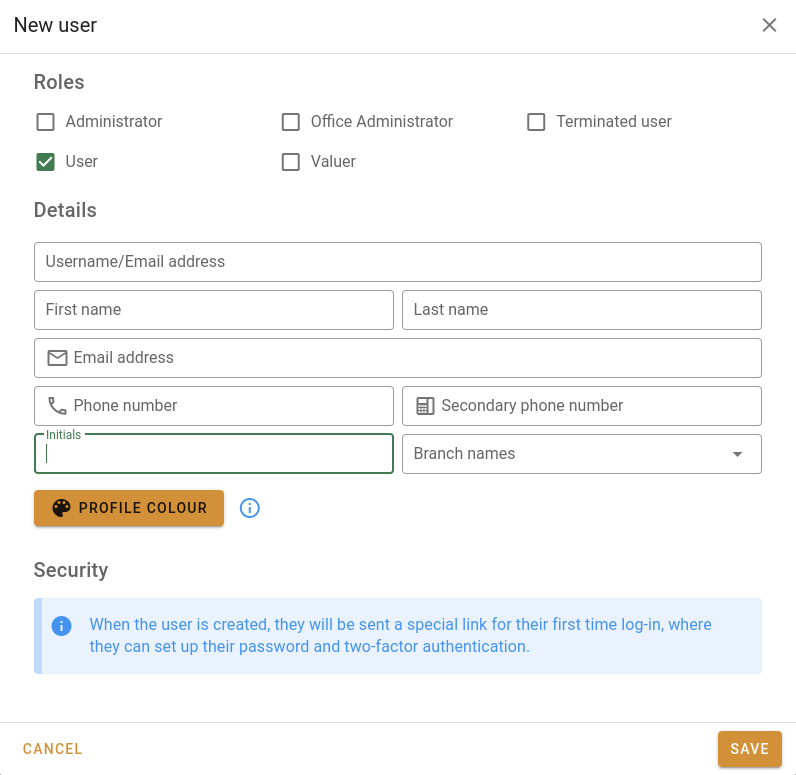
- Choose the roles to associate with the new user. See Roles for more information about these.
- Enter a username for the user. This must be an email address, and once the user is created, this can't be changed. This is the only mandatory field.
- Fill in the appropriate fields, and then click the Save button when you're done.
The system will send an email to the user with a link to the password reset page. They'll have to set their password (see First login) and then scan a QR code to set up two-factor authentication.
Editing users
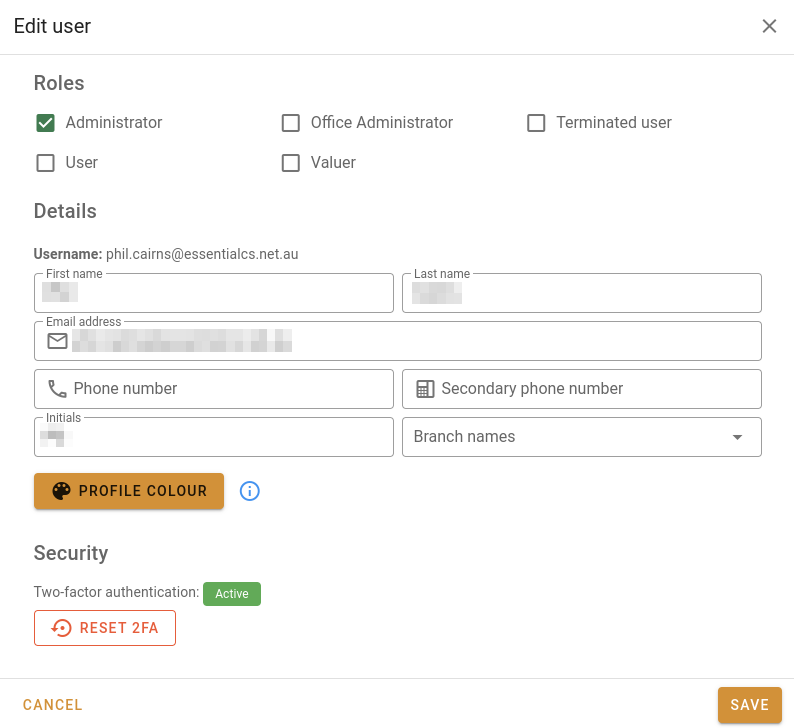
| Field | Section | Notes |
|---|---|---|
| Roles | Roles | You can tick as many roles as you deem appropriate. Please see Roles for a description of the permissions that can be associated with roles. |
| Username | Details | This field is readonly. Once a user account has been created, the username can't be changed. |
| First name | Details | User's given name |
| Last name | Details | User's family name |
| Email address | Details | Address that will appear on reports (if required) and to which system notifications will be sent. |
| Phone number | Details | The user's primary phone number, usually a mobile. |
| Secondary phone number | Details | The user's secondary phone number, usually a landline or desk phone. |
| Initials | Details | The user's initials will be used in a fallback profile picture to tag valuations in the valuation list. |
| Branch names | Details | The branches with which the user can be associated. Choosing the valuer for a valuation will set the valuation's branch to the valuer's first branch. |
| Profile colour | Details | If the user has a profile image, that image will be shown in the valuation list; if not, the system fall back to their initials plus this colour. |
| API registration number | Details | If the user is a valuer, the registration information will be used in valuation reports. |
| Qualifications | Details | If the user is a valuer, the qualifications can be used in valuation reports. |
| Signature image | Details | If the user is a valuer, this signature image can be used in valuation reports. |
| Sender name | Emails | The name that appears on emails sent by this user. Only available when email integration is enabled. |
| Reply-to address | Emails | Users can use this as a reply-to address on emails they send from the system, so that emails come back to them instead of the company sending address. Only available when email integration is enabled. |
| Email Signature | Emails | You can add or edit a user's email signature. Once saved, their signature will be available to them to add to emails they send. |
| Two-factor authentication | Security | To start with, this will state that the authentication is inactive, and the user will be asked to scan a code when they next log in. Once this has been done, this popup will show a button that can reset the user's two-factor authentication, forcing them to scan another QR code. |
| API key | API key | The API key that this user will use with the attachment helper to update files. The key can be regenerated and copied to the clipboard. |
Click Cancel to discard any changes.
Click Save to save any changes.