

Report templates
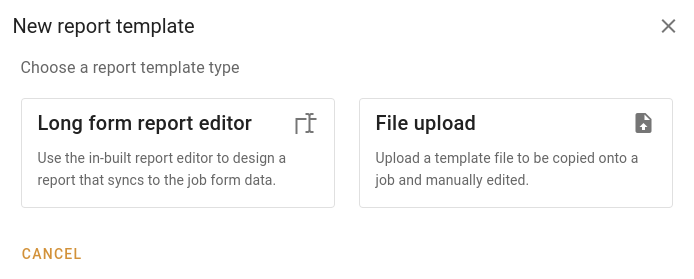
Report templates are used when generating a report for your valuation. There are two types of report templates: long form report templates and uploaded files. When you create a new report template, you get to choose the type from this popup:
Uploaded templates
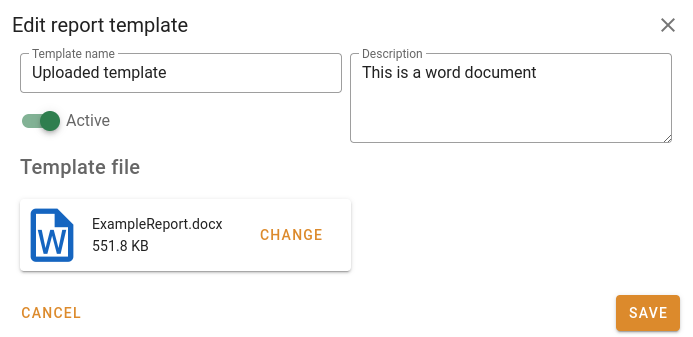
If you choose to upload a file, you can select a document (such as a Microsoft Word document on your computer) to use as a report template. In that case, the report template becomes available when you're creating the report for your valuation. See Working with valuations | Report for more details.
VOW report templates
If you choose to create a long form report, the system will open the report template editor. You can name the template and provide a description in that full-page popup.
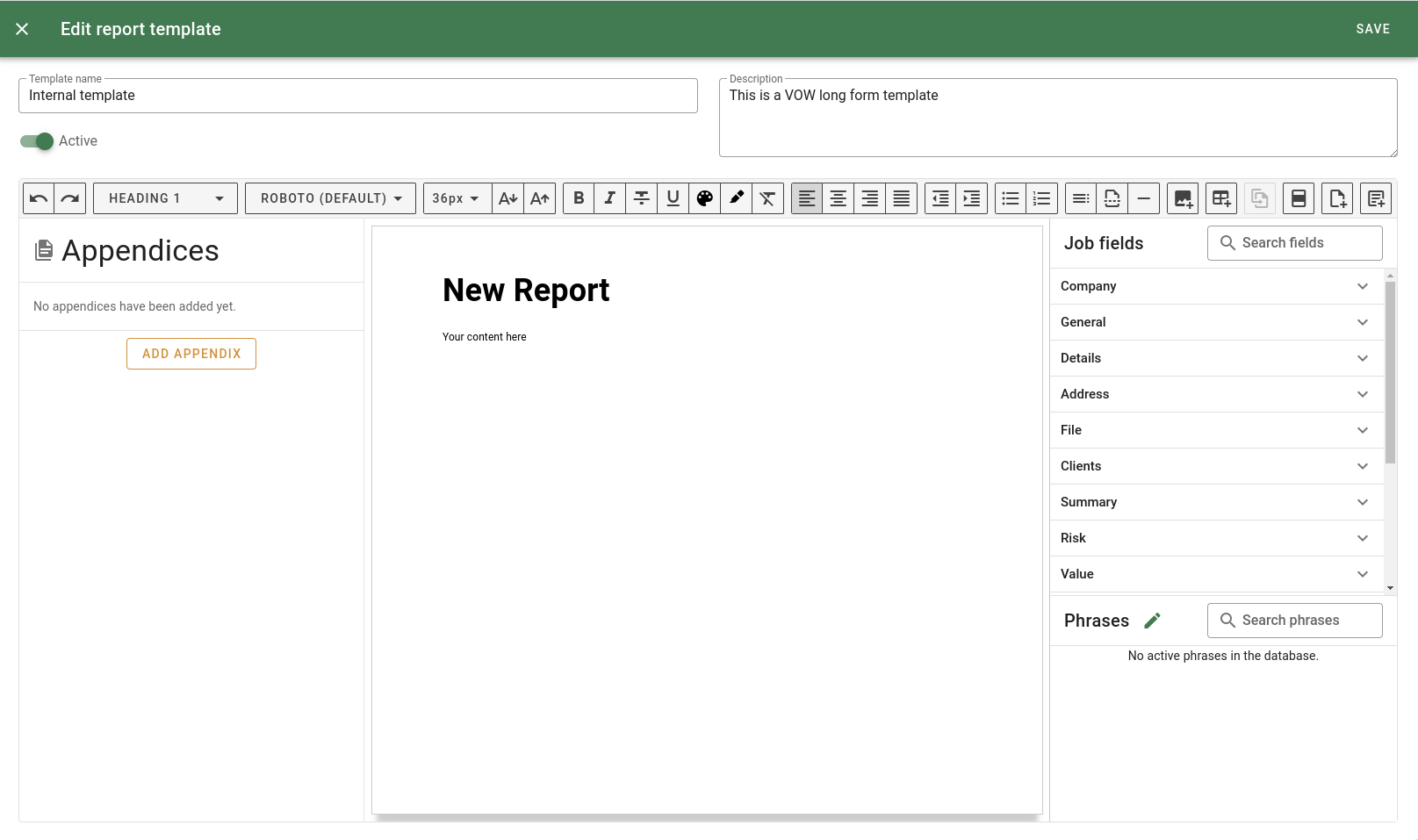
Click Save to save the changes that you've made to the report template. This will not close the popup.
You can close the full-page popup by clicking the Close in the top left of the page.
Read more about the built-in report editor here.
Report template list
The report template list shows all the active report templates, and lets you work with them. By default, only active templates are listed.
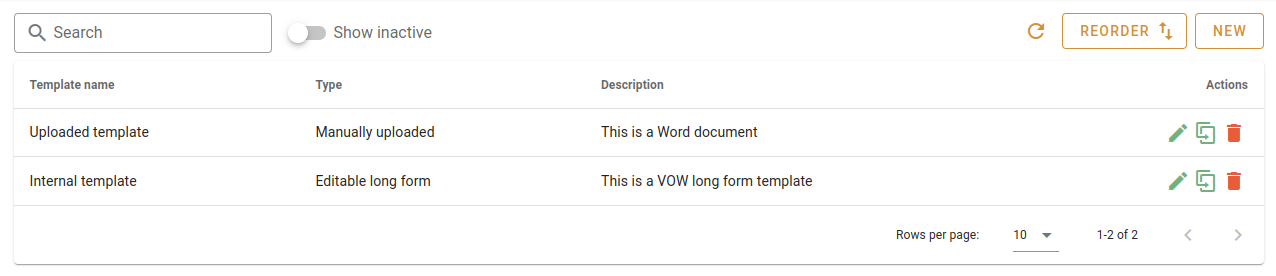
Click in the Search input and type something to find the report templates containing that text.
Turn the Show inactive switch on to see report templates that have been marked as inactive.
Click the Refresh button to refresh the list.
Click the Reorder button to open a popup that will allow you to reorder the report templates by dragging them up or down (see below).
Click the New button to open a popup and select the report template type (see above).
Click the Edit button at the end of the row to edit an internal report template.
Click the Duplicate button at the end of the row to clone an internal report template.
Click the Delete button at the end of the row to delete a report template. You'll be asked to confirm this.
Reordering report templates
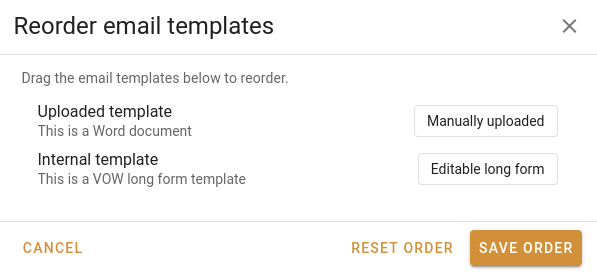
Click Save order to commit your changes to the database.